
Atlassian ACP-610 Practice Exams
Last updated on Oct 22,2026- Exam Code: ACP-610
- Exam Name: Managing Jira Projects for Data Center and Server
- Certification Provider: Atlassian
- Latest update: Oct 22,2026
Your team has been completing work on a fully estimated epic in each of the last four sprints.
Your product owner wants you to predict how many additional sprints will be needed to complete it.
Which single report can provide the information?
- A . Epic Burndown
- B . Sprint Report
- C . Release Burndown
- D . Epic Report
A
Explanation:
An epic burndown chart shows the progress towards completing an epic over time. It is useful for tracking how much work is left to be done and predicting when it will be completed. The epic burndown chart is based on the estimation statistic that is configured for the board (either story points or issue count) and shows the total amount of work remaining in the epic at the end of each sprint. You can use this chart to estimate how many additional sprints will be needed to complete an epic.
Reference: : https://support.atlassian.com/jira-software-cloud/docs/view-and-understand-the-epic-burndown-chart/
Darren wants to analyze the performance of his support teams. Less time in the Waiting for Support status indicates optimal team performance. The report should provide a way to dynamically analyze not only specific days but also specific time frames.
Which report provides this information?
- A . Average Age Report
- B . Recently Created Issues Report
- C . Created vs Resolved Issues Report
- D . Control Chart
- E . Resolution Time Report
D
Explanation:
A Control Chart is the best report to provide the information that Darren wants. A Control Chart shows the cycle time or lead time for your team’s issues, broken down by the time spent in each status. It helps you identify whether data from the current process can be used to determine future performance. Less time in the Waiting for Support status indicates optimal team performance, as it means that the issues are being addressed promptly and efficiently. A Control Chart also provides a way to dynamically analyze not only specific days but also specific time frames, by using the date range selector and the zoom feature. You can also filter the chart by issue type, assignee, label, or any other field.
Reference: Managing Jira Projects Data Center and Server: Certification Bundle, [Control Chart | Jira Software Cloud]
Kim needs a single dashboard gadget that displays the following information for issues in her project:
• the total count of all issues
• the total count of each issue type
• the distribution of each issue type as a percentage
• a graphical chart display of that percentage
Which gadget meets this need?
- A . Heat Map
- B . Two Dimensional Filter Statistics
- C . Filter Results
- D . Issues in progress
- E . Issue Statistics
E
Explanation:
The gadget that meets Kim’s need is the Issue Statistics gadget. This gadget displays the collection of issues returned from a filter, broken down by a field. Kim can configure the gadget to use her project as the filter, and the issue type as the field.
The gadget will then show the following information for issues in her project:
the total count of all issues
the total count of each issue type
the distribution of each issue type as a percentage
a graphical chart display of that percentage
The other gadgets are not suitable because:
The Heat Map gadget displays issues from a project or filter, grouped by a statistic type, in a heat map format. Issues can be grouped by any statistic type (e.g. Status, Priority, Assignee, etc). However, this gadget does not show the total count of all issues, nor the distribution of each issue type as a percentage.
The Two Dimensional Filter Statistics gadget displays issues from a filter in a table format, where each cell shows the number of issues for a given combination of two statistics types (e.g. Status vs Priority, Assignee vs Issue Type, etc). This gadget does not show the total count of all issues, nor a graphical chart display of that percentage.
The Filter Results gadget displays the results of an issue filter on the dashboard. This gadget does not show any summary or breakdown of the issues by any field, nor a graphical chart display of that percentage.
The Issues in Progress gadget displays all issues that are in progress and assigned to the user viewing the dashboard. This gadget does not show any information about other issues or issue types in the project, nor a graphical chart display of that percentage.
Reference: Use dashboard gadgets, Gadgets for Jira applications
A scrum team asks you for a single comprehensive list of issues that were completed in the last sprint-Additionally, they need to know:
• the story points associated with each completed issue
• the issue type of each completed issue
• the description of each issue that has not been completed
Which report or gadget provides the required information?
- A . Burndown Chart report
- B . Sprint Report
- C . Created vs Resolved
- D . Chart gadget
- E . Filter Results gadget
- F . Sprint Health Gadget
B
Explanation:
A Sprint Report is the best report to provide a single comprehensive list of issues that were completed in the last sprint. A Sprint Report shows the scope, status, and completion date of each sprint. It also displays a breakdown of the completed, incomplete, and added issues in the sprint. The team can see the story points associated with each completed issue, as well as the issue type of each completed issue. They can also see the description of each issue that has not been completed by clicking on the issue key or summary. A Sprint Report also helps to track the team’s performance and identify any scope changes during the sprint.
Reference: Managing Jira Projects Data Center and
Server: Certification Bundle, [Sprint Report | Jira Software Cloud]
Paul and Tessa are in the Auditors role of every project.
You need to write a JQL query that shows Issues reported by either of them that are still unassigned.
Select the correct JQL query.
- A . Reporter IN (Paul, Tessa) AND Assignee IS EMPTY
- B . Reporter IN (Auditors) AND assignee – EMPTY
- C . Reporter IN membersOfCAuditors") AND assignee = NULL
- D . Reporter IS Paul OR Reporter IS Tessa AND Assignee IS NULL
- E . (Reporter – Paul OR Reporter C Tessa) AND Assignee – Unassigned
A
Explanation:
The correct JQL query to find issues reported by either Paul or Tessa that are still unassigned is: Reporter IN (Paul, Tessa) AND Assignee IS EMPTY. This query uses the IN operator to specify a list of values for the Reporter field, and the IS EMPTY operator to check if the Assignee field has no value. The other options are incorrect because they use invalid syntax or operators, such as “-”, NULL, or Unassigned. For more information on JQL syntax and operators, see JQL operators and Use advanced search with Jira Query Language (JQL).
Reference: JQL operators, Use advanced search with Jira Query Language (JQL)
A shared dashboard displays a gadget that is based on a shared filter.
Currently, each person who views the gadget sees counts of all the issues in a project by status.
The team’s requirement is that each person who views the gadget will see counts of only their assigned issues by status.
What must you do in order to meet this requirement?
- A . Configure the ‘Who can view this filter" setting.
- B . Reconfigure the dashboard viewers.
- C . Use the currentUser0 JQL function in the filter.
- D . Replace it with the "Assigned to Me" gadget
- E . Modify the Assignable User permission.
C
Explanation:
The best way to meet the team’s requirement is to use the currentUser() JQL function in the filter. This function returns the current user who is viewing the gadget, and can be used to filter issues by assignee. For example, if the filter is “project = ABC and assignee = currentUser()”, then each person who views the gadget will see counts of only their assigned issues by status. This way, you do not need to reconfigure the dashboard viewers or modify the Assignable User permission, which are global settings that affect all users. You also do not need to replace it with the “Assigned to Me” gadget, which does not show counts by status. Configuring the “Who can view this filter” setting does not affect the results of the filter, but only its visibility.
Reference: Managing Jira Projects Data Center and Server: Certification Bundle, [Advanced searching – functions reference | Jira Software Cloud]
A team currently uses a single project to track both features and tasks.
They will be adopting aqile practices, as follows:
• Features will be developed during three week iterations.
• Tasks will be handled based on priority and rank and released incrementally as needed.
they want to use agile boards with minimal disruption to their current configuration.
Which solution will meet their requirements?
- A . a Kanban board in the current project with separate swimlanes per issue type
- B . two Scrum boards for the current project, one for each issue type
- C . a Scrum board in the current project with two quick fillers to show each issue type separately
- D . a second project for tasks with a shared configuration and separate boards per project
- E . a Kanban board for tasks and a Scrum board for features in the current project
E
Explanation:
The solution that will meet the team’s requirements of using agile boards with minimal disruption to their current configuration is to use a Kanban board for tasks and a Scrum board for features in the current project. This way, they can use different agile methodologies for different issue types without creating a new project or changing their existing configuration. They can use a Kanban board for tasks to handle them based on priority and rank and release them incrementally as needed. They can use a Scrum board for features to develop them during three week iterations with sprints and backlogs.
The other solutions are either not feasible or not optimal for their needs. Therefore, the correct answer is E.
Reference: [Creating a board], [Using a Scrum board], [Using a Kanban board]
Your team often accepts new requests from outside groups during an active sprint. You want to see if such frequent scope change mid-sprint is causing bottlenecks.
Which report provides the needed insight?
- A . Control Chart
- B . Burndown Chart
- C . Average Age Chart
- D . Velocity Chart
- E . Cumulative Flow Diagram
E
Explanation:
The Cumulative Flow Diagram is the report that provides the needed insight to see if frequent scope change mid-sprint is causing bottlenecks. The Cumulative Flow Diagram shows the quantity and distribution of work items along different stages of a process over time. The report can help identify potential bottlenecks in the workflow by showing where work items accumulate or stagnate over time. For example, if the report shows a sudden increase or a wide band of work items in the “In Progress” stage, it may indicate that the team is overloaded with work or facing some blockers. If the team often accepts new requests from outside groups during an active sprint, the report can show how this affects the flow of work and the completion of the sprint goal.
Reference: Managing Jira Projects Data Center and Server: Certification Bundle, Cumulative Flow Diagram
Your company recently created an internal IT project to track hardware requests.
View the project configuration below:
Project: Hardware request
Project lead: Allen Frank
Default Assignee: Project lead
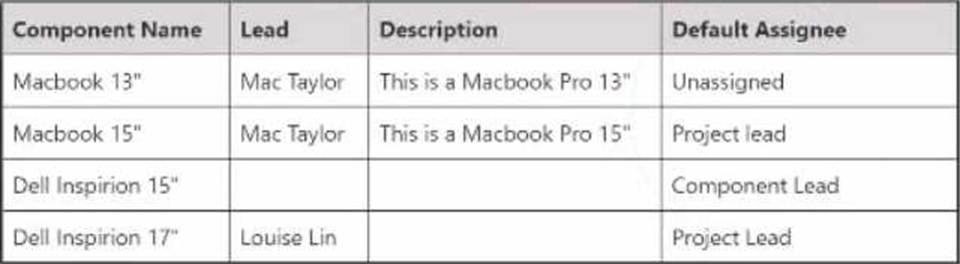
To test the triaging process you create the first issue in the project and select the Macbook 13" component. You don t update the assignee field and leave it to the default value of Automatic.
Based on the current configuration, which value will the assignee field show after creating the test issue?
- A . Allen Frank
- B . Mac Taylor
- C . Automatic
- D . Louise Lin
- E . Unaligned
B
Explanation:
Based on the current configuration, the assignee field will show Mac Taylor after creating the test issue. This is because the Macbook 13" component has Mac Taylor as the component lead and the component/s field has been configured to override the project’s default assignee when using a certain component. Therefore, when creating an issue with the Macbook 13" component, the assignee field will automatically be set to Mac Taylor, regardless of the default assignee of the project or the value of the assignee field before creating the issue34
Reference:
3: What are components? | Jira Software Cloud | Atlassian Support
4: How to enable and edit component/s, affects Version/s and fix version …
You are responsible for three software products with individual release cycles.
Each product is managed in a different project.
Which report can provide an instant progress overview of all fix versions across all projects?
- A . Release Burndown
- B . Pie Chart Report
- C . Version Workload Report
- D . Version Report
- E . Single Level Group By Report
B
Explanation:
The report that can provide an instant progress overview of all fix versions across all projects is the Pie Chart Report. This report allows you to create a pie chart based on any statistic type, such as Fix Version, Project, Issue Type, etc. You can use this report to compare the relative proportions of issues in different fix versions across different projects. For example, you can create a pie chart based on the Fix Version statistic type, and select all the projects that you are responsible for. This will show you how many issues are assigned to each fix version in each project, and what percentage they represent of the total issues. You can also filter the issues by status, priority, assignee, or any other criteria. This report can help you monitor the progress of your releases and identify any potential risks or delays.
To generate a Pie Chart Report, follow these steps1:
Navigate to the project that you want to report on.
From the project sidebar, select Reports.
Select Pie Chart Report from the list of reports.
Select the statistic type that you want to base your pie chart on. In this case, select Fix Version.
Select the projects that you want to include in your report. You can select multiple projects by holding down the Ctrl key (Windows) or Command key (Mac) while clicking on the project names.
Optionally, select a filter to narrow down the issues that you want to include in your report. You can use an existing filter or create a new one.
Click View to generate the report.
You can also access the Pie Chart Report from your dashboard by adding the Jira Chart gadget2. This gadget allows you to display any Jira report on your dashboard.
To add the Jira Chart gadget to your dashboard, follow these steps2:
Navigate to your dashboard and click Add gadget.
Search for Jira Chart and click Add gadget.
Configure the gadget settings as follows:
Select Pie Chart as the chart type.
Select the project or filter that you want to use as the data source.
Select Fix Version as the statistic type.
Optionally, select a series to further break down the data by another statistic type, such as Status or
Priority.
Click Save.
You can also edit or delete the gadget at any time by clicking on the menu icon at the top right corner of the gadget.