
UiPath UiPath-ADAv1 Practice Exams
Last updated on Oct 22,2026- Exam Code: UiPath-ADAv1
- Exam Name: UiPath Automation Developer Associate v1 Exam
- Certification Provider: UiPath
- Latest update: Oct 22,2026
A project built using REFramework pulls phone numbers from a database of employees and creates queue items for each one. Following processing, these elements must be added to a financing application. The queue item holding a phone number becomes invalid if a digit is accidentally left out because of a human mistake. As a requirement, queue items that contain partial numbers should not be accepted.
What type of error should be thrown according to best practices?
- A . Business Exception
- B . Fatal Exception
- C . Application Exception
- D . System Exception
Considering that the attached table is stored in a variable called “dt”.
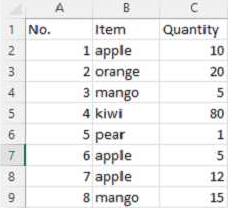
Which LINQ query can be used to return the maximum total Quantity?
- A . dt.AsEnumerable. GroupBy(Function(x)x("Item"). ToString). Max(Function(x)x.Sum(Function(y) Convert.Tolnt32(y("Quantity").ToString)))
- B . dt.AsEnumerable. Max(Function(x) Convert. Tolnt32(x("Quantity"). ToString))
- C . dt.AsEnumerable. Max(Function(x) Convert.Tolnt32(x("Quantity"). ToString))("Item")
- D . dt.AsEnumerable. OrderByDescending(Function(x) Convert. Tolnt32(x("Quantity").ToString)). First.Item("Quantity")
A
Explanation:
https://docs.uipath.com/activities/docs/linq-orderbydescending
HOTSPOT
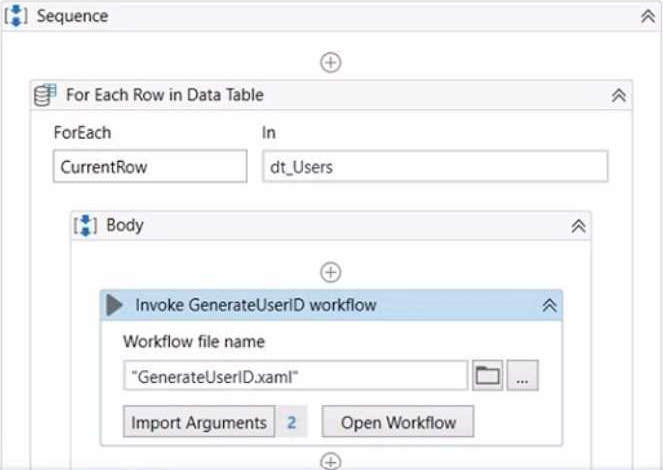
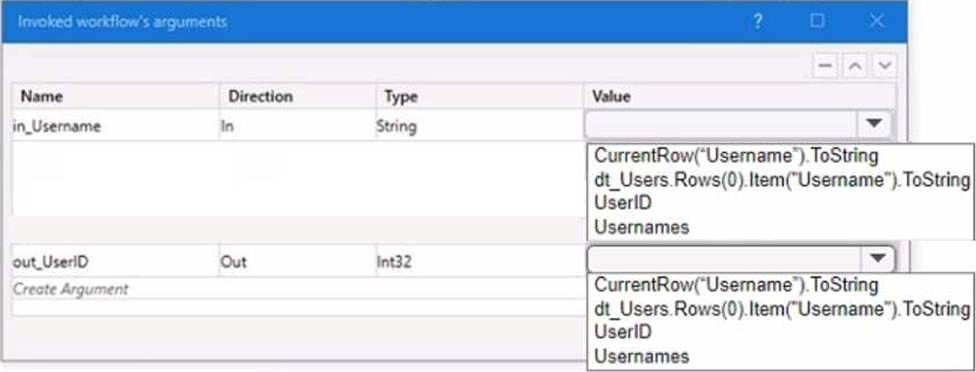
A developer wants to map the arguments that pass data to and from GenerateUserlD.xaml to the appropriate values in Main.xaml. The dt_Users datatable variable contains the columns First Name: Last Name Date of Birth and Username.
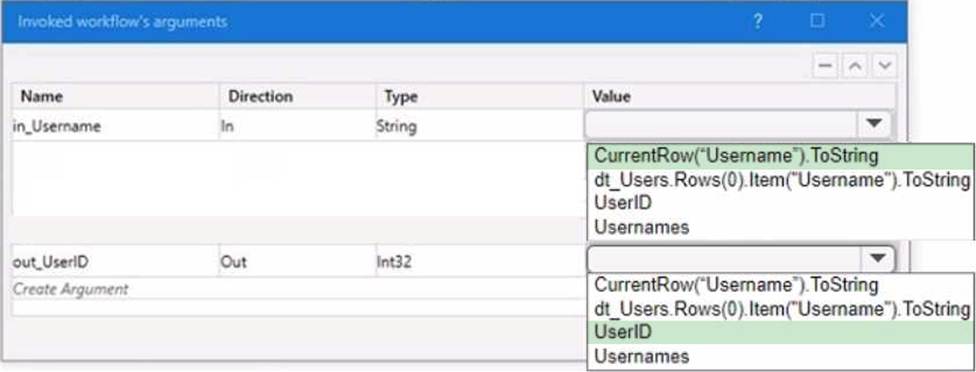
Instructions: From the Value drop-down lists shown in the following exhibit, select the correct variable that corresponds to each argument.

Explanation:
The values to select from the drop-down lists for the in_Username and Out_UserID arguments are:
in_Username: CurrentRow(“Username”).ToString
Out_UserID: UserID
These values will ensure that the in_Username argument receives the value of the Username column from the current row of the dt_Users datatable, and the Out_UserID argument returns the value of the UserID variable that is generated by the GenerateUserID.xaml workflow.
In a process, a variable called "Timestamp" of type Date Time is used. The developer wants to print in the Output panel the variable in the format "yyyy-MM-dd hh:mm".
Which expression should be used to display the value?
- A . Timestamp. ToString("yyyy-MM-dd hh:mm")
- B . Timestamp. ToDate Time("yyyy-MM-dd hh:mm")
- C . Timestamp.Compare To("yyyy-MM-dd hh:mm")
- D . Timestamp. ToString("yyyy MM dd hh mm")
A
Explanation:
To display the value of a DateTime variable in a specific format, the ToString method should be used with the format specified as a string argument. The correct expression for the "Timestamp" variable to display it in the format "yyyy-MM-dd hh:mm" is Timestamp.ToString("yyyy-MM-dd hh:mm").
Reference: Microsoft .NET Documentation: DateTime.ToString Method
A developer indicated a Ul element for a Get Text activity.
The automatically-generated selector is shown below.
<html app=, chrome.exe, title=’temperature now1 />
<webctrl tag=’table’ class=, ui_side_menu’ innertext-19°C 66°F’ />
Based on best practices, which selector attribute is unreliable?
- A . tag
- B . class
- C . title
- D . innertext
D
Explanation:
Based on best practices, the selector attribute that is unreliable is innertext. The innertext attribute is the text content of a UI element, such as a table, a button, or a label. The innertext attribute is unreliable because it can change dynamically depending on the data or the state of the UI element. For example, the innertext attribute of a table can change when the table is updated with new values, or the innertext attribute of a button can change when the button is clicked or disabled. Using the innertext attribute in a selector can cause the selector to fail or to identify the wrong UI element if the text content is different from the expected value1. Therefore, the innertext attribute should be avoided or replaced with a more reliable attribute, such as tag, class, or title. The tag attribute is the name of the HTML element, such as table, button, or input. The tag attribute is reliable because it does not change unless the UI element is replaced with a different element. The class attribute is the name of the CSS class that defines the style or the behavior of the UI element, such as ui_side_menu, btn-primary, or form-control. The class attribute is reliable because it does not change unless the UI element is styled or modified differently. The title attribute is the text that appears when the mouse pointer is hovered over the UI element, such as temperature now, submit, or username. The title attribute is reliable because it does not change unless the UI element is renamed or removed2.
References: Selectors with Wildcards and UiPath Selectors from UiPath documentation and forum.
Given the following list of arguments:
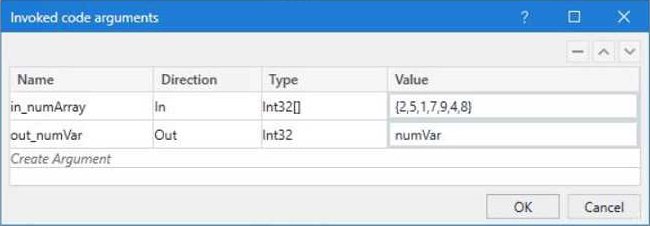
And the following code:
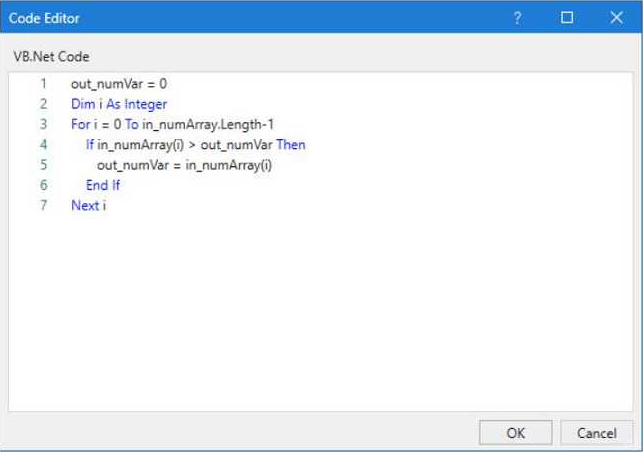
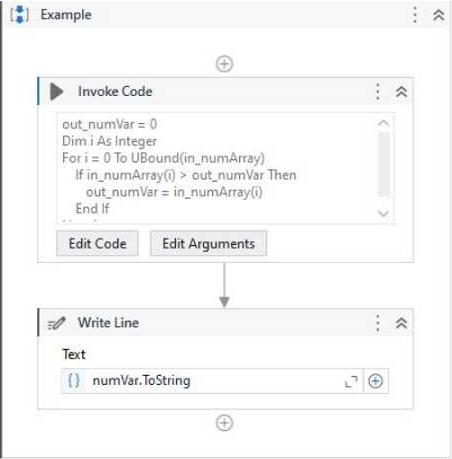
What is the value that will be displayed in the Output Panel at the end of the sequence below:
- A . 1
- B . 2
- C . 7
- D . 9
D
Explanation:
The code in the Invoke Code activity is looping through an array of integers and checking if the current value is greater than the previous value. If it is, the current value is stored in the output variable. Since the last value in the array is 9, this will be the final value of the output variable. (UiPath Studio – Invoke Code – UiPath Academy).
References: Studio – Invoke Code – UiPath Documentation Portal
UiPath Studio – Invoke Code – UiPath Academy
When is the Anchor Base activity used to automate interaction with an application?
- A . When the element selector is reliable but the element’s position on the screen changes
- B . When all the element selectors in the application are reliable
- C . When no element selectors are available in the automated application
- D . When the element selector is not reliable and the element’s position on the screen changes
D
Explanation:
The Anchor Base activity is used to automate interaction with an application when the element selector is not reliable and the element’s position on the screen changes. The Anchor Base activity consists of two parts: an anchor and an action. The anchor is a UI element that has a reliable selector and a fixed position relative to the target element. The action is the activity that performs the desired operation on the target element. The Anchor Base activity uses the anchor to locate the target element based on its relative position (left, right, top, bottom) and then executes the action on it. This way, the automation can handle dynamic and complex UI elements that have unreliable selectors or change their position on the screen.
References: Anchor Base and Example for Anchor Base Activity from UiPath documentation and forum.
What actions must be manually selected in the App/Web Recorder before recording a step?
- A . Copy text using the Get Text activity.
Hover over an element using the Hover activity.
Highlight an element using the Highlight activity. - B . Copy text using the Get Text activity.
Hover over an element using the Hover activity.
Click on buttons, links, and other clickable elements such as icons or images.
Type text in a text area such as a text box.
Select or clear a check box. - C . Select or clear a check box.
Send keyboard shortcuts using your keyboard.
Select an item from a drop-down. - D . Click on buttons, links, and other clickable elements such as icons or images.
Type text in a text area such as a text box.
Select or clear a check box.
Send keyboard shortcuts using your keyboard.
Select an item from a drop-down.
A
Explanation:
The App/Web Recorder is a tool that allows you to record your actions on an application or a web browser and generate activities automatically1. The App/Web Recorder has a toolbar that contains different actions that you can select before recording a step2. Some of these actions are: Click: This action records a click on a button, link, or any other clickable element.
Type: This action records typing text in a text box or any other text area.
Check: This action records selecting or clearing a check box.
Send Hotkey: This action records sending keyboard shortcuts using your keyboard.
Select Item: This action records selecting an item from a drop-down list or any other selector.
These actions are automatically detected and recorded by the App/Web Recorder when you perform them on the application or web browser3. However, there are some actions that are not automatically detected and recorded by the App/Web Recorder, and you need to manually select them from the toolbar before recording a step.
These actions are:
Get Text: This action records copying text from a label, paragraph, or any other text element.
Hover: This action records hovering over an element with your mouse cursor.
Highlight: This action records highlighting an element with a colored border.
These actions are useful for extracting data, triggering events, or identifying elements on the application or web browser4. To use these actions, you need to select them from the toolbar and then indicate the element on the screen that you want to apply them to5.
Therefore, option A is the correct answer, as it lists the actions that must be manually selected in the App/Web Recorder before recording a step. Option B includes some actions that are automatically detected and recorded by the App/Web Recorder, such as Click and Type. Option C also includes some actions that are automatically detected and recorded by the App/Web Recorder, such as Check and Send Hotkey. Option D includes all the actions that are automatically detected and recorded by the App/Web Recorder.
Which of the following statements is true about the existing UiPath Studio installation packages?
- A . The Attended Robot installation package installs only UiPath Studio, and Robot.
- B . The Attended Robot installation package installs only the UiPath Robot.
- C . The Unattended Robot installation package installs only UiPath Studio, Assistant, and Robot.
- D . The Automation Developer installation package installs only UiPath Studio, Assistant, and Robot.
D
Explanation:
The Automation Developer installation package is a standalone installer that allows you to install UiPath Studio, Assistant, and Robot on your computer. This package is suitable for developers who want to create and test automation projects in UiPath Studio. (UiPath Studio – Installation Options – UiPath Academy)
References:
Studio – Installation Options – UiPath Documentation Portal [UiPath Studio – Installation Options – UiPath Academy] [UiPath Studio – Installation Guide – UiPath Academy]
A developer is using the REFramework template to automate a process.
In "SetTransactionStatus" file, there is the following sequence of activities, where the last Log Message activity was added by the developer:
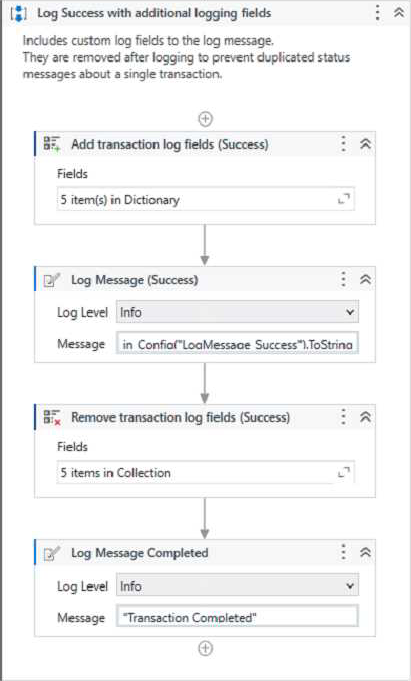
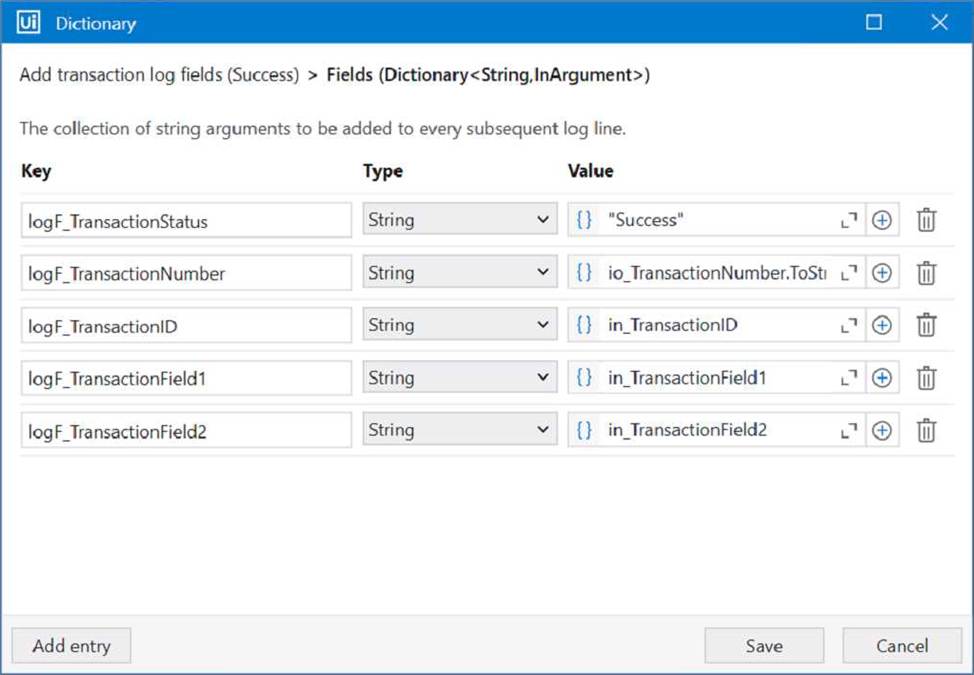
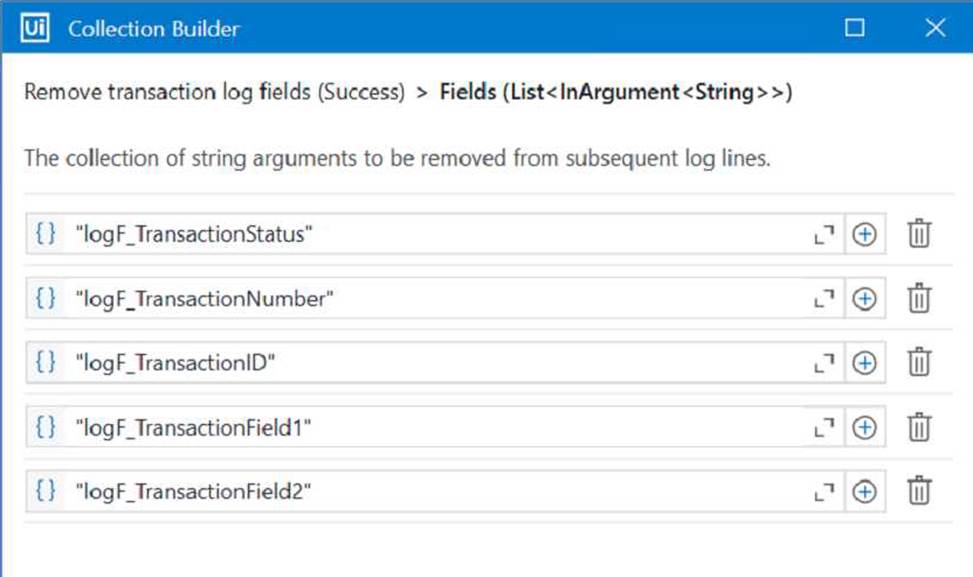
The configuration for Add Log Fields and Remove Log Fields activities are shown below:
Add transaction log fields (Success)
Remove transaction log fields (Success)
The developer runs the process and notices the argument values for the first transaction are:
in_TransactionlD = "07/18/2023 10:27:29"
io_TransactionNumber = 1
in_TransactionField1 = "UI235-80"
in_TransactionField2 = "Update Request"
Which of the following Log Message Details will be displayed when executing the activity Log Message Completed for the first transaction, considering it is successful?
- A . "message": "Transaction Completed",
"level": "Information",
"logType": "User",
"timeStamp": "10:30:19",
"fileName": "SetTransactionStatus",
"processVersion": "1.0.0",
"jobId": "59325301-680a-4d55-a81b-56ca1f369c12",
"robotName": "test.robot",
"machineId": 0,
"logF_TransactionField2": ""
"logF_TransactionStatus":
"logF_TransactionID"; "",
"logF_BusinessProcessName": "Framework",
"logF_TransactionNumber": ""
"logF_TransactionField1":
} - B . "message": "Transaction Completed",
"level": "Information",
"logType": "User",
"timeStamp": "10:30:19",
"fileName": "SetTransactionStatus",
"processVersion": "1.0.0",
"jobId": "cb865477-35f8-4c0a-93e9-e4f4246223f2",
"robotName": "test.robot",
"machineId": 0,
"logF_TransactionField2": "Update Request",
"logF_TransactionID": "07/18/2023 10:27:29",
"logF_BusinessProcessName": "Framework",
"logF_TransactionNumber": "1",
"logF_TransactionField1": "UI235-80",
"logF_TransactionStatus": "Success" - C . "message": "Transaction Completed",
"level": "Information",
"logType": "User",
"timeStamp": "10:30:19",
"fileName": "SetTransactionStatus",
"processVersion": "1.0.0",
"jobId": "f8a36a46-8ebc-40df-8f71-26b39087ebee",
"robotName": "test.robot",
"machineId": 0,
"logF_BusinessProcessName": "Framework"
} - D . "message": "Transaction Completed",
"level": "Information",
"logType": "User",
"timeStamp": "10:30:19",
"fileName": "SetTransactionStatus",
"processVersion": "1.0.0",
"jobId": "59325301-680a-4d55-a81b-56ca1f369c12",
"robotName": "test.robot",
"machineId": 0,
"logF_TransactionField2": empty,
"logF_TransactionStatus": empty,
"logF_TransactionID": empty,
"logF_BusinessProcessName": "Framework",
"logF_TransactionNumber": empty,
"logF_TransactionField1": empty
}
B
Explanation:
The Log Message activity is used to write a diagnostic message at a specified level to the output panel, the log file, and Orchestrator1. The message can include custom log fields that are added by the Add Log Fields activity and removed by the Remove Log Fields activity2. In this case, the developer has added six log fields in the Add transaction log fields (Success) sequence and removed three of them in the Remove transaction log fields sequence. Therefore, the remaining three log fields (logF_TransactionField2, logF_TransactionID, and logF_TransactionStatus) will be displayed along with the default log fields (message, level, logType, timeStamp, fileName, processVersion, jobId, robotName, and machineId) when executing the Log Message Completed activity. The values of the log fields will be taken from the corresponding arguments of the Set Transaction Status activity.
Reference:
Add Log Fields activity documentation from UiPath
Remove Log Fields activity documentation from UiPath
Log Message activity documentation from UiPath