
UiPath UiPath-ADAv1 Practice Exams
Last updated on Oct 21,2026- Exam Code: UiPath-ADAv1
- Exam Name: UiPath Automation Developer Associate v1 Exam
- Certification Provider: UiPath
- Latest update: Oct 21,2026
Which expression correctly converts the string variable "DateString" with the value "03/03/2023 16:23:11" into a Date Time variable?
- A . DateTime.ParseExact(DateString, "dd/MM/yyyy hh:mm:ss", Culturelnfo.InvariantCulture)
- B . Date Time.ParseExact(DateString, "MM/dd/yyyy hh:mm:ss", Culturelnfo.InvariantCulture)
- C . DateTime.ParseExact(DateString, "mm/dd/yyyy HH:mm:ss", Culturelnfo.InvariantCulture)
- D . DateTime.ParseExact(DateString, "dd/MM/yyyy HH:mm:ss", Culturelnfo.InvariantCulture)
D
Explanation:
The DateTime.ParseExact method converts a string into a DateTime object using a specified format and culture1. The format parameter defines the order and symbols of the date and time components in the string2. The culture parameter determines the conventions for date separators, time indicators, and other symbols3.
In this case, the string variable DateString has the value “03/03/2023 16:23:11”, which means the 3rd
of March, 2023, at 4:23:11 PM. To convert this string into a DateTime variable, we need to use the format “dd/MM/yyyy HH:mm:ss”, which matches the order and symbols of the string components. The “dd” represents the day as two digits, the “MM” represents the month as two digits, the “yyyy” represents the year as four digits, the “HH” represents the hour as two digits in 24-hour format, the “mm” represents the minute as two digits, and the “ss” represents the second as two digits2. The slashes (“/”) and colons (“:”) are used as date and time separators respectively. The Culturelnfo.InvariantCulture parameter specifies that the string uses invariant culture, which means it is not associated with any specific language or region3.
Therefore, option D is the correct expression to convert the string variable DateString into a DateTime variable. Option A has a wrong hour format (“hh” instead of “HH”), which would cause an exception if the hour is greater than 12. Option B has a wrong order of day and month (“MM/dd” instead of “dd/MM”), which would result in an incorrect date. Option C has a wrong minute format (“mm” instead of “MM”), which would cause an exception if the month is greater than 12.
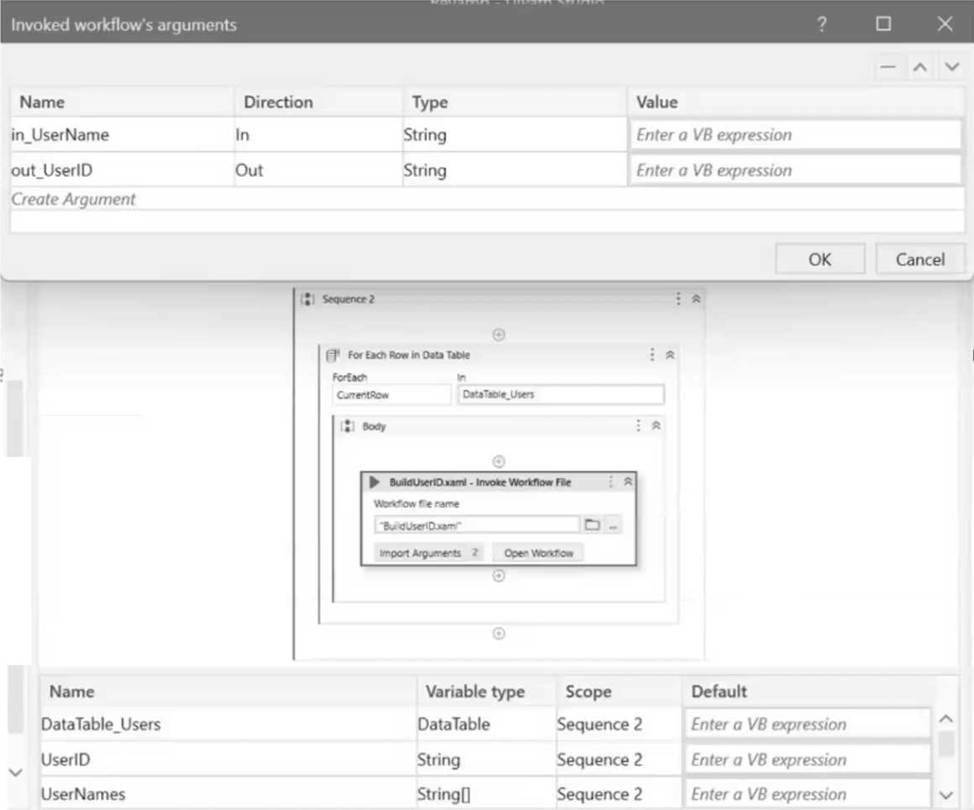
The "DataTable_Users" variable of the data table type contains the following columns: "First Name". "Last Name", "Date of Birth", and "Username".
How can the argument "in_UserName" from "BuildUserID.xaml" be mapped to the appropriate values in "Main.xaml"?
- A . CurrentRow("Username").ToString
- B . DataTable_Users("Username").ToString
- C . UserID
- D . Usernames
A
Explanation:
The argument "in_UserName" from "BuildUserID.xaml" should be mapped to the "Username" column of the current row in the "DataTable_Users" data table. The correct expression for accessing this value is CurrentRow("Username").ToString, which converts the value in the "Username" column of the current row to a string suitable for the argument.
Reference: UiPath Studio Guide: The Variables Panel
The "DataTable_Users" variable of the data table type contains the following columns: "First Name". "Last Name", "Date of Birth", and "Username".
How can the argument "in_UserName" from "BuildUserID.xaml" be mapped to the appropriate values in "Main.xaml"?
- A . CurrentRow("Username").ToString
- B . DataTable_Users("Username").ToString
- C . UserID
- D . Usernames
A
Explanation:
The argument "in_UserName" from "BuildUserID.xaml" should be mapped to the "Username" column of the current row in the "DataTable_Users" data table. The correct expression for accessing this value is CurrentRow("Username").ToString, which converts the value in the "Username" column of the current row to a string suitable for the argument.
Reference: UiPath Studio Guide: The Variables Panel
What is the correct method to check how many resources are utilized in a personal workspace in UiPath Orchestrator?
- A . Navigate to Tenant > Folders, click the All Workspaces tab, and then click Check Resources for the desired workspace.
- B . Navigate to Tenant > Folders, click the Personal Workspaces tab, and then click See Usage for the desired workspace.
- C . Navigate to Tenant > Users, click the Personal Workspaces tab, and then click Resources for the desired workspace.
- D . Navigate to Tenant > Folders, click the Personal Workspaces tab, and then click Manage Resources for the desired workspace.
B
Explanation:
To check how many resources are utilized in a personal workspace in UiPath Orchestrator, you can use the See Usage option that displays the current consumption of resources for each workspace. You can also see the total number of resources allocated to all personal workspaces in your tenant. (Orchestrator – Personal Workspaces – UiPath Academy).
References: Orchestrator – Personal Workspaces – UiPath Documentation Portal Orchestrator – Personal Workspaces – UiPath Documentation Portal Difference Between Tenant and Personal Workspace – Studio – UiPath Forum Personal Workspace in UiPath Orchestrator – mumas
UiPath Personal Workplaces in Orchestrator | UiPath Academy
A developer is working with a Purchase Order automation process. The number of shipped containers and the number of items in each container are extracted in two strings, "ShippedContainers" and "ItemsPerContainer". The robot must calculate the total number of items in all shipped containers, as an Integer.
Which expression is suitable for calculating the total number of boxes?
- A . String. Tolnt32(ShippedContainers) * String. Tolnt32(ItemsPerContainer)
- B . Convert. Tolnt32(ShippedContainers) * Convert.Tolnt32(ItemsPerContainer)
- C . Clnt(ShippedContainers * ItemsPerContainer)
- D . ShippedContainers. Tolnt32() * ItemsPerContainer.Tolnt32()
B
Explanation:
This expression is suitable for calculating the total number of boxes because it converts both strings to integers using the Convert.Tolnt32 method, which is a built-in method in .NET that can handle various formats of numeric strings1. Then, it multiplies the two integers to get the total number of boxes as an integer. The other expressions are not suitable because they either use incorrect syntax or methods that do not exist or are not reliable for converting strings to integers.
Reference: 1: Convert.Tolnt32 Method
Which activity should the developer utilize in order to retrieve all UI elements from a form based on a filter criterion?
- A . Get Ancestor
- B . Export UI Tree
- C . Find Element
- D . Find Children
D
Explanation:
The "Find Children" activity should be used to retrieve all UI elements from a form based on a filter criterion. This activity can be used to find all UI elements that are children of a specified UI element, and it allows for filtering these children according to specified criteria. Therefore, the correct answer is D.
Reference: UiPath Activities Guide: Find Children
What is a recommended way to safely store credential information used in a UiPath automation project?
- A . Store the username and password as hardcoded values with the Private option enabled on activities
- B . Store the username and password in a Config.xlsx Excel file in the Studio project folder
- C . Store the username and password in a single Orchestrator asset
- D . Store the username and password in a Notepad file on the robot’s local machine
C
Explanation:
Storing the username and password in a single Orchestrator asset is a recommended way to safely store credential information used in a UiPath automation project. This way, the credentials are encrypted and stored in a secure location, and can be accessed by the robot at runtime. Orchestrator assets also allow for easy management and updating of the credentials without modifying the workflow.
References: Assets and Managing Assets in Studio from UiPath documentation.
Which of the following best describes the Alerts panel?
- A . A panel that displays summaries of the alerts you subscribed to, received as error reports every ten minutes, or as daily reports.
- B . A panel that displays a more comprehensive list of all alerts.
- C . A panel that displays alerts as they occur.
- D . A panel that displays the most severe five alerts, accessible from the Alerts bell.
D
Explanation:
The Alerts panel is a feature of the UiPath Orchestrator that shows the most critical alerts related to robots, queue items, triggers, and more1. The alerts are displayed in descending order of severity and time2. The Alerts panel can be accessed by clicking the Alerts bell icon on the top-right corner of the Orchestrator dashboard3. Clicking an alert in the panel redirects the user to the custom filtered page of the associated component4.
How can a user change the profile from UiPath Studio to UiPath StudioX from the backstage view?
- A . By going to Home – Settings – Design – Change profile and clicking on the UiPath StudioX profile, then clicking "Yes" when prompted to restart the application.
- B . By going to Home – Tools – Design – Change profile and clicking on the UiPath StudioX profile, then clicking "Yes" when prompted to restart the application.
- C . By going to Home – Settings – License and profile – Change profile and clicking on the UiPath StudioX profile, then clicking "Yes" when prompted to restart the application.
- D . By going to Home – Settings – Locations – Change profile and clicking on the UiPath StudioX profile, then clicking "Yes" when prompted to restart the application.
C
Explanation:
To change the profile from UiPath Studio to UiPath StudioX, a user needs to go to Home, then Settings, select License and Profile, choose Change Profile, and click on the UiPath StudioX profile. After that, the user must confirm the profile change and agree to restart the application for the changes to take effect. Thus, the correct answer is C.
Reference: UiPath Studio Guide: Switching Between Profiles
A developer has defined a variable named "CurrentDate" of type Date Time.
Which of the following expressions can be used to show what hour was 12 hours prior to the date from the variable?
- A . CurrentDate.AddHours(-12).Hour
- B . Date Time.SubtractHours(CurrentDate, 12).Hour
- C . CurrentDate.SubtractHours(12).Hour
- D . Date Time.AddHours(CurrentDate, -12).Hour