
Nutanix NCP-MCI-6.10 Practice Exams
Last updated on Oct 07,2026- Exam Code: NCP-MCI-6.10
- Exam Name: Nutanix Certified Professional - Multicloud Infrastructure (NCP-MCI v6.10)
- Certification Provider: Nutanix
- Latest update: Oct 07,2026
What is required to create a category in Nutanix?
- A . A name and a value
- B . A policy and an entity
- C . A service and a scope
- D . A catalog and a template
A
Explanation:
Categories in Nutanix are used to group resources and require only a name and a value for definition.
Option A (A name and a value) is correct:
Categories require a name (e.g., "Production VMs") and a value (e.g., "Tier 1").
These are then applied to VMs, storage, and other resources for policy-based management.
Option B (Policy and Entity) is incorrect:
Policies use categories but are not required to define a category.
Option C (Service and Scope) is incorrect:
Categories do not require services or a defined scope.
Option D (Catalog and Template) is incorrect:
These apply to self-service provisioning, not categories.
Reference: Nutanix Prism Central Guide → Creating and Managing Categories Nutanix KB → Using Categories for RBAC and VM Grouping
Refer to Exhibit:
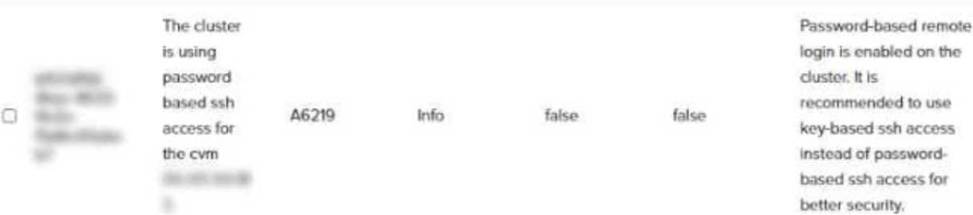
An administrator sees the alert shown in the exhibit.
What should the administrator do to ensure the nutanix user can no longer SSH to a CVM using a password?
- A . Rename the nutanix user.
- B . Block port 22 on the CVM firewall.
- C . Enable Cluster Lockdown.
- D . Delete the nutanix user.
C
Explanation:
Understanding the Exhibit & the Alert
The alert states:
"The cluster is using password-based SSH access for the CVM."
"Password-based remote login is enabled on the cluster."
"It is recommended to use key-based SSH access instead of password-based SSH access for better security."
This means that the nutanix user can log in to Controller VMs (CVMs) using a password, which is a security risk.
Corrective Action: Enabling Cluster Lockdown
✅ (C) Enable Cluster Lockdown. (Correct Answer)
Cluster Lockdown Mode restricts password-based SSH access and forces key-based authentication.
This prevents users from logging into CVMs using passwords, enhancing cluster security.
To enable Cluster Lockdown:
Go to Prism Central or Prism Element.
Navigate to Settings → Security → Cluster Lockdown.
Enable Cluster Lockdown Mode.
Evaluating the Other Answer Choices
❌ (A) Rename the nutanix user. (Incorrect)
The nutanix user is a built-in system account required for cluster operations.
Renaming the user will not prevent SSH access via password.
❌ (B) Block port 22 on the CVM firewall. (Incorrect)
Blocking port 22 (SSH) will completely disable SSH access, including key-based authentication.
This may break cluster management and troubleshooting operations.
❌ (D) Delete the nutanix user. (Incorrect)
The nutanix user is a critical system account required for cluster functionality. Deleting the account will cause serious issues with cluster management. Multicloud Infrastructure Reference & Best Practices Nutanix Security Best Practices:
Always use key-based SSH authentication instead of password-based logins.
Enable Cluster Lockdown Mode to enforce security policies.
Regularly audit user access to ensure security compliance.
Cluster Lockdown Benefits:
Prevents unauthorized SSH access via passwords.
Enforces public key authentication, reducing brute-force attack risks.
Strengthens CVM security against potential exploits.
Reference: Nutanix Security Guide → Enabling Cluster Lockdown for SSH Security Nutanix KB → Securing SSH Access on Nutanix Clusters
Which two URLs must be accessible from a Connected Site’s Controller VMs to allow Life Cycle Manager (LCM) to download software updates?
- A . download.nutanix.com
- B . mynutanix.com
- C . release-api.nutanix.com
- D . portal.nutanix.com
A, C
Explanation:
LCM (Life Cycle Manager) fetches software updates from Nutanix’s repositories, requiring access to specific URLs.
Option A (download.nutanix.com) is correct:
This domain hosts all software update files for AOS, AHV, and other Nutanix components.
Option C (release-api.nutanix.com) is correct:
This domain is used for LCM to fetch update metadata and check for new versions.
Option B (mynutanix.com) is incorrect:
This domain is used for account management, not LCM updates.
Option D (portal.nutanix.com) is incorrect:
The Nutanix support portal is not used for automated LCM updates.
Reference: Nutanix LCM Guide → Firewall Rules for LCM Connectivity Nutanix KB → Troubleshooting LCM Update Failures
An administrator needs to create a storage container for VM disks.
The container must meet the following conditions:
10 GiB of the total allocated space must not be used by other containers.
The container must have a maximum storage capacity of 500 GiB.
What settings should the administrator configure while creating the storage container?
- A . Set Advertised Capacity to 10 GiB and Reserved Capacity to 500 GiB.
- B . Set Advertised Capacity to 10 GiB.
- C . Set Reserved Capacity to 500 GiB.
- D . Set Reserved Capacity to 10 GiB and Advertised Capacity to 500 GiB.
D
Explanation:
Nutanix storage containers allow administrators to configure capacity reservations and advertised limits for better resource management.
Option D (Set Reserved Capacity to 10 GiB and Advertised Capacity to 500 GiB) is correct: Reserved Capacity ensures that 10 GiB is always available for this container and not consumed by other containers.
Advertised Capacity defines a logical limit of 500 GiB to prevent over-allocation.
Option A is incorrect:
Advertised Capacity of 10 GiB is too low and does not match the requirement of a 500 GiB storage container.
Option B is incorrect:
Only setting Advertised Capacity does not guarantee Reserved Capacity, meaning other containers could consume the reserved space.
Option C is incorrect:
Setting only Reserved Capacity does not enforce an upper limit, which could lead to overprovisioning.
Reference: Nutanix Storage Management Guide → Understanding Storage Container Settings Nutanix KB → Advertised vs. Reserved Capacity in Storage Containers
An administrator receives an alert in Prism stating:
"Storage container <container_name> on cluster <cluster_name> will run out of storage resources in approximately 1 day."
However, the cluster has plenty of available space remaining.
What configuration setting is causing the container to run out of space while the cluster has space remaining?
- A . Advertised Capacity is set too low.
- B . Reserved Capacity is set too high.
- C . Compression is set too low.
- D . Replication Factor is set too high.
B
Explanation:
Reserved Capacity settings define how much storage is exclusively allocated for a specific container.
Option B (Reserved Capacity is too high) is correct:
If too much space is reserved for a container, it can report "out of space" while the cluster still has free capacity.
Options A, C, and D are incorrect:
Advertised Capacity, Compression, and RF settings do not directly cause storage exhaustion unless
misconfigured with Reserved Capacity.
Reference: Nutanix Storage Best Practices → Configuring Reserved and Advertised Capacity Nutanix KB → Troubleshooting Storage Container Out-of-Space Alerts
A Disaster Recovery administrator has set up a Protection Policy for 50 workloads, all configured similarly.
The RPO is 60 minutes with a specified retention of 10 local copies, 5 remote copies, and crash consistency.
After activation, recovery points are not appearing at the DR site, even though they are visible on the production side.
What is the most likely issue?
- A . Nutanix Guest Tools (NGT) is not installed on the source VMs.
- B . Windows updates need to be applied to all affected VMs.
- C . The storage container name on the DR cluster does not match the production cluster.
- D . The storage container RF factor does not match in both clusters.
C
Explanation:
For Disaster Recovery to function correctly, the source and destination storage containers must have identical names.
Option C (Storage container name mismatch) is correct:
If the storage container name at the DR site does not match, Nutanix cannot map snapshots and replication data.
This causes failover operations to fail, even though data exists.
Option A (NGT not installed) is incorrect:
NGT is needed for application-consistent snapshots, but not required for crash-consistent snapshots.
Option B (Windows updates) is incorrect:
OS updates do not affect replication availability.
Option D (Storage RF factor mismatch) is incorrect:
Replication works across different RF factors, but performance may vary.
Reference: Nutanix Disaster Recovery Guide → Requirements for Remote Replication Nutanix KB → Storage Container Mapping for Protection Domains
An administrator observes an alert in Prism for a hybrid SSD/HDD cluster:
"Storage Pool SSD utilization consistently above 75%."
What is the potential impact of this condition?
- A . The cluster is unable to sustain an SSD disk failure.
- B . The cluster may be nearly out of storage for metadata.
- C . The cluster is at risk of entering a read-only state.
- D . Average I/O latency in the cluster may increase.
D
Explanation:
High SSD utilization in a hybrid cluster can lead to increased I/O latency as new writes may spill over to HDDs, reducing overall performance.
Option D (Average I/O latency in the cluster may increase) is correct:
If SSD usage is above 75%, data tiering shifts to slower HDDs, increasing latency.
Option A is incorrect:
SSD failures are managed via redundancy policies (RF2/RF3), and high utilization does not impact
failure handling.
Option B is incorrect:
Metadata is stored separately, and high SSD usage does not mean metadata is at risk.
Option C is incorrect:
Clusters do not go into read-only mode due to high SSD utilization―they simply experience performance degradation.
Reference: Nutanix Storage Performance Guide → SSD Tiering and Performance Management Nutanix KB → Managing High SSD Utilization in Hybrid Clusters
An administrator needs to perform an LCM upgrade on an AHV host with GPUs.
What additional step is required before upgrading the host?
- A . Create an agent VM on each host that has GPU drivers installed.
- B . Run LCM in dark site mode so it can update AHV independently.
- C . Use Direct Uploads to upload appropriate driver bundles.
- D . Update NCC to the latest version and re-run Inventory.
C
Explanation:
Upgrading an AHV host with GPUs requires that the correct GPU drivers be manually uploaded to LCM, as GPU firmware is not updated automatically.
Option C (Use Direct Uploads to upload appropriate driver bundles) is correct:
LCM does not automatically fetch GPU drivers.
The administrator must download and manually upload the appropriate firmware bundle before upgrading.
Option A is incorrect:
Agent VMs are not required for GPU updates.
Option B is incorrect:
Running LCM in dark site mode does not impact GPU firmware updates.
Option D is incorrect:
Updating NCC is a best practice but does not resolve GPU driver issues.
Reference: Nutanix LCM Guide → Manually Uploading GPU Firmware Bundles Nutanix KB → Updating AHV Hosts with GPUs
Which two entities can be categorized? (Choose two.)
- A . Storage Containers
- B . Alerts
- C . Virtual Machines
- D . ISO Images
B, C
Explanation:
In Nutanix Prism Central, categories allow administrators to group and organize entities for management, automation, and policy enforcement.
Alerts (Option B) can be categorized to group similar system events and create filtering rules. Virtual Machines (Option C) can be categorized to apply security policies, automation tasks, and resource allocation rules.
Option A (Storage Containers) cannot be categorized in Prism Central. Storage policies apply at the container level but are not managed via categories.
Option D (ISO Images) cannot be categorized because ISOs are static objects, not active entities.
Reference: Nutanix Prism Central Guide → Working with Categories
Nutanix Bible → Category-Based Management and Security Policies Nutanix KB → Using Categories for VM Management in Prism Central
An administrator has successfully configured Metro Availability for a Protection Domain. However, after a few days, an NCC warning is raised:
"Following VMs are accessing data from remote clusters: VM-1 from remote cluster Remote-ML" What is the first action an administrator must take to fix the issue?
- A . Run the command: ncli pd list metro-avail=true | egrep "Protection Domain Stretch Role" | grep "ACTIVE"
- B . Use must-affinity rules to avoid automated VM migration to the standby datastore.
- C . Migrate the VM to its primary site and set appropriate rules for DRS and affinity.
- D . Run the command: ncc health_checks metro_availability_checks data_locality_check –cvm_list=X.X.X.20
C
Explanation:
Metro Availability requires that VMs always read data from their primary site to maintain optimal performance and prevent remote data access latency.
Option C (Migrate the VM to its primary site and set appropriate rules) is correct:
If a VM fails over to the secondary site but is still running in the primary site, it will read data remotely, causing high latency and performance issues.
The solution is to migrate the VM back to the primary site and configure DRS rules or host affinity
settings to prevent unwanted movement.
Option A is incorrect:
The command lists active Metro Availability protection domains but does not resolve the issue.
Option B is incorrect:
Must-affinity rules can help, but they should be configured after migrating the VM back to the
primary site.
Option D is incorrect:
Running NCC health checks will only diagnose the issue, not resolve it.
Reference: Nutanix Bible → Metro Availability and Data Locality
Nutanix Best Practices → VM Affinity Rules for Metro Availability Nutanix KB → Troubleshooting Remote Data Access in Metro Availability