
Nutanix NCP-MCA Practice Exams
Last updated on Nov 21,2026- Exam Code: NCP-MCA
- Exam Name: Nutanix Certified Professional - Multicloud Automation (NCP-MCA) 6 Exam
- Certification Provider: Nutanix
- Latest update: Nov 21,2026
An administrator needs to send a notification to the on-call administrator if a specific mission-critical VM is rebooted after hours, as well as send an email to the Operations team for any other VMS that reboot.
What two actions should the administrator take to accomplish this task? (Choose two.)
- A . use Conditional Playbook
- B . Create Playbook using Manual Trigger
- C . Create Playbook using Alert.
- D . Use Branch Action
AC
Explanation:
The administrator should use a conditional playbook and create a playbook using alert to accomplish this task. A conditional playbook is a type of playbook that allows the administrator to define different actions based on certain conditions or criteria1. A playbook using alert is a type of playbook that is triggered by an alert policy that monitors the VM status2. By using these two features, the administrator can create a playbook that checks if the rebooted VM is the mission-critical VM and sends a notification to the on-call administrator, or else sends an email to the Operations team.
Reference: Nutanix Multicloud Automation Administration (NMCAA) course, Module 3: Nutanix X-Play, Lesson 2:
Nutanix X-Play Playbooks, Topic: Conditional Playbooks
Nutanix Multicloud Automation Administration (NMCAA) course, Module 4: Nutanix Calm
Governance, Lesson 2: Nutanix Calm Alerts, Topic: Alert Policies and Playbooks
Nutanix Certified Professional – Multicloud Automation (NCP-MCA) v6.5 Exam Blueprint Guide, Section 1: Describe and Differentiate Automation Concepts and Principles, Objective 1.3: Define the components of X-Play
Refer to the exhibit.
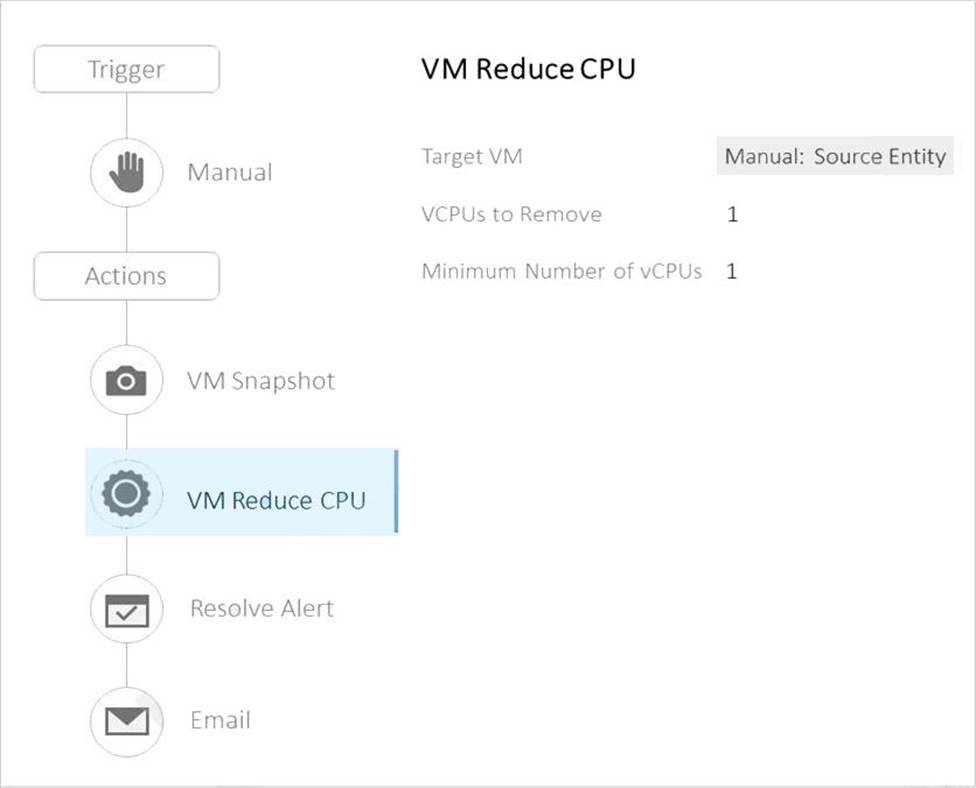
An administrator created the Playbook shown in the exhibit to allow for manual reduction of vCPU count on any selected VM within their environment. During a test run of the play on one of the VMs running in development, the administrator ran into an error that the Playbook cannot be completed against the selected VM.
Here are the details of the affected VM:
VM Name: VM2
vCPU: 4
RAM: 8 GB
OS: Windows 2016
Hypervisor: AHV
What caused this Playbook to fail?
- A . This play cannot be executed against a VM on AHV.
- B . The VM needs to be powered off before vCPU can be reduced.
- C . Reduction of vCPU cannot be done on a VM with a running snapshot.
- D . The play will cause the VM to go below the minimum vCPU.
C
Explanation:
The Playbook is designed to manually reduce the vCPU count on any selected VM within the environment. However, it failed during a test run on VM2 because there was a running snapshot of the VM. According to Nutanix Multicloud Automation (NCP-MCA) principles, you cannot reduce the vCPU count on a VM that has an active snapshot1. This is because the snapshot captures the state of the VM configuration and data, and reverting to a snapshot will restore both the guest OS and the virtual hardware2. Therefore, changing the vCPU count while a snapshot is running will cause inconsistency and error.
The other options are incorrect because:
A) The Playbook can be executed against a VM on AHV, as long as there is no snapshot running3.
B) The VM does not need to be powered off before vCPU can be reduced, as this can be done using hot-plug CPU feature4.
D) The play will not cause the VM to go below the minimum vCPU, as the minimum number of vCPUs is set to 1 in the Playbook, and the VM has 4 vCPUs initially.
Reference: Nutanix Support & Insights, Solved: Snapshot query !! – VMware Technology Network VMTN, Calm on ESXi Deployment | Nutanix Community, Virtual CPU Configuration and Limitations – VMware Docs
A company has a business-critical VM. The VM Utilization of CPU and memory differs from time to time, but can never be allowed to run out of resources. The administrator also wants to make sure that the VM is not over provisioned when not needed.
The administrator determines these requirements that have been validated and automated in a test environment should also apply for the production environment:
VCPU needs to be added when CPU Utilization been over 80% for 15 minutes.
Memory needs to be increased by 4 GB when utilization reaches 80%.
Return of over-allocated resources must not affect other business applications.
What can the administrator do with the least amount of effort to make sure the VM is always performant and returns resources when not required?
- A . Clone and adjust the system-created playbooks
- B . Import the playbook and adjust the values
- C . Create a blueprint based on requirements
- D . Create a task based on requirements
B
Explanation:
The easiest way to automate the VM utilization and resource allocation is to use a playbook that has been already tested and validated in a test environment. A playbook is a collection of actions that can be triggered by events or schedules to perform various tasks on the Nutanix platform. By importing the playbook from the test environment to the production environment, the administrator can save time and effort in creating a new playbook from scratch. The administrator only needs to adjust the values of the playbook parameters, such as the VM name, the CPU and memory thresholds, the VCPU and memory increments, and the notification settings, to match the production environment. The playbook can then be executed manually or automatically based on the desired frequency and conditions.
Reference: Nutanix Certified Professional – Multicloud Automation (NCP-MCA) v6.5, Section 3 – Validate Blueprints, Runbooks, Playbooks, and Automation Settings, Objective 3.3 – Determine the correct method to validate required Playbook configurations
Nutanix Multicloud Automation Administration (NMCAA), Module 4 – X-Play, Lesson 4.2 – Playbooks How to create and execute playbooks in Prism Central | Nutanix Community
How should an administrator enable Calm?
- A . Prism Central -> Services -> Calm -> Enable
- B . Prism Element -> LCM -> Calm -> Enable
- C . Prism Central -> Settings -> Calm -> Enable
- D . Prism Central -> Settings -> Upgrade Prism Central -> Calm -> Enable
A
Explanation:
To enable Calm, the administrator needs to log on to Prism Central with a local ADMIN account and click Services -> Calm -> Enable. This will install the Calm service on Prism Central and allow the administrator to access the Calm UI and features. The other options are incorrect because they either refer to Prism Element, which is not the correct platform for Calm, or they involve unnecessary or incorrect steps.
Reference: [Enabling and Accessing Calm | Nutanix Community] (https://next.nutanix.com/installation-configuration-23/enabling-and-accessing-calm-40191); [Nutanix Certified Professional – Multicloud Automation (NCP-MCA) Exam Blueprint Guide] (https://www.nutanix.com/content/dam/nutanix/resources/support/ds-ncp-mca.pdf), section 2.1.
Reference: https://portal.nutanix.com/page/documents/details?targetId=Nutanix-Calm-Admin-Operations-Guide-v3_2_7:nuc-install-configure-nutanix-calm-t.html
In which two ways can Calm be deployed? (Choose two.)
- A . Enabled inside of Prism Element
- B . Deployed as a VM on ESXi
- C . Deployed as a VM on Hyper-V
- D . Deployed as a VM on AHV
BD
Explanation:
Calm can be deployed as a VM on ESXi or AHV hypervisors and leverage calm functionality without the Nutanix infrastructure. Calm can also be enabled inside of Prism Central, which is a VM that can run on any Nutanix supported hypervisor, including ESXi and AHV. However, Calm cannot be enabled inside of Prism Element, which is the management interface for each Nutanix cluster. Calm also cannot be deployed as a VM on Hyper-V, as this is not a supported hypervisor for Calm.
Reference: Nutanix Calm Configuration and Training, Calm on ESXi Deployment | Nutanix Community, Nutanix Support & Insights
Which Providers are supported in Multi-VM Blueprints? (Choose two.)
- A . IBM Cloud
- B . Oracle Cloud
- C . Nutanix
- D . Microsoft Azure
- E . Amazon AWS
CE
Explanation:
According to the Nutanix Multicloud Automation Administration (NMCAA) course1, you can create and configure multi-VM blueprints for the Nutanix, AWS, VMware, GCP, and Azure providers. However, according to the Nutanix Certified Professional – Multicloud Automation (NCP-MCA) Exam Blueprint Guide2, the exam objectives only cover Nutanix and AWS as the providers for multi-VM blueprints. Therefore, the correct answer is C. Nutanix and E. Amazon AWS.
Reference: Nutanix Multicloud Automation Administration (NMCAA) course and Nutanix Certified Professional – Multicloud Automation (NCP-MCA) Exam Blueprint Guide
A company is new to automation and has infrastructure they would like to automate with Calm to provide standardized automation. The company also wants to create a Hybrid Cloud environment with their existing infrastructure which includes AHV, Azure, AWS, and a small legacy vSphere environment.
In which two locations can Calm be deployed? (Choose two.)
- A . vSphere Essential Edition
- B . VMware ESXi
- C . Nutanix AHV
- D . Any Public Cloud
C D
Explanation:
Nutanix Calm is a cloud-agnostic automation and orchestration solution that can be deployed on Nutanix AHV or any public cloud platform, such as AWS, Azure, or GCP. Calm can also manage applications across multiple cloud environments, including hybrid clouds. Calm cannot be deployed on vSphere Essential Edition or VMware ESXi, as these are not supported hypervisors for Calm. However, Calm can manage existing VMs on vSphere or ESXi clusters through the VMware provider.
Reference: Nutanix Calm Configuration and Training1
Nutanix Calm Admin and Operations Guide2
Reference: https://portal.nutanix.com/page/documents/solutions/details?targetId=RA-2093-Nutanix-Calm:top-nutanix-calm-overview.html
What is the most optimal way to transfer Playbooks between different Nutanix Cloud Managers (NCM)?
- A . NCM Disaster Recovery
- B . Export and Import
- C . Use Date Lens to migrate.
- D . Recreate the Playbook
B
Explanation:
According to the Nutanix Support & Insights1, the most optimal way to transfer Playbooks between different Nutanix Cloud Managers (NCM) is to use the Export and Import function. This function allows you to save a copy of your Playbook as a JSON file and then upload it to another NCM instance. This way, you can easily reuse your Playbooks across different environments without having to recreate them from scratch or use other methods that may not be compatible or efficient.
Reference: 1: Nutanix Support & Insights, Playbooks Summary View1
An IT Director is concerned about the available storage capacity. The Nutanix environment has 200T3 of usable physical storage, but users have over-provisioned the environment in excess of 700TB. The cluster administrator has enabled compression. The IT director would like to be notified before storage capacity runs out.
What should the administrator do, to report the used capacity to the IT Director?
- A . Grant the IT Director access to view the Capacity Planner within Prism Central
- B . Every morning, check the capacity used in Prism Central or prism Element.
- C . Create a Playbook with storage capacity alert as a trigger generate a forecast report > email the IT Director as an action.
- D . Create a script end run every morning with a cronjob check the storage capacity send an SMS alert to the IT director.
C
Explanation:
A Playbook is a feature of Nutanix Calm that allows you to automate tasks based on certain triggers or events. You can use a Playbook to create a workflow that monitors the storage capacity of the cluster and sends an email notification to the IT Director when the capacity reaches a certain threshold. You can also use the Playbook to generate a forecast report that shows the projected storage usage and availability based on historical data and trends.
Reference: Nutanix Support & Insights, section “Playbooks”
Managing Storage Resiliency is now Simpler than Ever – Nutanix, section “Updates to the Storage Summary Widget”
Alert on resilient capacity of a cluster | Nutanix Community, section “What you can do is enable (check the warning checkbox) for this alert policy”
Where can an administrator view captured snapshot for a single VM blueprint running with Nutanix as the provider?
- A . AMIS tab
- B . Snapshot tab
- C . Recovery point tab
- D . Manage tab.
B
Explanation:
The Snapshot tab allows you to view the captured snapshots, restore applications from snapshots, and delete the snapshots for an application. Use this tab to create snapshots of single VM applications that are running with Nutanix as the provider1. You can also view the date and time, and the name of the snapshot, and perform actions like Delete, Clone, Restore2. The AMIS tab is for Amazon Machine Images, the Recovery point tab is for Calm applications, and the Manage tab is for day 2 actions3.
Reference: Nutanix Support & Insights, List VMs with snapshots on Nutanix AHV, Nutanix Calm: Introducing Snapshot and Restore Actions