
Network Appliance NS0-304 Practice Exams
Last updated on Oct 21,2026- Exam Code: NS0-304
- Exam Name: NetApp Certified Hybrid Cloud Administrator
- Certification Provider: Network Appliance
- Latest update: Oct 21,2026
An administrator is using application templates to deploy and configure volumes in BlueXP. They try to use a template to discover existing volumes and scan them for PII by enabling BlueXP Classification. The template fails to execute.
What should the administrator do?
- A . Create new volume templates with BlueXP Classification enabled
- B . Add a tag to the application template to enable BlueXP Classification
- C . Make sure that the BlueXP Classification service is active and licensed
- D . List each volume they want to scan in the template definition
C
Explanation:
If an administrator encounters issues with executing an application template designed to discover existing volumes and enable BlueXP Classification, it’s essential to ensure that the BlueXP Classification service itself is active and properly licensed.
Here’s the process:
Verify Service Activation: Check within the BlueXP management console to confirm that the Classification service is enabled and functioning as expected.
Check Licensing: Ensure that the correct licenses are in place for using the Classification service. This may require reviewing your service agreement or contacting NetApp support for license verification. Resolve Service Issues: If the service is not active or properly licensed, take the necessary steps to activate or procure the appropriate licenses. Once this is done, retry the template execution.
For more information on managing and troubleshooting BlueXP services, refer to the NetApp BlueXP
documentation: NetApp BlueXP Documentation.
An administrator must configure a fan-out SnapMirror architecture from an on-premises, four-node cluster to highly available instances of Cloud Volumes ONTAP (CVO) in both Azure and GCP.
How many Intercluster LIFs are required to connect the three clusters?
- A . 8
- B . 3
- C . 12
- D . 6
C
Explanation:
When configuring a fan-out SnapMirror architecture from an on-premises four-node cluster to highly available instances of Cloud Volumes ONTAP (CVO) in both Azure and GCP, you will need to establish intercluster LIFs (Logical Interface) to connect the three clusters.
Here’s the breakdown:
Intercluster LIFs per Node: Typically, at least one intercluster LIF is required per node in a cluster to facilitate SnapMirror replication. This is necessary for network communication dedicated to data
replication between clusters.
Total LIFs Calculation:
On-premises four-node cluster: 4 LIFs (one per node)
Each CVO instance in Azure and GCP: Assuming each is a two-node setup, 4 LIFs per CVO instance (2 nodes x 2 LIFs each for redundancy and high availability).
Total LIFs = 4 (on-prem) + 4 (Azure CVO) + 4 (GCP CVO) = 12 LIFs.
Redundancy and Availability: Given the critical nature of maintaining connectivity for HA instances in both Azure and GCP, configuring two LIFs per node in the cloud environments ensures redundancy and enhances reliability.
This setup ensures that each node in every cluster can maintain an independent connection for data replication, vital for a robust and efficient fan-out architecture. For further guidance on configuring SnapMirror and intercluster LIFs, consult the NetApp documentation on SnapMirror configuration: NetApp SnapMirror Documentation.
An administrator wants to migrate their SMB file server from on-premises to CVO using Cloud Sync. The NTFS ACLs need to be transferred.
What should the administrator do?
- A . Select the "Copy Access Control Lists to the target" option in the DataBroker settings
- B . Use the rsync command after the sync is complete
- C . Select the "Copy Access Control Lists to the target" option in Cloud Sync
- D . Create an SVM-DR relationship with "Identity preserve set to true"
C
Explanation:
To ensure a seamless migration of SMB file servers from on-premises environments to Cloud Volumes ONTAP (CVO) while preserving NTFS Access Control Lists (ACLs), the following steps should be followed using Cloud Sync:
Setting Up Cloud Sync: Initiate a new data sync relationship using the Cloud Sync service. This service is designed to simplify data migration across diverse environments, including on-premises to cloud migrations.
Preserving NTFS ACLs: During the setup process in Cloud Sync, select the option "Copy Access Control Lists to the target". This ensures that all NTFS ACLs associated with the files and directories are
accurately replicated on the CVO system. This option is crucial for maintaining the security and access configurations that were in place on-premises.
Execute and Monitor the Migration: After configuring the settings, start the data migration process. Monitor the process via the Cloud Sync interface to ensure all data, including ACLs, is transferred without issues.
For more detailed instructions and best practices, refer to the NetApp Cloud Sync User Guide, which provides comprehensive steps and guidance on using Cloud Sync effectively: NetApp Cloud Sync User Guide.
An administrator is troubleshooting a Cloud Data Sense deep scan that failed on a Cloud Volumes ONTAP (CVO) NFS export. The scan worked a day ago with no errors. The administrator notices that the NFS export is on a volume with a recently modified export policy rule.
Which export policy rule modification will resolve this issue?
- A . superuser
- B . krb
- C . read
- D . anon
C
Explanation:
If a Cloud Data Sense deep scan of an NFS export fails after a recent modification to the export policy rule, the most critical setting to check and adjust is the read permission. Here’s how to resolve the issue:
Review the Modified Export Policy: Access the export policy settings for the NFS volume that Cloud Data Sense is attempting to scan. Check for recent changes that might have restricted read access. Modify Export Policy to Allow Read Access: Ensure that the export policy rule specifically permits read access. This permission is essential for Cloud Data Sense to read the data stored on the NFS export and perform the scan effectively.
Apply Changes and Re-test the Scan: After adjusting the export policy to ensure read access, re-run the Cloud Data Sense scan to confirm that the issue is resolved and that the scan completes successfully.
For detailed instructions on configuring NFS export policies in Cloud Volumes ONTAP, consult the NetApp documentation: NetApp NFS Export Policy Documentation.
An administrator tries to deploy an SMB volume in Azure NetApp Files in the same region as their AD DS.
The deployment fails with the following error message:

What are two configuration options that must be verified? (Choose two.)
- A . The volume is in the same VNet.
- B . The Azure subscription has been activated.
- C . The Global Administrator role is configured.
- D . The Network Security Groups allows DNS traffic.
A, D
Explanation:
Based on the error message indicating an issue with querying the DNS server, two critical network-related configurations must be verified to successfully deploy an SMB volume in Azure NetApp Files: VNet Configuration: Ensure that the Azure NetApp Files volume and the Active Directory Domain Services (AD DS) are configured within the same Virtual Network (VNet). This is crucial as it ensures that the volume can communicate effectively with the AD DS, which is necessary for SMB authentication and service location.
Network Security Group (NSG) Settings: Verify that the Network Security Groups associated with the subnet or the VNet where the Azure NetApp Files volume is deployed allows DNS traffic. Specifically, inbound and outbound rules should permit traffic over the ports typically used by DNS (usually TCP/UDP 53). This allows the volume to successfully resolve DNS queries which are essential for integrating with AD DS.
These two checks are aimed at resolving connectivity and DNS resolution issues that are likely causing the deployment to fail. For more detailed troubleshooting and setup instructions, please refer to Azure’s official documentation on Network Security Groups and VNet configurations: Azure Networking Documentation.
A company wants to use only SMB as a service in Azure.
Which ONTAP offering meets this requirement?
- A . FSx
- B . CVO
- C . CVS
- D . ANF
C
Explanation:
Azure NetApp Files (ANF), referred to as Cloud Volumes Service for Azure (CVS), supports SMB as well as NFS file services in Azure. For a company specifically looking to use SMB as a service, CVS is an ideal choice because it is a Microsoft-managed service built together with NetApp. It provides seamless integration with Azure services and is optimized for file-based workloads with enterprise-level features. FSx refers to Amazon’s service and is not applicable here. Cloud Volumes ONTAP (CVO) and Azure NetApp Files (ANF) are different products; ANF being the specific offering under CVS for Azure.
For more information, refer to NetApp’s official documentation on Cloud Volumes Service for Azure, which outlines the services and configurations specifically for SMB protocols within Azure environments.
An administrator configures FSx for ONTAP to use as storage in their cloud environment. The administrator cannot access their NFS file system on clients located in another VPC.
What should the administrator configure?
- A . VPC peering between the two VPCs
- B . Routing using an AWS Transit Gateway between the two VPCs
- C . An additional instance of FSx for ONTAP in same VPC as the client
- D . A Direct Connect Gateway between the two VPCs
A
Explanation:
To address the issue of not being able to access an NFS file system hosted on FSx for ONTAP in one
Virtual Private Cloud (VPC) from clients located in another VPC, the administrator should configure
VPC peering between the two VPCs.
Here’s why and how:
VPC Peering Setup: VPC peering allows two VPCs to communicate with each other as though they are part of the same network. This is essential for enabling direct access to the NFS file system across different VPCs.
Configure Network Routes: Once VPC peering is established, configure the network routes to ensure that traffic destined for the NFS file system can traverse the peered VPC connection.
Verify Accessibility: Test the NFS file system access from the client VPC to ensure that the configuration is correct and that the file system is accessible.
VPC peering is a straightforward solution that does not require the complexity and additional cost
associated with options like Transit Gateways or Direct Connect. It’s well-suited for enabling direct network connectivity between VPCs within the same cloud provider.
For more details on setting up VPC peering, refer to AWS documentation: AWS VPC Peering Guide.
Refer to the exhibit.
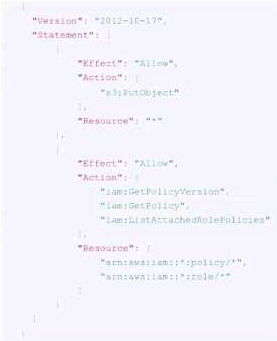
An administrator needs to review the IAM role being provisioned for Cloud Data Sense in order to scan S3 buckets.
Which two permissions are missing? (Choose two.)
- A . s3:DeleteObject
- B . s3:Put0bjectAcl
- C . s3:List*
- D . s3:GetObjectAcl
- E . s3:Get*
C, E
Explanation:
For Cloud Data Sense to effectively scan S3 buckets, it requires permissions to list and get objects within the buckets. From the IAM policy provided in the exhibit, the permissions currently include s3:PutObject for object creation and a series of IAM-related permissions such as iam:GetPolicyVersion, iam:GetPolicy, and iam:ListAttachedRolePolicies. However, for scanning purposes, Data Sense needs to read and list the objects in the buckets.
Therefore, the missing permissions are:
s3:List*: This permission allows the listing of all objects within the S3 buckets, which is necessary to scan and index the contents.
s3:Get*: This grants the ability to retrieve or read the content of the objects within the S3 buckets, which is essential for scanning the data within them.
These permissions ensure that Cloud Data Sense can access the metadata and contents of objects within S3 to perform its functionality.
An administrator needs to provision block storage on an AWS FSx for NetApp ONTAP instance for a Linux server.
Which protocol should be used?
- A . iSCSI
- B . FCP
- C . NVMe-oF
- D . InfiniBand
A
Explanation:
For provisioning block storage on an AWS FSx for NetApp ONTAP instance for a Linux server, the most suitable protocol is iSCSI.
Here’s why:
iSCSI Compatibility: iSCSI is widely supported across various operating systems, including Linux, and is ideal for provisioning block storage. It allows the Linux server to access storage volumes over a TCP/IP network, simulating local block storage.
Configuration Steps: To set this up, configure the FSx for NetApp ONTAP instance to provide iSCSI LUNs (Logical Unit Numbers). This involves creating an iSCSI target and associating it with the LUNs that the Linux server will access.
Connect from Linux Server: On the Linux server, set up the iSCSI initiator to connect to the iSCSI target on the FSx instance. This usually involves installing iSCSI utilities and configuring the initiator to establish and maintain the iSCSI session.
For a comprehensive guide on setting up iSCSI with FSx for NetApp ONTAP and Linux, please refer to the AWS documentation: AWS FSx for NetApp ONTAP Documentation.
An administrator is preparing to automate firmware updates with the help of Active IQ Digital Advisor.
Which automation tool should the administrator use?
- A . Puppet
- B . Terraform
- C . Ansible
- D . Pulumi
C
Explanation:
To automate firmware updates effectively using Active IQ Digital Advisor, the best tool to use is Ansible.
Here’s why:
Ansible Integration with NetApp: Ansible is widely recognized for its powerful automation capabilities across various IT environments. NetApp provides specific Ansible modules designed to interact with its storage solutions and services, including the automation of firmware updates. Active IQ Digital Advisor Integration: Active IQ Digital Advisor offers predictive analytics, actionable intelligence, and proactive recommendations. By using Ansible, administrators can automate the implementation of these recommendations, including firmware updates, to enhance efficiency and reliability in operations.
To implement this, the administrator needs to leverage the NetApp Ansible modules that are specifically designed for storage management tasks. This can be found in the NetApp Automation Store, where administrators can access pre-built playbooks for firmware updates, simplifying the automation process.
For further details and specific implementation steps, please refer to the NetApp Automation Store and the official NetApp documentation on Ansible integration: NetApp Ansible Modules Documentation.