
Microsoft MD-102 Practice Exams
Last updated on Nov 16,2026- Exam Code: MD-102
- Exam Name: Endpoint Administrator
- Certification Provider: Microsoft
- Latest update: Nov 16,2026
HOTSPOT
You have a Microsoft 365 E5 subscription that contains 100 Windows 10 devices enrolled in Microsoft Intune.
You need to create Endpoint security policies to meet the following requirements:
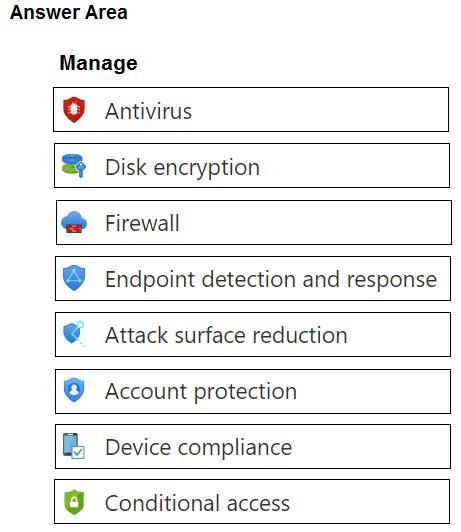
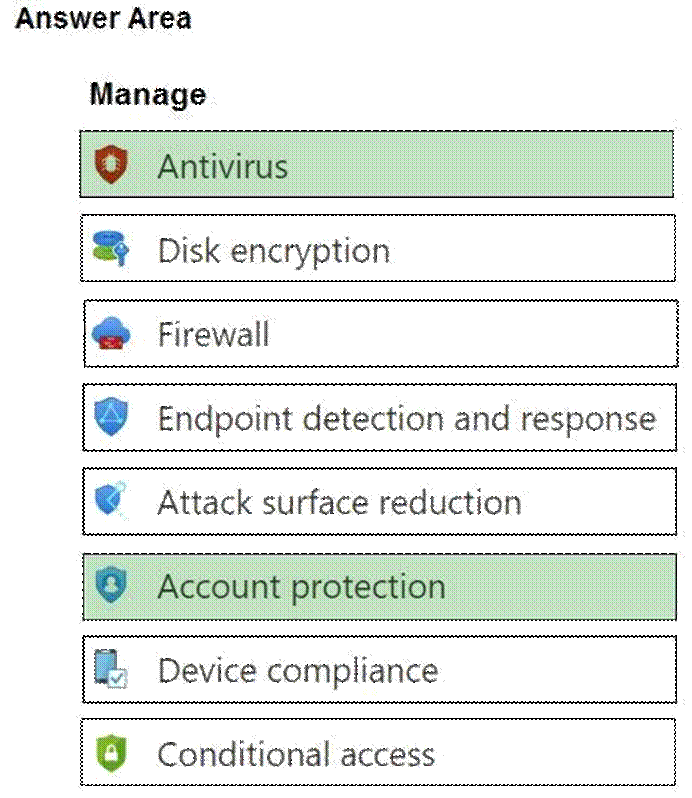
Hide the Firewall & network protection area in the Windows Security app.
Disable the provisioning of Windows Hello for Business on the devices.
Which two policy types should you use? To answer, select the policies in the answer area. NOTE: Each correct selection is worth one point.
Hot Area:
DRAG DROP
You have a Microsoft 365 subscription that contains the following devices enrolled in Microsoft Intune:
A corporate-owned Windows device named Device1

A personally-owned Android device named Device2
You need to use a remote action on each device. The solution must meet the following requirements:
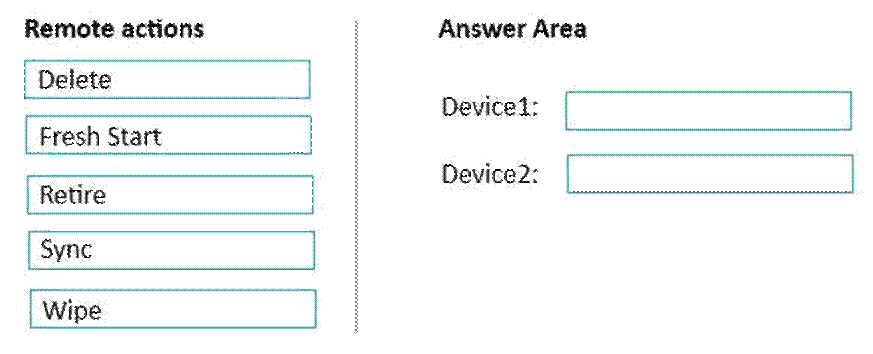
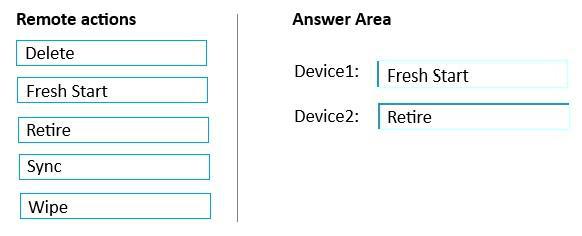
Repurpose Device1 by returning the device to the factory default settings.
Remove only corporate data from Device2 and remove the device from Intune when the device checks in.
Which remote action should you use on each device? To answer, drag the appropriate remote actions to the correct devices. Each remote action may be used once, more than once, or not at all. You may need to drag the split bar between panes or scroll to view content.
Select and Place:
DRAG DROP
You have a Microsoft 365 subscription that contains the following devices enrolled in Microsoft Intune:
A corporate-owned Windows device named Device1
A personally-owned Android device named Device2
You need to use a remote action on each device. The solution must meet the following requirements:
Repurpose Device1 by returning the device to the factory default settings.
Remove only corporate data from Device2 and remove the device from Intune when the device checks in.
Which remote action should you use on each device? To answer, drag the appropriate remote actions to the correct devices. Each remote action may be used once, more than once, or not at all. You may need to drag the split bar between panes or scroll to view content.
Select and Place:
DRAG DROP
You have a Microsoft 365 subscription that contains the following devices enrolled in Microsoft Intune:
A corporate-owned Windows device named Device1
A personally-owned Android device named Device2
You need to use a remote action on each device. The solution must meet the following requirements:
Repurpose Device1 by returning the device to the factory default settings.
Remove only corporate data from Device2 and remove the device from Intune when the device checks in.
Which remote action should you use on each device? To answer, drag the appropriate remote actions to the correct devices. Each remote action may be used once, more than once, or not at all. You may need to drag the split bar between panes or scroll to view content.
Select and Place:
Your company uses Microsoft Intune to manage devices.
You need to ensure that only Android devices that use Android work profiles can enroll in Intune.
Which two configurations should you perform in the device enrollment restrictions? Each correct answer presents part of the solution. NOTE: Each correct selection is worth one point.
- A . From Platform Settings, set Android device administrator Personally Owned to Block.
- B . From Platform Settings, set Android Enterprise (work profile) to Allow.
- C . From Platform Settings, set Android device administrator Personally Owned to Allow.
- D . From Platform Settings, set Android device administrator to Block.
Your network contains an Active Directory domain. The domain contains a computer named Computer1 that runs Windows 11.
You need to enable the Windows Remote Management (WinRM) service on Computer1 and perform the following configurations:
For the WinRM service, set Startup type to Automatic.

Create a listener that accepts requests from any IP address.
Enable a firewall exception for WS-Management communications.
Which PowerShell cmdlet should you use?
- A . Connect-WSMan
- B . Enable-PSRemoting
- C . Invoke-WSManAction
- D . Enable-PSSessionConfiguration
You have a Microsoft 365 subscription that includes Microsoft Intune.
You have 500 corporate-owned Android devices enrolled as fully managed devices.
You need to prepare an app named App1 for deployment to the devices.
Which two actions should you perform? Each correct answer presents part of the solution. NOTE: Each correct selection is worth one point.
* From the Intune Company Portal, download App1.
* Sync App1 with Intune.
* From the Managed Google Play Store, approve App1.
* Create an OEMConfig profile.
HOTSPOT
You have a Microsoft 365 E5 subscription that contains the security groups shown in the following table.
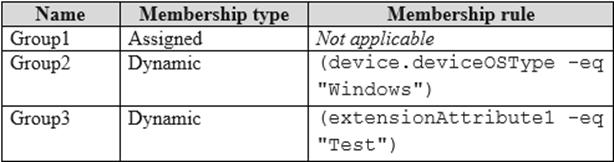
The subscription contains devices that run Windows 11, version 21H2 as shown in the following table.

You have a feature update deployment profile named Deployment1 as shown in the following table.
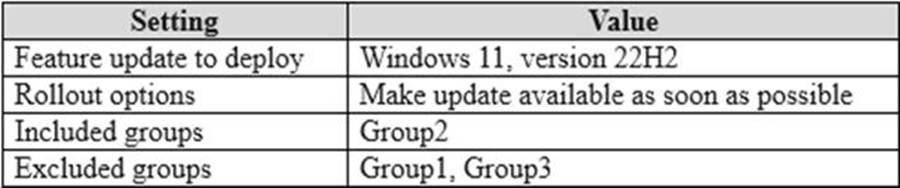
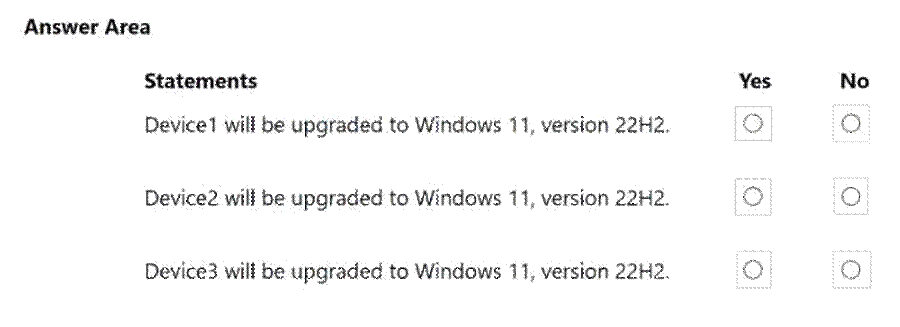
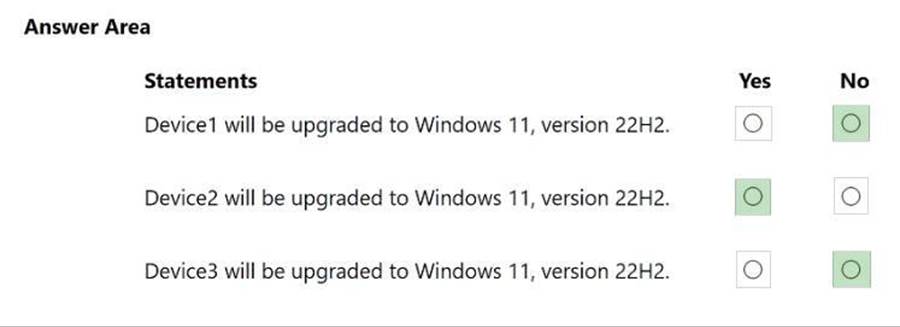
For each of the following statements, select Yes if the statement is true. Otherwise, select No. NOTE: Each correct selection is worth one point.
Hot Area:
HOTSPOT
You have a Microsoft 365 subscription that uses Microsoft Intune Suite.
You use Intune to manage devices.
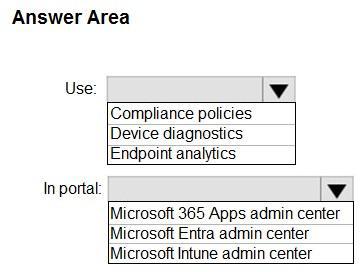
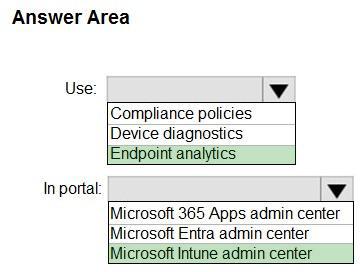
You need to assess device performance during startup and identify any device models that take longer than average to start.
What should you use to assess the device performance, and which portal should you use? To answer, select the appropriate options in the answer area. NOTE: Each correct selection is worth one point.
Hot Area:
Testlet 1
Case study
Overview
Contoso, Ltd. is a consulting company that has a main office in Montreal and two branch offices in Seattle and New York.
Contoso has the users and computers shown in the following table.

The company has IT, human resources (HR), legal (LEG), marketing (MKG), and finance (FIN) departments.
Contoso recently purchased a Microsoft 365 subscription.
The company is opening a new branch office in Phoenix. Most of the users in the Phoenix office will work from home.
Existing Environment
The network contains an Active Directory domain named contoso.com that is synced to Azure AD.
All member servers run Windows Server 2016. All laptops and desktop computers run Windows 10 Enterprise.
The computers are managed by using Microsoft Configuration Manager. The mobile devices are managed by using Microsoft Intune.
The naming convention for the computers is the department acronym, followed by a hyphen, and then four numbers, for example FIN-6785. All the computers are joined to the on-premises Active Directory domain.
Each department has an organizational unit (OU) that contains a child OU named Computers. Each computer account is in the Computers OU of its respective department.
Intune Configuration
Requirements
Planned changes
Contoso plans to implement the following changes:
– Provide new computers to the Phoenix office users. The new computers have Windows 10 Pro preinstalled and were purchased already.
– Implement co-management for the computers.
Technical Requirements
Contoso must meet the following technical requirements:
– Ensure that the users in a group named Group4 can only access Microsoft Exchange Online from devices that are enrolled in Intune.
– Deploy Windows 10 Enterprise to the computers of the Phoenix office users by using Windows Autopilot.
– Create a provisioning package for new computers in the HR department.
– Block iOS devices from sending diagnostic and usage telemetry data.
– Use the principle of least privilege whenever possible.
– Enable the users in the MKG department to use App1.
– Pilot co-management for the IT department.
You need to prepare for the deployment of the Phoenix office computers.
What should you do first?
- A . Generalize the computers and configure the Device settings from the Microsoft Entra admin center.
- B . Extract the serial number of each computer to an XML file and upload the file from the Microsoft Intune admin center.
- C . Extract the hardware ID information of each computer to a CSV file and upload the file from the Microsoft Intune admin center.
- D . Generalize the computers and configure the Mobility (MDM and MAM) settings from the Microsoft Entra admin center.
- E . Extract the serial number information of each computer to a CSV file and upload the file from the Microsoft Intune admin center.