
HP HPE0-S59 Practice Exams
Last updated on Oct 21,2026- Exam Code: HPE0-S59
- Exam Name: HPE Compute Solutions
- Certification Provider: HP
- Latest update: Oct 21,2026
Your customer reports mat an external FC boot volume for Windows server is visible four times in the Disk Management 1 online and 3 offline.
What should you do to resolve this issue?
- A . Disable deduplication for this volume at the array level
- B . Remove the offline disks using array management tools
- C . Install and configure MPIO on me Windows system
- D . Remove the offline disks using Windows Disk Management
A
Explanation:
The issue of seeing multiple instances of an FC boot volume in Disk Management, with one online and three offline, is typically caused by the lack of Multi-Path I/O (MPIO) configuration. Installing and configuring MPIO on the Windows system will enable the operating system to recognize multiple paths to the same storage volume and manage them correctly, presenting only one online instance of the volume.
Reference: Microsoft Documentation on MPIO
Your customer has me following HPE Synergy setup
– Three frames fully populated with HPE Synergy 480 Gen10 Plus modules and 25Gb/s downlink speed formulating a single logical enclosure
– Two HPE Virtual Connect SE 100Gb F32 Module for Synergy
– Four HPE Synergy 50Gb interconnect Link Module
– Six HPE Synergy Virtual Connect SE 32Gb FC Modules
The customer needs to add a frame.
Which statement about the expansion of this setup is true?
- A . The additional frame must have HPE Virtual Connect FC modules installed
- B . The customer can grow the existing logical enclosure up to 5 frames
- C . The customer has to create a new logical enclosure for the additional frame
- D . The additional frame cannot have 12Gb SAS connection modules installed
B
Explanation:
HPE Synergy allows scaling of logical enclosures up to 5 frames. Given the current setup of three frames fully populated with HPE Synergy 480 Gen10 Plus modules and other specified components, the customer can add another frame to the existing logical enclosure. This flexibility in scaling ensures that the logical enclosure can be expanded without the need to create a new logical enclosure, provided that the necessary interconnect modules are in place.
Reference: HPE Synergy Planning Guide
DRAG DROP
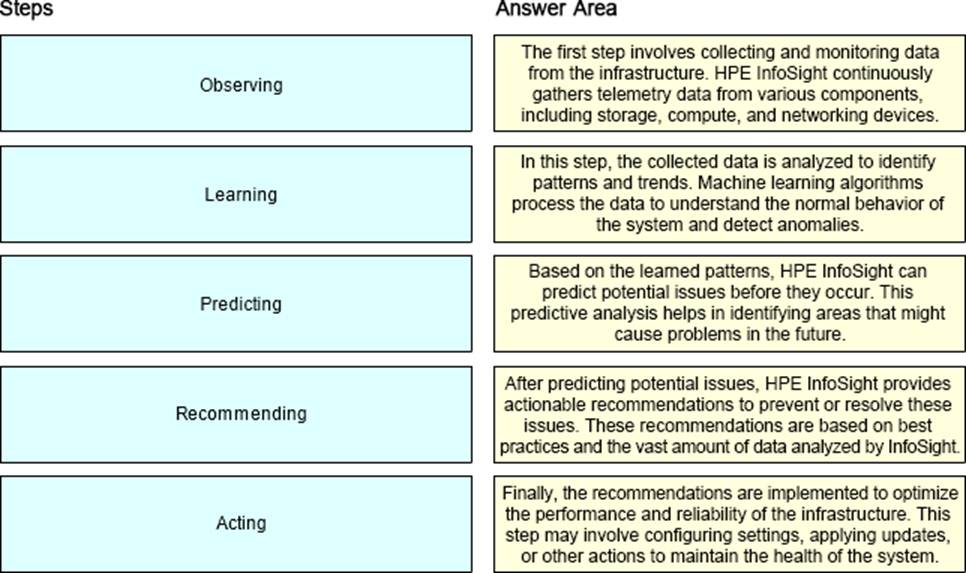
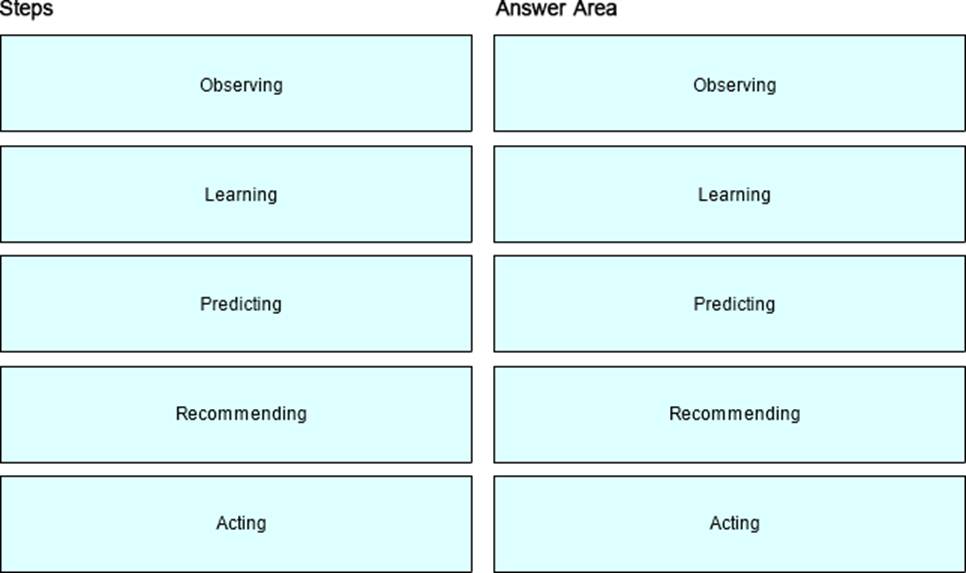
Put the steps of the HPE infosight flow in the correct order.
Explanation:
(observing, learning, predicting, recommending, acting)
Observing: The first step involves collecting and monitoring data from the infrastructure. HPE InfoSight continuously gathers telemetry data from various components, including storage, compute, and networking devices.
Learning: In this step, the collected data is analyzed to identify patterns and trends. Machine learning algorithms process the data to understand the normal behavior of the system and detect anomalies.
Predicting: Based on the learned patterns, HPE InfoSight can predict potential issues before they occur. This predictive analysis helps in identifying areas that might cause problems in the future.
Recommending: After predicting potential issues, HPE InfoSight provides actionable recommendations to prevent or resolve these issues. These recommendations are based on best practices and the vast amount of data analyzed by InfoSight.
Acting: Finally, the recommendations are implemented to optimize the performance and reliability of the infrastructure. This step may involve configuring settings, applying updates, or other actions to maintain the health of the system.
Reference: HPE InfoSight Overview
Which compute node parameters are captured within server hardware type?
- A . Number of the CPUs
- B . installed operating system
- C . Mezzanine card configuration
- D . Size of the memory Installed
B
Explanation:
The server hardware type in HPE OneView captures parameters such as the mezzanine card configuration. This information is crucial for defining the connectivity and expansion capabilities of the compute node, ensuring that the appropriate resources are available for specific workloads.
Reference: HPE OneView Server Hardware Guide
Your customer changed the storage pool state from managed to discovered.
What is the impact of that change?
- A . This storage pool can be deleted using HPE OneView interface.
- B . All volumes from that pool will be removed from HPE OneView.
- C . Volume provisioning will be disabled for that storage pool.
- D . Storage pool parameters cannot be modified using HPE OneView.
Your customer needs to move an application from an HPE Synergy 480 Gen10 Compute Module to an HPE Synergy 660 Gen 10 Compute Module. The 480 has a switch that has been manually zoned outside of HPE OneView.
What must the customer do before migrating the application?
- A . Migrate the application to a Logical JBOD and connect it to the new server
- B . Copy the server profile and assign the clone to the new hardware
- C . Edit the server profile and change server hardware type
- D . Create a new server profile template and apply to the new hardware
B
Explanation:
When migrating an application from an HPE Synergy 480 Gen10 Compute Module to an HPE Synergy 660 Gen10 Compute Module, the recommended approach is to copy the server profile and assign the clone to the new hardware. This ensures that all the necessary configuration settings, including network and storage configurations, are retained and applied to the new compute module. Since the switch zoning is manually configured outside of HPE OneView, copying the server profile helps in maintaining consistency in the network settings during the migration.
Reference: HPE OneView Server Profile Management
You need to configure a RoCE network to enable lossless networking for HPE J2000 Flash Enclosure support.
Which interconnects are required to support this connection? (Select two.)
- A . HPE Virtual Connect SE 40Gb F8 Module for HPE Synergy
- B . HPE Virtual Connect SE 16Gb FC Module for HPE Synergy
- C . HPE Virtual Connect SE 100Gb F32 Module for HPE Synergy
- D . HPE Virtual Connect SE 32Gb FC Module for HPE Synergy
- E . Brocade 16Gb Fibfe Channel SAN Switch Module for HPE Synergy
- F . Brocade 32Gb Fibre Channel SAN Switch Module for HPE Synergy
AC
Explanation:
To configure a RoCE (RDMA over Converged Ethernet) network for HPE J2000 Flash Enclosure support, you need interconnects that support high-bandwidth, low-latency Ethernet connections. The HPE Virtual Connect SE 40Gb F8 Module and the HPE Virtual Connect SE 100Gb F32 Module for HPE Synergy are suitable choices, as they provide the necessary capabilities for RoCE and lossless networking.
Reference: HPE Synergy Interconnect Modules
You modified a logical interconnect group mat is used to configure logical interconnects in five different logical enclosures.
What will be the impact of that change?
- A . All physical interconnects from affected logical interconnects will be placed in a maintenance mode
- B . All physical interconnects from the affected logical interconnects must he rebooted to activate the new configuration
- C . All logical interconnects configured using this logical Interconnect group will report inconsistency
- D . All logical interconnects configured using this logical interconnect group will be automatically updated
C
Explanation:
When a logical interconnect group (LIG) that is used to configure logical interconnects in multiple logical enclosures is modified, all logical interconnects configured using this LIG will report inconsistency. This is because the configuration of the logical interconnects will no longer match the new settings defined in the modified LIG, and the inconsistencies must be resolved to ensure the configurations are synchronized.
Reference: HPE OneView Logical Interconnect Groups Guide
DRAG DROP
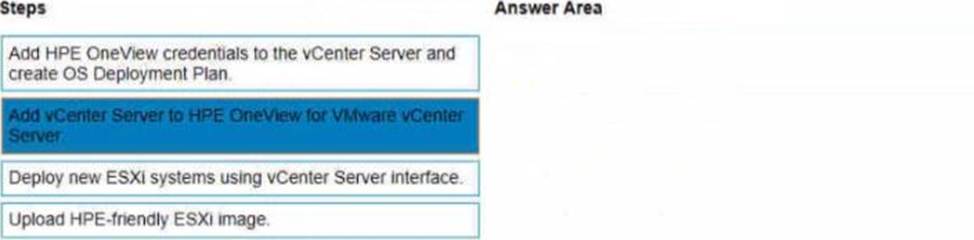
Your customer plans to use HPE OneView for VMware vCenter Server to deploy ESXi systems. They created a server profile template that they want to use in HPE OneView.
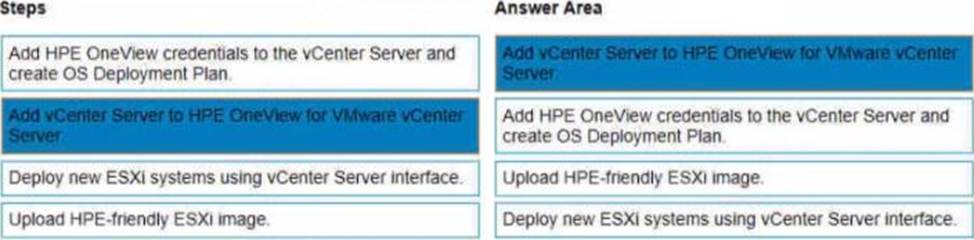
Put the steps required to configure HPE OneView for VMware vCenter Server on the left into their correct order on the right.
Explanation:
To configure HPE OneView for VMware vCenter Server to deploy ESXi systems, follow these steps in the correct order:
Add HPE OneView credentials to the vCenter Server and create OS Deployment Plan.
Add vCenter Server to HPE OneView for VMware vCenter Server.
Upload HPE-friendly ESXi image.
Deploy new ESXi systems using vCenter Server interface.
Add HPE OneView credentials to the vCenter Server and create OS Deployment Plan: Integrate HPE OneView with vCenter Server by adding the necessary credentials and setting up the OS Deployment Plan.
Add vCenter Server to HPE OneView for VMware vCenter Server: Ensure that vCenter Server is added to HPE OneView for VMware vCenter Server to enable communication and management.
Upload HPE-friendly ESXi image: Upload an ESXi image that is optimized for HPE hardware to the vCenter Server for use in the deployment process.
Deploy new ESXi systems using vCenter Server interface: Use the vCenter Server interface to deploy new ESXi systems based on the created server profile template and the uploaded ESXi image.
These steps ensure a seamless deployment and management of ESXi systems using HPE OneView integrated with VMware vCenter Server.
Reference: HPE OneView for VMware vCenter Server User Guide
Refer to the exhibit.
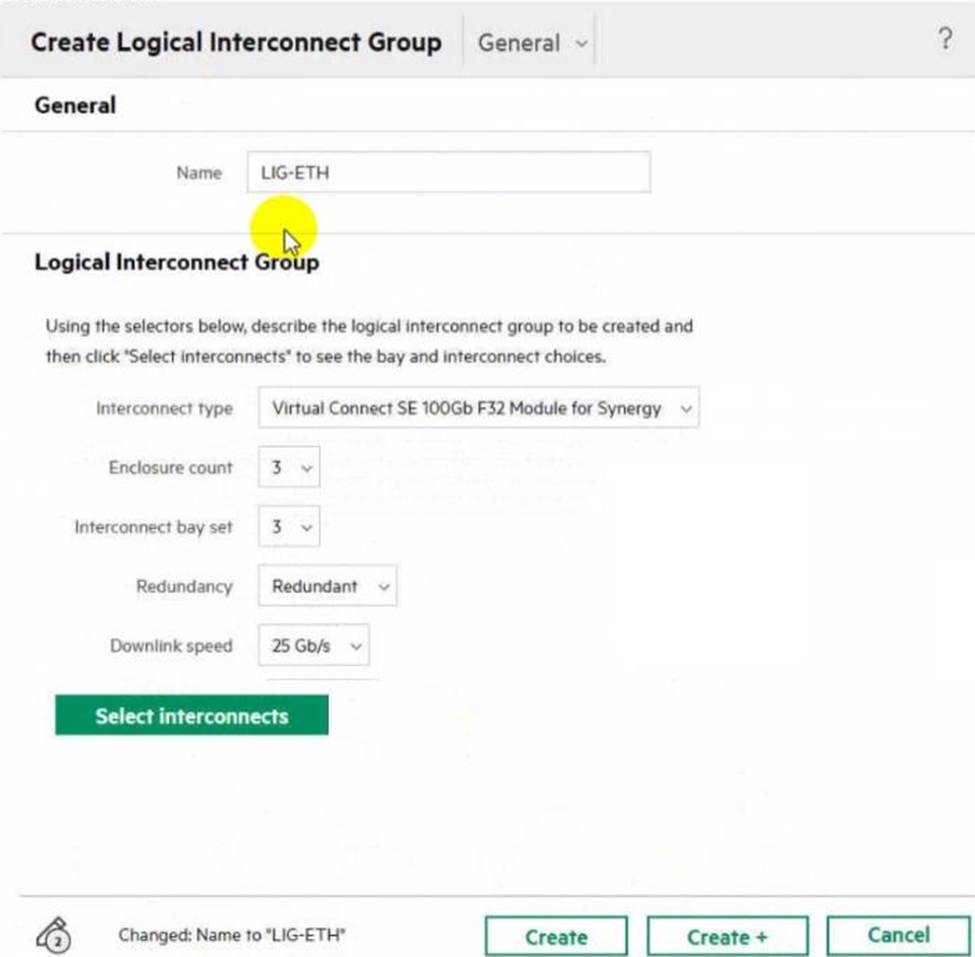
Which statement about this logical interconnect group is true?
- A . The master modules are located in the interconnect bays 2 and 5
- B . For the given downlink speed, the maximum number of frames is reached
- C . Both master modules are located in the same HPE Synergy frame
- D . To use interconnect bay set 3, all compute nodes must be half-height
D
Explanation:
In HPE Synergy configurations, when using interconnect bay set 3, it implies that the compute nodes should be half-height. This is because bay set 3 is typically utilized in configurations where half-height compute nodes are used to ensure proper alignment and connectivity within the Synergy frame.
Reference: HPE Synergy Frame Setup Guide