
Fortinet NSE5_FSM-6.3 Practice Exams
Last updated on Oct 21,2026- Exam Code: NSE5_FSM-6.3
- Exam Name: Fortinet NSE 5 - FortiSIEM 6.3
- Certification Provider: Fortinet
- Latest update: Oct 21,2026
Refer to the exhibit.
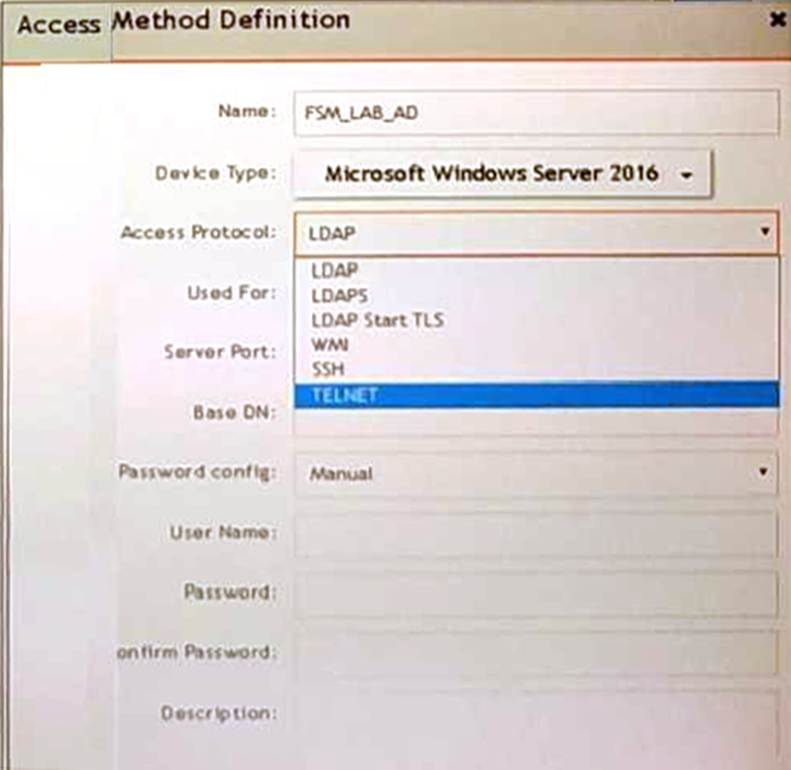
A FortiSIEM administrator wants to collect both SIEM event logs and performance and availability metrics (PAM) events from a Microsoft Windows server.
Which protocol should the administrator select in the Access Protocol drop-down list so that FortiSIEM will collect both SIEM and PAM events?
- A . TELNET
- B . WMI
- C . LDAPS
- D . LDAP start TLS
B
Explanation:
Collecting SIEM and PAM Events: To collect both SIEM event logs and Performance and Availability Monitoring (PAM) events from a Microsoft Windows server, a suitable protocol must be selected.
WMI Protocol: Windows Management Instrumentation (WMI) is the appropriate protocol for this task.
SIEM Event Logs: WMI can collect security, application, and system logs from Windows devices.
PAM Events: WMI can also gather performance metrics, such as CPU usage, memory utilization, and disk activity.
Comprehensive Data Collection: Using WMI ensures that both types of data are collected efficiently from the Windows server.
Reference: FortiSIEM 6.3 User Guide, Data Collection Methods section, which details the use of WMI for collecting various types of logs and performance metrics.
If a performance rule is triggered repeatedly due to high CPU use, what occurs in the incident table?
- A . A now incident is created each time the rule is triggered. and the First Seen and Last Seen times are updated.
- B . A new incident is created based on the Rule Frequency value, and the First Seen and Last Seen times ate updated.
- C . The Incident Count value increases, and the First Seen and Last Seen times update.
- D . The incident status changes to Repeated, and the First Seen and Last Seen times are updated.
C
Explanation:
Incident Management in FortiSIEM: FortiSIEM tracks incidents and their occurrences to help administrators manage and respond to recurring issues.
Performance Rule Triggering: When a performance rule, such as one for high CPU usage, is repeatedly triggered, FortiSIEM updates the corresponding incident rather than creating a new one each time.
Incident Table Updates:
Incident Count: The Incident Count value increases each time the rule is triggered, indicating how many times the incident has occurred.
First Seen and Last Seen Times: These timestamps are updated to reflect the first occurrence and the most recent occurrence of the incident.
Reference: FortiSIEM 6.3 User Guide, Incident Management section, explains how FortiSIEM handles recurring incidents and updates the incident table accordingly.
Refer to the exhibit.
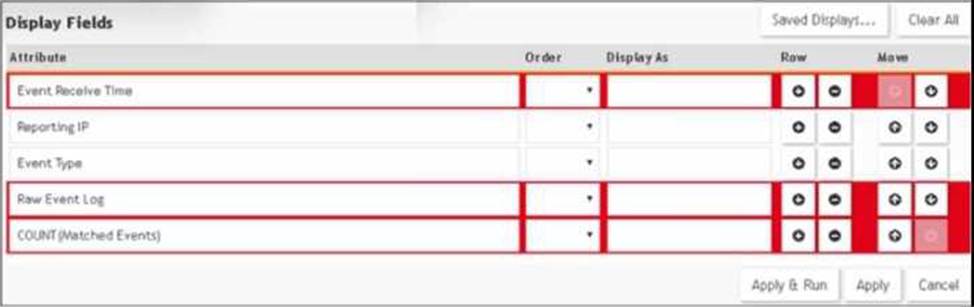
A FortiSIEM administrator wants to group some attributes for a report, but is not able to do so successfully.
As shown in the exhibit, why are some of the fields highlighted in red?
- A . Unique attributes cannot be grouped.
- B . The Event Receive Time attribute is not available for logs.
- C . The attribute COUNT(Matched events) is an invalid expression.
- D . No RAW Event Log attribute is available for devices.
A
Explanation:
Grouping Attributes in Reports: When creating reports in FortiSIEM, certain attributes can be grouped to summarize and organize the data.
Unique Attributes: Attributes that are unique for each event cannot be grouped because they do not provide a meaningful aggregation or summary.
Red Highlighting Explanation
The red highlighting in the exhibit indicates attributes that cannot be grouped together due to their unique nature. These unique attributes include Event Receive Time, Reporting IP, Event Type, Raw Event Log, and COUNT (Matched Events).
Attribute Characteristics:
Event Receive Time is unique for each event.
Reporting IP and Event Type can vary greatly, making grouping them impractical in this context.
Raw Event Log represents the unprocessed log data, which is also unique.
COUNT (Matched Events) is a calculated field, not suitable for grouping.
Reference: FortiSIEM 6.3 User Guide, Reporting section, explains the constraints on grouping attributes in reports.
Which FortiSIEM components are capable of performing device discovery?
- A . FortiSIEM Windows agent
- B . Worker
- C . FortiSIEM Linux agent
- D . Collector
D
Explanation:
Device Discovery in FortiSIEM: Device discovery is the process by which FortiSIEM identifies and adds devices to its management scope.
Role of Collectors: Collectors are responsible for gathering data from network devices, including discovering new devices in the network.
Functionality: Collectors use protocols such as SNMP, WMI, and others to discover devices and gather their details.
Capability: While agents (Windows and Linux) primarily gather data from their host systems, the collectors actively discover devices across the network.
Reference: FortiSIEM 6.3 User Guide, Device Discovery section, which details the role of collectors in discovering network devices.
In FortiSIEM enterprise licensing mode, it the link between the collector and data center FortiSlEM cluster is down, what happens?
- A . The collector drops incoming events like syslog. but stops performance collection.
- B . The collector processes stop, and events ate dropped.
- C . The collector continues performance collection of devices, but slops receiving syslog.
- D . The collector buffers events
C
Explanation:
Enterprise Licensing Mode: In FortiSIEM enterprise licensing mode, collectors are deployed in remote sites to gather and forward data to the central FortiSIEM cluster located in the data center. Collector Functionality: Collectors are responsible for receiving logs, events (e.g., syslog), and performance metrics from devices.
Link Down Scenario: When the link between the collector and the FortiSIEM cluster is down, the collector needs a mechanism to ensure no data is lost during the disconnection.
Event Buffering: The collector buffers the events locally until the connection is restored, ensuring that no incoming events are lost. This buffered data is then forwarded to the FortiSIEM cluster once the link is re-established.
Reference: FortiSIEM 6.3 User Guide, Data Collection and Buffering section, explains the behavior of collectors during network disruptions.
Refer to the exhibits.
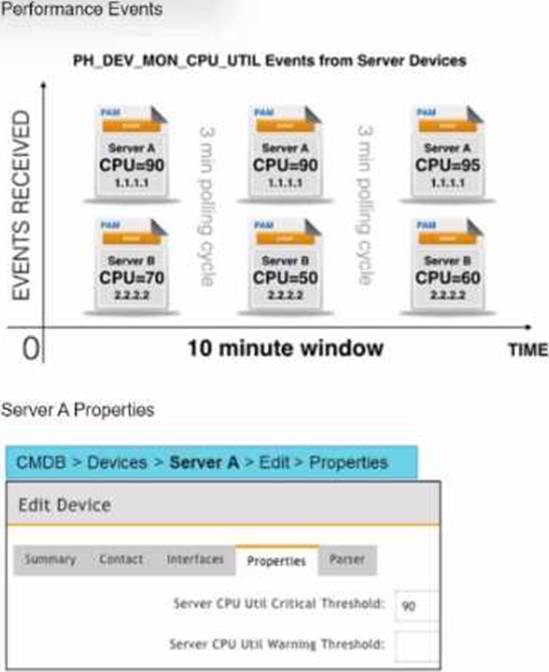
Three events are collected over a 10-minute time period from two servers: Server A and Server B.
Based on the settings tor the rule subpattern. how many incidents will the servers generate?
- A . Server A will generate one incident and Server B will generate one incident.
- B . Server A will generate one incident and Server B will not generate any incidents.
- C . Server B will generate one incident and Server A will not generate any incidents.
- D . Server A will not generate any incidents and Server B will not generate any incidents.
D
Explanation:
Event Collection Overview: The exhibits show three events collected over a 10-minute period from two servers, Server A and Server B.
Rule Subpattern Settings: The rule subpattern specifies two conditions:
AVG (CPU Util) > DeviceToCMDBAttr(Host IP : Server CPU Util Critical Threshold): This checks if the average CPU utilization exceeds the critical threshold defined for each server.
COUNT (Matched Events) >= 2: This requires at least two matching events within the specified period.
Server A Analysis:
Events: Three events (CPU=90, CPU=90, CPU=95).
Average CPU Utilization: (90+90+95)/3 = 91.67, which exceeds the critical threshold of 90.
Matched Events Count: 3, which meets the condition of being greater than or equal to 2.
Incident Generation: Server A meets both conditions, so it generates one incident.
Server B Analysis:
Events: Three events (CPU=70, CPU=50, CPU=60).
Average CPU Utilization: (70+50+60)/3 = 60, which does not exceed the critical threshold of 90. Matched Events Count: 3, but since the average CPU utilization condition is not met, no incident is generated.
Conclusion: Based on the rule subpattern, Server A will generate one incident, and Server B will not generate any incidents.
Reference: FortiSIEM 6.3 User Guide, Event Correlation Rules and Incident Management sections, which explain how incidents are generated based on rule subpatterns and event conditions.
Refer to the exhibit.
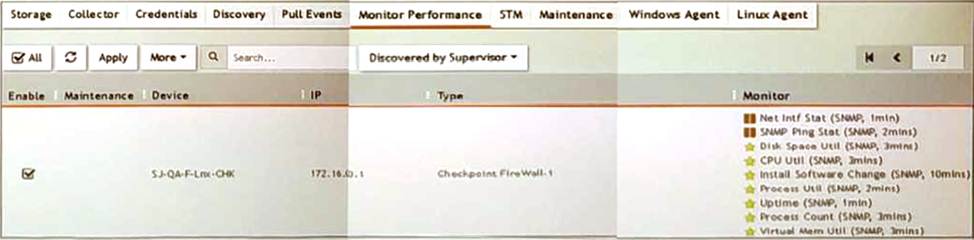
What do the yellow stars listed in the Monitor column indicate?
- A . A yellow star indicates that a metric was applied during discovery, and data has been collected
successfully - B . A yellow star indicates that a metric was applied during discovery, but data collection has not started
- C . A yellow star indicates that a metric was applied during discovery, but FortiSIEM is unable to collect data.
- D . A yellow star indicates that a metric was not applied during discovery and, therefore, FortiSEIM was unable to collect data.
A
Explanation:
Monitor Column Indicators: In FortiSIEM, the Monitor column displays the status of various metrics applied during the discovery process.
Yellow Star Meaning: A yellow star next to a metric indicates that the metric was successfully applied during discovery and data has been collected for that metric.
Successful Data Collection: This visual indicator helps administrators quickly identify which metrics are active and have data available for analysis.
Reference: FortiSIEM 6.3 User Guide, Device Monitoring section, which explains the significance of different icons and indicators in the Monitor column.
An administrator is in the process of renewing a FortiSIEM license.
Which two commands will provide the system ID? (Choose two.)
- A . phgetHWID
- B . ./phLicenseTool – support
- C . phgetUUID
- D . ./phLicenseTool-show
AC
Explanation:
License Renewal Process: When renewing a FortiSIEM license, it is essential to provide the system ID, which uniquely identifies the FortiSIEM instance.
Commands to Retrieve System ID:
phgetHWID: This command retrieves the hardware ID of the FortiSIEM appliance.
Usage: Run the command phgetHWID in the CLI to obtain the hardware ID.
phgetUUID: This command retrieves the universally unique identifier (UUID) for the FortiSIEM system.
Usage: Run the command phgetUUID in the CLI to obtain the UUID.
Verification: Both phgetHWID and phgetUUID are valid commands for retrieving the necessary system IDs required for license renewal.
Reference: FortiSIEM 6.3 Administration Guide, Licensing section details the commands and procedures for obtaining system identification information necessary for license renewal.
Refer to the exhibit.
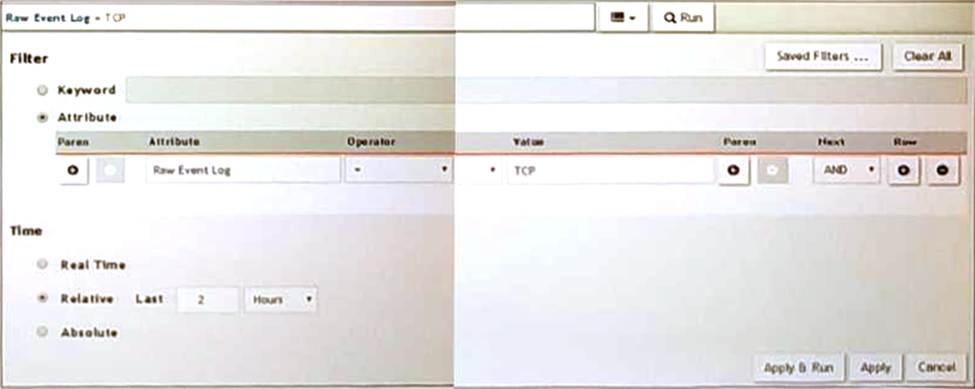
A FortiSIEM is continuously receiving syslog events from a FortiGate firewall The FortiSlfcM administrator is trying to search the raw event logs for the last two hours that contain the keyword tcp . However, the administrator is getting no results from the search.
Based on the selected filters shown in the exhibit, why are there no search results?
- A . The keyword is case sensitive Instead of typing TCP in the Value field. the administrator should type tcp.
- B . In the Time section, the administrator selected the Relative Last option, and in the drop-down lists, selected 2 and Hours as the lime period The time period should be 24 hours.
- C . The administrator selected – in the Operator column That a the wrong operator.
- D . The administrator selected AND in the Next drop-down list. This is the wrong boolean operator.
A
Explanation:
Case Sensitivity in Searches: In FortiSIEM, search queries, including those for raw event logs, are case sensitive. This means that keywords must be entered exactly as they appear in the logs.
Keyword Mismatch: The exhibit shows the keyword "TCP" in the Value field. If the actual events use "tcp" (lowercase), the search will return no results because of the case mismatch.
Correct Keyword: To match the keyword correctly, the administrator should enter "tcp" in the Value field.
Reference: FortiSIEM 6.3 User Guide, Search and Filtering section, which discusses the importance of case sensitivity in search queries.
Refer to the exhibit.
A FortiSIEM is continuously receiving syslog events from a FortiGate firewall The FortiSlfcM administrator is trying to search the raw event logs for the last two hours that contain the keyword tcp . However, the administrator is getting no results from the search.
Based on the selected filters shown in the exhibit, why are there no search results?
- A . The keyword is case sensitive Instead of typing TCP in the Value field. the administrator should type tcp.
- B . In the Time section, the administrator selected the Relative Last option, and in the drop-down lists, selected 2 and Hours as the lime period The time period should be 24 hours.
- C . The administrator selected – in the Operator column That a the wrong operator.
- D . The administrator selected AND in the Next drop-down list. This is the wrong boolean operator.
A
Explanation:
Case Sensitivity in Searches: In FortiSIEM, search queries, including those for raw event logs, are case sensitive. This means that keywords must be entered exactly as they appear in the logs.
Keyword Mismatch: The exhibit shows the keyword "TCP" in the Value field. If the actual events use "tcp" (lowercase), the search will return no results because of the case mismatch.
Correct Keyword: To match the keyword correctly, the administrator should enter "tcp" in the Value field.
Reference: FortiSIEM 6.3 User Guide, Search and Filtering section, which discusses the importance of case sensitivity in search queries.