
DELL EMC D-PE-OE-23 Practice Exams
Last updated on Oct 23,2026- Exam Code: D-PE-OE-23
- Exam Name: Dell Technologies PowerEdge Operate 2023
- Certification Provider: DELL EMC
- Latest update: Oct 23,2026
Which AMD powered server supports dual CPU. 16G, and iDRAC Express?
- A . R7625
- B . R7525
- C . R960
- D . R6615
A
Explanation:
Identifying the AMD-Powered Server that Supports Dual CPU, 16G, and iDRAC Express Server Portfolio and Features (10%)
Define chassis form factors and numbering nomenclature Identify server features and specifications Server Components (26%)
Define the different processor, memory options, and memory configurations
Understanding the Server Models
Option A: R7625
Features:
Processor: AMD EPYC processors
CPU Support: Dual-socket (supports two CPUs)
Generation: 16th Generation (16G)
Management: Comes with iDRAC9, supporting iDRAC Express
Analysis:
Meets all the specified criteria:
AMD-powered
Supports dual CPUs
Is a 16G server
Supports iDRAC Express
Conclusion: Correct Answer
Explanation of Other Options
Option B: R7525
Features:
Processor: AMD EPYC processors
CPU Support: Dual-socket
Generation: 15th Generation (15G)
Management: Supports iDRAC9
Analysis:
Does not meet the 16G requirement (it’s a 15G server)
Option C: R960
Features:
Processor: Typically Intel Xeon processors
CPU Support: Quad-socket (supports up to four CPUs)
Generation: 14th or 15th Generation
Analysis:
Not AMD-powered
Does not meet the dual CPU and 16G requirements
Option D: R6615
Features:
Processor: AMD EPYC processors
CPU Support: Single-socket (supports one CPU)
Generation: 16th Generation (16G)
Analysis:
Does not support dual CPUs (only supports a single CPU)
Dell Operate Reference
Server Portfolio and Features (10%)
Identify server features and specifications: Knowing the specifications of each server model is crucial
for matching customer requirements.
Server Components (26%)
Define the different processor, memory options, and memory configurations: Understanding CPU support and generation compatibility.
Conclusion
The Dell PowerEdge R7625 is the AMD-powered server that supports dual CPUs, is part of the 16th Generation, and comes with iDRAC Express. It aligns perfectly with the specified requirements.
A technician is sent on-site to troubleshoot a server that halts during POST. The iDRAC System Event Log shows the following errors: A bus fatal error was detected on a component at bus 0 device 1 function 1 A bus fatal error was detected on a component at bus 1 device 0 function 0 CPU 1 has an internal error (IERR)
The following system information is provided.
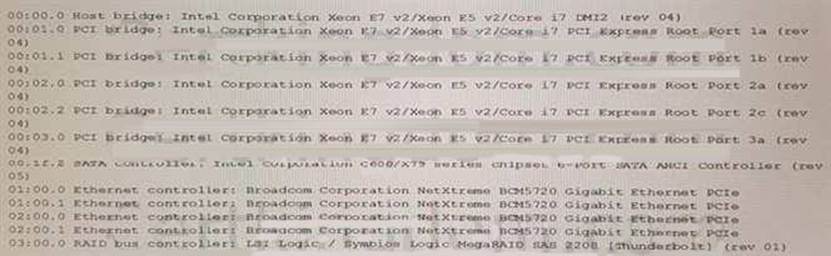
Which system component is the most likely cause?
- A . Processor
- B . Network daughter card
- C . RAID controller
- D . System board
What is the default IP Address for the iDRAC?
- A . 192.168.1.120
- B . 10.1.2.1
- C . 10.1.1.1
- D . 192.168.0.120
D
Explanation:
Server Management and Configuration Tools (14%)
Define the function of the iDRAC, login procedures, licensing, and connection methods
What is iDRAC?
The Integrated Dell Remote Access Controller (iDRAC) is a management solution built into Dell PowerEdge servers. It provides comprehensive, remote management capabilities, including system monitoring, configuration, and maintenance.
Default IP Address for iDRAC:
The default IPv4 IP address for iDRAC is: 192.168.0.120
Subnet Mask: 255.255.255.0
Default Gateway: Not set by default
Explanation of Options:
Option A: 192.168.1.120
Incorrect: This IP address is not the default for iDRAC.
Option B: 10.1.2.1
Incorrect: Not associated with iDRAC’s default settings.
Option C: 10.1.1.1
Incorrect: Also not the default iDRAC IP address.
Option D: 192.168.0.120
Correct: This is the default IP address assigned to iDRAC interfaces.
Accessing iDRAC Using the Default IP:
Network Configuration:
Ensure your management station (laptop/PC) is configured with an IP address in the 192.168.0.x subnet, excluding 192.168.0.120.
Connecting to iDRAC:
Open a web browser and navigate to https://192.168.0.120
Accept any security warnings related to self-signed certificates.
Default Credentials:
Username: root
Password: calvin
Note: For security reasons, newer servers may require you to set a unique password upon initial setup.
Dell Operate
Reference: Server Management and Configuration Tools (14%)
Define the function of the iDRAC, login procedures, licensing, and connection methods: Knowing the default IP address is essential for initial access and configuration of the iDRAC. System Administration (18%)
Verify health status and iDRAC license: Initial access to the iDRAC is necessary to verify system health
and configure licensing options.
Conclusion:
The default IP address for the iDRAC on Dell PowerEdge servers is 192.168.0.120. This address is used for initial setup and can be changed during configuration to integrate with your network environment.
What is required for iDRAC Direct 2.0 to connect with IDRAC9 interfaces such as RACADM and WSMAN?
- A . Wi-Fi connection
- B . NFC connection
- C . Ethernet cable
- D . Micro-AB USB
A PowerEdge server is running a hypervisor. The server must be configured to enable multiple virtual machines to share the PCIs hardware resources of a supported NIC.
Which System BIOS setting must be enabled to provide this functionality?
- A . Single Root I/O Virtualization
- B . Memory Mapped I/O above 4 GB
- C . DirectPath I/O
- D . Virtualization Technology
A technician has the ISO image of an OS that they need to install on a server in a remote location. They are already logged into the iDRAC.
How should the technician install the OS?
- A . Click Launch under the Virtual Console Preview, Select Next Boot, and choose Virtual CD/DVD/ISO
- B . Click Launch under the Virtual Console Preview and then connect to Virtual Media
- C . Click Launch under the Virtual Console Preview, reboot the server into F10, and start the Lifecycle Controller OS Deployment wizard
- D . Click on Update and Rollback under Quick Launch Tasks
A technician has the ISO image of an OS that they need to install on a server in a remote location. They are already logged into the iDRAC.
How should the technician install the OS?
- A . Click Launch under the Virtual Console Preview, Select Next Boot, and choose Virtual CD/DVD/ISO
- B . Click Launch under the Virtual Console Preview and then connect to Virtual Media
- C . Click Launch under the Virtual Console Preview, reboot the server into F10, and start the Lifecycle Controller OS Deployment wizard
- D . Click on Update and Rollback under Quick Launch Tasks
A technician installs a PCIe card into a server, but the card does not appear in the OS. The server does not have an LCD to display errors, but a light is flashing on the front of the server.
What actions can the technician take to troubleshoot the issue?
- A . Initiate Hardware Stress Test from iDRAC GUI
Check PCIe Bus Log for errors - B . Run Hardware Diagnostics from Lifecycle Controller
Review the Lifecycle Controller log for errors - C . Run Hardware Diagnostics from Lifecycle Controller
Initiate Hardware Stress Test from iDRAC GUI - D . Review the Lifecycle Controller log for errors
Check PCIe Bus Log for errors
SIMULATION
Using the iDRAC UI, generate and save locally a SupportAssist collection with system information and debug logs only.
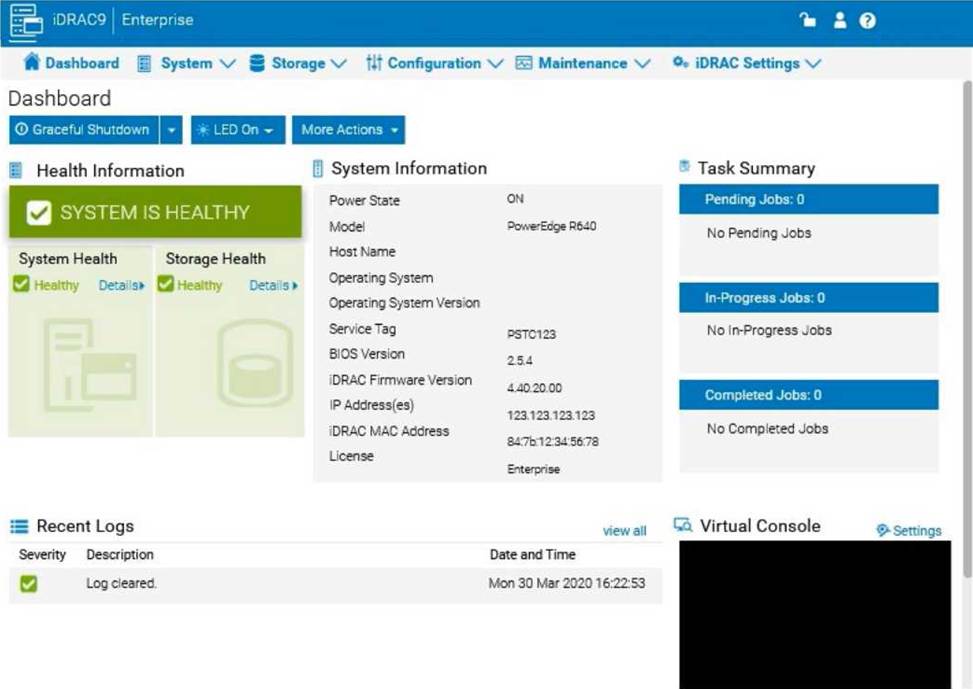
Step-by-Step Guide:
Access SupportAssist in iDRAC:
In the iDRAC interface, navigate to the Maintenance tab in the top menu.
From the dropdown, select SupportAssist. This will bring up the SupportAssist options.
Initiate a Collection:
In the SupportAssist section, look for the option to Create a New Collection or Start a Collection. Choose Collect System Data or Generate a Collection, depending on the version of iDRAC.
Select Collection Components:
When prompted to select components for the collection, check the boxes for System Information and Debug Logs only.
Ensure no other components are selected to limit the collection to just the required data.
Start the Collection:
Confirm your selection, then click Start or Generate. This will initiate the process to gather the specified data from the system.
Save the Collection Locally:
Once the collection is complete, you should see an option to Download or Save the file.
Click the download link and save the collection file locally on your computer.
Verify the Collection File:
Check the downloaded file to ensure it contains only the system information and debug logs. It should be in a format such as ZIP or TAR, depending on the system configuration.
By following these steps, you can successfully generate a SupportAssist collection with just the system information and debug logs and save it to your local system for further review or support purposes.
An engineer needs to upgrade a Dell EMC PowerEdge R440 server from a single PSU to dual PSU configuration. There are unused PSU modules from PowerEdge R430 and R420 servers available, and they have the same wattage ratings.
What should the engineer do to complete the task?
- A . Configure the PowerEdge R440 PSU with 1+1 configuration
- B . Order a new PSU specific to the existing PowerEdge R440
- C . Add the PowerEdge R420 PSU modules to the PowerEdge R440
- D . Add the PowerEdge R430 PSU modules to the PowerEdge R440