
DELL EMC D-PE-OE-23 Practice Exams
Last updated on Oct 23,2026- Exam Code: D-PE-OE-23
- Exam Name: Dell Technologies PowerEdge Operate 2023
- Certification Provider: DELL EMC
- Latest update: Oct 23,2026
What happened on April 30, 2019? Note: It is necessary to dose (x) the simulator window before you can select a response to this question.
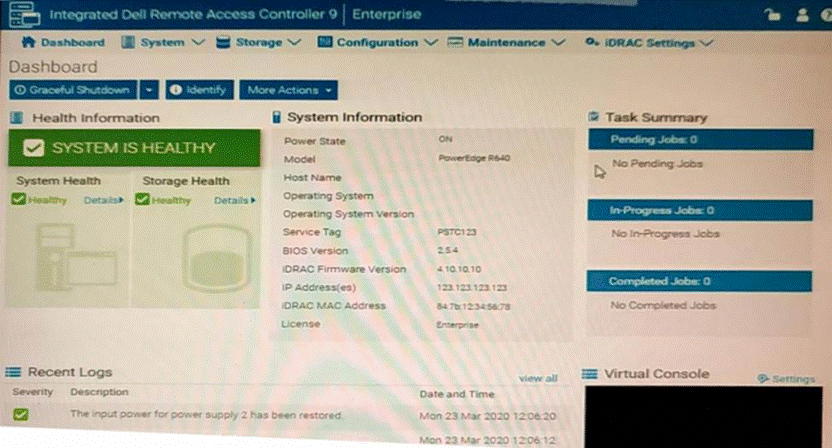
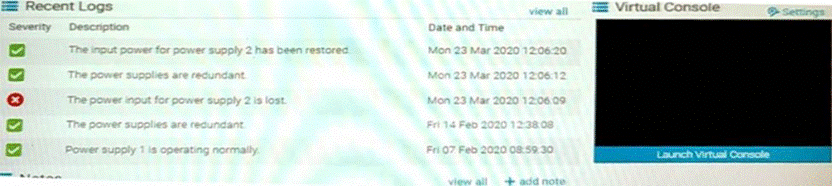
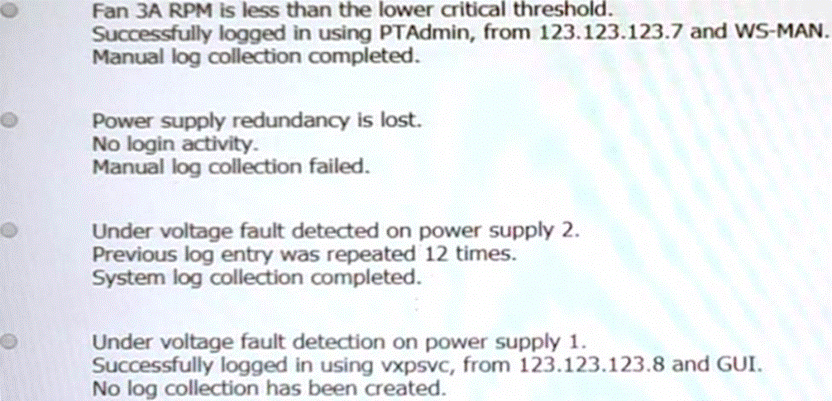
- A . Option A
- B . Option B
- C . Option C
- D . Option D
What is the minimum version of ESXi that should be used to avoid potential issues writing to the SD cards when running ESXi 7 from an IDSDM?
- A . 7.0 U2e
- B . 7.0 U2c
- C . 7.0 U3g
- D . 7.0 U3c
A technician needs to configure a server to PXE boot a server setup image with the BIOS in UEFI mode.
Which two steps should the technician perform to enable this function? (Choose two.)
- A . From System Setup Utility, choose Device Settings. Configure NIC for PXE.
- B . Navigate to Boot Options Settings and set PXE Device1 as first option.
- C . Navigate to Network Settings, PXE Device1 Settings, and configure IP.
- D . Boot to Ctrl+S and configure the NIC for PXE Device1.
- E . From the iDRAC web interface, select Network Settings, and enable PXE Device1.
Case Study 4
A company is experiencing a noticeable decrease in performance when accessing data on their Dell EMC Isilon cluster. The cluster hosts Microsoft Windows home directories and general purpose file shares. In addition, a file pool policy moves data that has not been modified in six months to an achieve tier.
The administrator wants your assistance in understanding the reason for the slow data access. The number of users accessing the cluster has not changed. The administrator has shared the following baseline metrics. The outputs were captured from a performance- acceptable time frame.
Trace route shows:
– 3 hops between clients and the cluster
– Average latency is 3 ms
Iperf shows:
– 940 Mb/s average bandwidth
– 005 ms average jitter
Netstat on the local network shows:
– 05% average re-transmission rate
Hostcache list:
– 20 ms average roundtrip time across all clients
The administrator shows you the details of the hostcahce.list output. The output indicates that the top clients on the list have an average of 242 ms round trip time.
Based on the output, what information should be provided to the administrator?
- A . An increase in the average round trip time indicates a network problem.
- B . Only the aggregate of all average round trip times will indicate an issue.
- C . An average round trip time less than 300 ms is in the acceptable range.
- D . Recalculate and re-populate round trip times by using isi_cbind clear command.
A technician needs to install several firmware updates on a server. The server cannot be rebooted until the customer performs a routine reboot.
What method should the technician use?
- A . Upload all the firmware revisions using the Lifecycle Controller and then click Install Next Reboot.
- B . Upload all the firmware revisions using the iDRAC and then select install Non-Reboot Only
- C . Compress all the firmware revisions into a zipped file then use the iDRAC to upload and select Install Next Reboot
- D . Upload all the firmware revisions using the iDRAC and then click Install Next Reboot.
The Dell PowerEdge R660 sei /ei is not responding during POST.
What can the system administrator do to enter BIOS progress mode?
- A . Press and hold the power button for 15 seconds.
- B . Enter <F2> when the server tries to POST.
- C . Press and hold the System ID button for more than five seconds.
- D . Disconnect and reconnect the power cables for both PSUs.
C
Explanation:
Entering BIOS Progress Mode on a Non-Responsive Dell PowerEdge R660 During POST Server Troubleshooting (32%)
Explain Configuration Validation, crash capture, and minimum to POST Analyze the visual indicators on server components – system ID, PSU, and BLINK
Understanding the Scenario
Server Model: Dell PowerEdge R660
Issue: Not responding during POST (Power-On Self-Test) Objective: Enter BIOS Progress Mode to troubleshoot the issue What is BIOS Progress Mode?
BIOS Progress Mode is a diagnostic feature that allows the system to display detailed POST codes and progress indicators during the boot process. This can help administrators identify where the boot process is stalling.
How to Enter BIOS Progress Mode
Method: Press and hold the System ID button for more than five seconds during the boot process.
Effect:
Forces the server into BIOS Progress Mode.
Displays detailed POST information on the screen.
Helps in diagnosing issues that prevent the server from completing POST.
Explanation of Options
Option A: Press and hold the power button for 15 seconds.
Analysis:
Holding the power button for an extended period typically forces a hard shutdown or initiates a power reset.
Does not help in entering BIOS Progress Mode.
Conclusion: Incorrect.
Option B: Enter <F2> when the server tries to POST.
Analysis:
Pressing <F2> during POST is the standard method to enter the BIOS Setup Utility.
However, if the server is not responding during POST, this method may not be effective.
Does not specifically enable BIOS Progress Mode.
Conclusion: Less effective.
Option C: Press and hold the System ID button for more than five seconds.
Analysis:
Pressing and holding the System ID button for over five seconds triggers the server to enter BIOS Progress Mode.
This method is designed for situations where the server is unresponsive during POST.
Conclusion: Correct Answer.
Option D: Disconnect and reconnect the power cables for both PSUs.
Analysis:
Power cycling the server by disconnecting and reconnecting power may not resolve POST issues.
Does not enable BIOS Progress Mode.
Conclusion: Unlikely to help.
Dell Operate Reference
Server Troubleshooting (32%)
Explain Configuration Validation, crash capture, and minimum to POST:
Understanding how to enter BIOS Progress Mode is essential for diagnosing POST-related issues.
Analyze the visual indicators on server components – system ID, PSU, and BLINK:
System ID Button:
Located on the front panel of the server.
Serves multiple functions, including identifying the server in a rack and triggering diagnostic modes.
System Administration (18%)
Configure BIOS, Storage, virtual media, networking, user access, lockdown mode, and group management:
Familiarity with BIOS access methods and diagnostic tools is crucial for system administrators.
Conclusion
When a Dell PowerEdge R660 server is not responding during POST, pressing and holding the System ID button for more than five seconds will force the server into BIOS Progress Mode. This allows the administrator to see detailed POST codes and identify where the boot process is failing.
What is the purpose of the ePSA on a Dell EMC PowerEdge server?
- A . System diagnostics while the operating system is running
- B . External PowerEdge support assist
- C . Centralized PowerEdge support assist
- D . System diagnostics before starting the operating system
Which two memory settings optimize a PowerEdge 16G server to support VMware ESXi?
- A . Near Balanced Configuration and Dell Fault Resilient Mode
- B . Balanced Memory Configuration and Dell Fault Resilient Mode
- C . Balanced Memory Configuration and Optimizer Mode
- D . Near Balanced Configuration and Optimizer Mode
C
Explanation:
Optimizing Memory Settings for VMware ESXi on a Dell PowerEdge 16G Server Server Components (26%)
Define the different processor, memory options, and memory configurations
Understanding Memory Configuration Options
When configuring a Dell PowerEdge 16th Generation (16G) server to support VMware ESXi, it’s
crucial to optimize memory settings for performance and reliability.
The two memory settings that best optimize the server for VMware ESXi are:
Balanced Memory Configuration
Optimizer Mode
A system board was replaced. After the replacement, the system will NOT boot into Windows and gives the error ‘No boot device found’. Virtual disks are seen and optimal.
What action should a technician take to resolve this issue?
- A . Insert the Windows media to fix the MBR
- B . Reseat the RAID chain
- C . Make sure that the iDRAC license was imported
- D . Change the boot settings from BIOS to UEFI
A customer acquired six R750 servers. They must add these servers to their existing R760 iDRAC Group but are encountering errors.
What is the reason for the errors?
- A . R750 iDRACs firmware is out of date.
- B . R750 iDRACs are not running the same version of firmware.
- C . 15G and 16G servers cannot be in the same group.
- D . The feature requires iDRAC Enterprise.
C
Explanation:
Understanding iDRAC Group Management and Compatibility Server Management and Configuration Tools (14%)
Define the function of the iDRAC, login procedures, licensing, and connection methods Explain the management interface options – LCC, racadm, OMSA, iSM, OME System Administration (18%)
Configure BIOS, Storage, virtual media, networking, user access, lockdown mode, and group management
Scenario Analysis
The customer has acquired six Dell PowerEdge R750 servers and wants to add them to an existing iDRAC Group that currently contains R760 servers. However, they are encountering errors during this process.
Understanding Dell Server Generations
PowerEdge R750: Part of the 15th Generation (15G) servers.
PowerEdge R760: Part of the 16th Generation (16G) servers.
iDRAC Group Manager Limitations
iDRAC Group Manager allows administrators to manage multiple servers from a single interface. Important Limitation: Servers of different generations cannot be grouped together in iDRAC Group Manager.
This is due to differences in firmware, hardware capabilities, and iDRAC features between server generations.
Impact: Attempting to add 15G servers (R750) to a group containing 16G servers (R760) will result in errors.
Evaluation of Options
Option A: R750 iDRACs firmware is out of date
Analysis: While outdated firmware can cause issues, it is not the primary reason here. Firmware updates would not resolve the incompatibility between different server generations.
Option B: R750 iDRACs are not running the same version of firmware
Analysis: Similar to Option A, firmware version mismatches can cause problems but not errors related to grouping different generations.
Option C: 15G and 16G servers cannot be in the same group
Correct Answer. This is the primary reason for the errors encountered.
Option D: The feature requires iDRAC Enterprise
Analysis: Since the customer already has an existing iDRAC group with R760 servers, they likely have
the necessary licensing.
Dell Operate Reference
Server Management and Configuration Tools (14%)
Emphasizes understanding iDRAC functionalities and limitations.
System Administration (18%)
Highlights the importance of group management and its constraints.
Conclusion
The errors occur because iDRAC Group Manager does not support grouping servers from different generations. The customer cannot add 15G servers (R750) to a group that contains 16G servers (R760).