
CyberArk PAM-DEF-SEN Practice Exams
Last updated on Oct 22,2026- Exam Code: PAM-DEF-SEN
- Exam Name: CyberArk Defender – PAM & Sentry – PAM
- Certification Provider: CyberArk
- Latest update: Oct 22,2026
You have associated a logon account to one your UNIX cool accounts in the vault. When attempting to [b]change [/b] the root account’s password the CPM will…..
- A . Log in to the system as root, then change root’s password
- B . Log in to the system as the logon account, then change roofs password
- C . Log in to the system as the logon account, run the su command to log in as root, and then change
root’s password. - D . None of these
C
Explanation:
When attempting to change the root account’s password, the CPM will log in to the system as the logon account, run the su command to log in as root, and then change root’s password. This is because the logon account is used to initiate sessions to machines that do not permit direct logon, such as Unix systems that restrict root access. When a logon account is associated with a privileged account, it will be used to log onto the remote machine and then elevate itself to the role of the privileged user. As different types of machines might have different logon prompts or elevation commands, the CPM can use the AutoLogonSequenceWithLogonAccount parameter to define the logon process and the elevation to the privileged account. This parameter contains regular expression prompts and responses that define the logon process and subsequent activities. The regular expressions can include dynamic values that the CPM reads from the account properties, user parameters, or client-specific parameters1.
For example, the following is a possible AutoLogonSequenceWithLogonAccount parameter for a Unix platform:
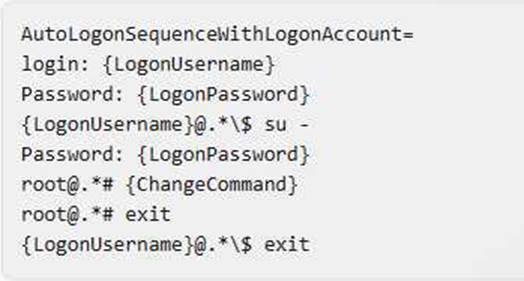
This parameter instructs the CPM to log in to the system as the logon account, enter the logon password, run the su – command to switch to the root user, enter the logon password again, run the change command to change the root password, exit the root session, and exit the logon session1.
The other options are not correct, as follows:
You are troubleshooting a PVWA slow response.
Which log files should you analyze first? (Choose two.)
- A . ITALog.log
- B . web.config
- C . CyberArk.WebApplication.log
- D . CyberArk.WebConsole.log
C, D
Explanation:
When troubleshooting a slow response in the Privileged Vault Web Access (PVWA), the first log files to analyze are the CyberArk.WebApplication.log and CyberArk.WebConsole.log. These logs contain detailed information about the activities carried out by the PVWA and can help identify any problems that may occur. The log files are created by the PVWA and stored on the Web server in the location specified in the LogFolder parameter in the web.config file1. By examining these logs, you can track business flows and troubleshoot failures without having to enable debug mode.
Reference: CyberArk Docs – PVWA Logging1
You want to generate a license capacity report.
Which tool accomplishes this?
- A . Password Vault Web Access
- B . PrivateArk Client
- C . DiagnoseDB Report
- D . RestAPI
B
Explanation:
The license capacity report is a tool that provides information about the licensed user types and objects in the Vault. It enables users to see the maximum number of licenses for each user type or object, and the number of used licenses for each one. Only user types and objects that are limited by the license are displayed in this report. To generate a license capacity report, users need to use the PrivateArk Client, which is a graphical user interface that allows users to manage safes and their properties. Users can access the report from the Tools menu in the PrivateArk Client.
Reference: Reporting License Usage, Manage the CyberArk License
A recently-hired colleague onboarded five new Local Accounts that are used for five standalone Windows Servers. After attempting to connect to the servers from PVWA, the colleague noticed that the "Connect" button was greyed out for all five new accounts.
What can you do to help your colleague resolve this issue? (Choose two.)
- A . Verify that the address field is populated with an IP or FQDN of each server.
- B . Verify that the correct PSM connection component appears within account platform settings.
- C . Verify that the address field is blank and that the correct PSM connection component appears within account platform settings.
- D . Notify the Windows Team that created the new accounts that the CyberArk PAM solution is not designed to manage local accounts on Windows Servers.
- E . Verify that the "Disable automatic management for this account" setting for each account is not enabled.
A, B, E
Explanation:
Verify Server Address: Ensure that the address field is populated with the correct IP or FQDN for each server (Option A).
Check PSM Settings: Confirm that the correct PSM connection component is specified within the account platform settings (Option B).
Automatic Management: Check if the “Disable automatic management for this account” setting is not enabled (Option E).
These steps should help in troubleshooting the connection issue in the CyberArk Privileged Access Management (PAM) solution.
CyberArk implements license limits by controlling the number and types of users that can be provisioned in the vault.
- A . TRUE
- B . FALSE
B
Explanation:
CyberArk does not implement license limits by controlling the number and types of users that can be provisioned in the vault. CyberArk implements license limits by controlling the number and types of users that can authenticate to the vault and use its features. The license limits are based on the user types and objects that are defined in the vault, such as Vault Users, LDAP Users, LDAP Groups, Safes, Accounts, etc. The license limits are enforced by the License Manager, which is a service that runs on the Vault server and monitors the license usage. The License Manager can send notifications and alerts when the license usage reaches certain thresholds, and can also block or allow access to the vault based on the license status1.
Reference: 1: Manage the CyberArk License
A Vault Administrator team member can log in to CyberArk, but for some reason, is not given Vault Admin rights.
Where can you check to verify that the Vault Admins directory mapping points to the correct AD group?
- A . PVWA > User Provisioning > LDAP Integration > Mapping Criteria
- B . PVWA > User Provisioning > LDAP Integration > Map Name
- C . PVWA > Administration > LDAP Integration > Mappings
- D . PVWA > Administration > LDAP Integration > AD Groups
C
Explanation:
The directory mappings are the rules that define how users and groups from an external directory, such as Active Directory (AD), are mapped to roles and authorizations in CyberArk. To verify that the Vault Admins directory mapping points to the correct AD group, you need to check the Mappings page in the PVWA. This page displays the list of existing directory mappings in the Vault and their properties, such as mapping name, LDAP branch, domain groups, and mapping authorizations. You can edit or delete a directory mapping from this page, or create a new one using the Create Directory Mapping button.
Reference: Directory Maps, Create directory mapping, Get directory mapping list
How do you create a cold storage backup?
- A . On the DR Vault, install PAReplicate according to the Installation guide, configure the logon ini file, and define the Schedule tasks for full and incremental backups.
- B . Install the Vault Backup utility on a different machine from the Enterprise Password Vault server and trigger the full backup.
- C . Configure the backup options in the PVWA.
- D . On the DR Vault, configure the cold storage backup path in TSParm.ini file.
A
Explanation:
To create a cold storage backup, you would install the PAReplicate utility on the DR Vault as per the installation guide. This utility is part of the CyberArk Vault’s backup solution and is used to export the encrypted contents of your Safes securely to a computer outside the Vault environment. After installation, you would configure the logon ini file with the necessary credentials and define the scheduled tasks for both full and incremental backups. This ensures that the Safes are regularly backed up and that the data is available for recovery if needed1.
Reference: CyberArk’s official documentation on using the CyberArk Backup Process, which includes details on the PAReplicate utility and how to configure it for cold storage backups1.
Additional information on installing the Vault Backup Utility and configuring backup options, which provides context for the correct answer
Which CyberArk group does a user need to be part of to view recordings or live monitor sessions?
- A . Auditors
- B . Vault Admin
- C . DR Users
- D . Operators
A
Explanation:
To view recordings or live monitor sessions, users must be part of the Auditors group or have the appropriate permissions in the relevant Account Safes and Recording Safes12. The other groups do not have the necessary permissions to access the recordings or monitor the sessions by default.
Reference: Monitor Active Sessions, Active Session Monitoring
Which report shows the accounts that are accessible to each user?
- A . Activity report
- B . Entitlement report
- C . Privileged Accounts Compliance Status report
- D . Applications Inventory report
B
Explanation:
The report that shows the accounts that are accessible to each user is the Entitlement report. According to the web page in the edge browser, the Entitlement report provides information about users’ entitlement rights in PAM – Self-Hosted regarding user, Safe, active platform, target machine, target account, etc. This report includes each user’s effective access control and authorization level on each account that the user has access to in PAM – Self-Hosted. The Entitlement report can be generated in PVWA or PrivateArk1.
tsparm.ini is the main configuration file for the Vault.
- A . True
- B . False
B
Explanation:
tsparm.ini is not the main configuration file for the Vault. It is one of the several configuration files that control the initial settings and method of operation of the Server. The main configuration file for the Vault is DBParm.ini, which contains the general parameters of the database, such as the Vault name, the Vault IP address, the Vault port, the encryption algorithm, the log retention, and the debug mode.
Reference: Defender PAM Sample Items Study Guide, page 9, question 92
CyberArk Privileged Access Security Implementation Guide, page 75, section “DBParm.ini” CyberArk Vault Server Parameter Files, page 1, section “TSParm.ini”