
CyberArk PAM-DEF-SEN Practice Exams
Last updated on Oct 22,2026- Exam Code: PAM-DEF-SEN
- Exam Name: CyberArk Defender – PAM & Sentry – PAM
- Certification Provider: CyberArk
- Latest update: Oct 22,2026
Before failing back to the production infrastructure after a DR exercise, what must you do to maintain audit history during the DR event?
- A . Ensure that the Production Instance replicates changes that occurred from the Disaster Recovery Instance.
- B . Briefly stop and start the Disaster Recovery Instance before attempting to fail components back to the Production Instance.
- C . Stop the CPM services before starting the production server.
- D . Perform an IIS Reset on all PVWA servers.
A
Explanation:
Before failing back to the production infrastructure after a Disaster Recovery (DR) exercise, it is crucial to ensure that the Production Instance replicates all changes that occurred from the Disaster Recovery Instance. This includes all audit history and any other changes made during the DR event. The replication process ensures that no data is lost and that the audit history is maintained consistently across both the DR and Production environments1.
Reference: CyberArk Docs – Reports and Audits1
CyberArk Docs – Vault Audit Action Codes2
CyberArk Blog – Failover and Failback Process
Which command generates a full backup of the Vault?
- A . PAReplicate.exe Vault.ini /LogonFromFile user.ini /FullBackup
- B . PAPreBackup.exe C:PrivateArkServerConfVault.ini Backup/Asdf1234 /full
- C . PARestore.exe PADR ini /LogonFromFile vault.ini /FullBackup
- D . CAVaultManager.exe RecoverBackupFiles /BackupPoolName BkpSvr1
A
Explanation:
The command PAReplicate.exe with the /FullBackup option is used to generate a full backup of the
CyberArk Vault. This command requires the Vault configuration file (typically Vault.ini) and a
credential file (specified with /LogonFromFile) that contains the user’s encrypted logon
credentials. The /FullBackup option indicates that a full backup of the Vault is to be performed, as
opposed to an incremental backup1.
Reference: CyberArk Docs: Install the Vault Backup Utility2
CyberArk Knowledge Article: PAReplicate Configuration and Usage
Which command configures email alerts within PTA if settings need to be changed post install?
- A . /opt/tomcat/utility/emailConfiguration.sh
- B . /opt/PTA/emailConfiguration.sh
- C . /opt/PTA/utility/emailConfig.sh
- D . /opt/tomcat/utility/emailSetup.sh
A
Explanation:
The command to configure email alerts within PTA (Privileged Threat Analytics) after the initial
installation is /opt/tomcat/utility/emailConfiguration.sh. This command is used to start the PTA
utility that allows you to set up email notifications for various alerts. During the configuration
process, you will be prompted to enter details such as the SMTP/S protocol, email server IP address,
SMTP port, sender’s email address, and recipient’s email address. If the mail server requires
authentication, you will also need to provide the username and password for the user that will send
email notifications1.
Reference: CyberArk’s official documentation provides a detailed procedure on how to configure PTA to send alerts to emails, including the use of the /opt/tomcat/utility/emailConfiguration.sh command
What is required to enable access over SSH to a Unix account through both PSM and PSMP?
- A . The platform must contain connection components for PSM-SSH and PSMP-SSH.
- B . PSM and PSMP must already have stored the SSH Fingerprint for the Unix host.
- C . The ‘Enable PSMP’ setting in the Unix platform must be set to Yes.
- D . A duplicate platform (Called) with the PSMP settings must be created.
A
Explanation:
To enable access over SSH to a Unix account through both Privileged Session Manager (PSM) and
Privileged Session Manager Proxy (PSMP), the platform must contain the necessary connection
components for both PSM-SSH and PSMP-SSH. This ensures that the system can handle SSH
connections through PSM for a native user experience and through PSMP for secure, transparent
connections to remote systems12.
Reference: CyberArk Docs: Connect through PSM for SSH1
CyberArk Docs: Connect to Unix machines (using PSM for SSH)2
Which statement is correct concerning accounts that are discovered, but cannot be added to the Vault by an automated onboarding rule?
- A . They are added to the Pending Accounts list and can be reviewed and manually uploaded.
- B . They cannot be onboarded to the Password Vault.
- C . They must be uploaded using third party tools.
- D . They are not part of the Discovery Process.
A
Explanation:
When accounts are discovered by CyberArk but do not match any automated onboarding rule, they
are added to the Pending Accounts list. This allows administrators to review these accounts and
decide whether to onboard them manually into the Vault. The Pending Accounts list serves as a
holding area for accounts that require further review or do not meet the criteria set by existing
onboarding rules1.
Reference: CyberArk’s official documentation on Onboarding Rules, which explains the process of managing accounts that are discovered but not automatically onboarded1.
When managing SSH keys, the CPM stores the Public Key
- A . In the Vault
- B . On the target server
- C . A&B
- D . Nowhere because the public key can always be generated from the private key.
B
Explanation:
When managing SSH keys, the CPM stores the public key on the target server. The CPM generates a new random SSH key pair and updates the public SSH key on the target machine. The public SSH key is stored in the home directory of the privileged user on the target machine, usually in the file ~/.ssh/authorized_keys. The public SSH key is not stored in the Vault, as this would be redundant and unnecessary. The public SSH key cannot be generated from the private key, as this would defeat the purpose of asymmetric encryption.
Reference: Manage SSH Keys
SSH Key Manager
Use SSH Keys
Where can a user with the appropriate permissions generate a report? (Choose two.)
- A . PVWA > Reports
- B . PrivateArk Client
- C . Cluster Vault Manager
- D . PrivateArk Server Monitor
- E . PARClient
A, B
Explanation:
A user with the appropriate permissions can generate a report in the PVWA (Privileged Vault Web Access) under the Reports section1. Users who belong to the group specified in
the ManageReportsGroup parameter in the Reports section of the Web Access Options in the System Configuration page are able to generate reports in the PVWA. By default, this group is
the PVWAMonitor group1. Additionally, reports can be generated using the PrivateArk Client, which
is a desktop application that provides a direct interface to manage the CyberArk Vault and its
contents, including the generation of reports2.
Reference: CyberArk Docs – Reports in PVWA1
CyberArk Docs – Generate the Report2
Users can be resulted to using certain CyberArk interfaces (e.g.PVWA or PACLI).
- A . TRUE
- B . FALSE
A
Explanation:
Users can be restricted to using certain CyberArk interfaces (e.g. PVWA or PACLI) by using the User Type property. The User Type property is a parameter that can be configured in the User Management settings for each user. The User Type property defines which interfaces the user can access the Vault through, such as PVWA, PrivateArk Client, PACLI, PSM, etc. The User Type property is determined by the CyberArk license and can be assigned to users when they are added to the Vault or when their properties are updated. For example, if a user is assigned the User Type of EPVUser, they can access the Vault through PVWA, PrivateArk Client, PrivateArk Webclient, PACLI, and PIMSU. However, if a user is assigned the User Type of BizUser, they can only access the Vault through PVWA1. Therefore, by using the User Type property, administrators can control and restrict which CyberArk interfaces the users can use.
Reference: 1: Manage users, Types of users subsection
DRAG DROP
You have been asked to delegate the rights to unlock users to Tier 1 support. The Tier 1 support team
already has an LDAP group for its members.
Arrange the steps to do this in the correct sequence.
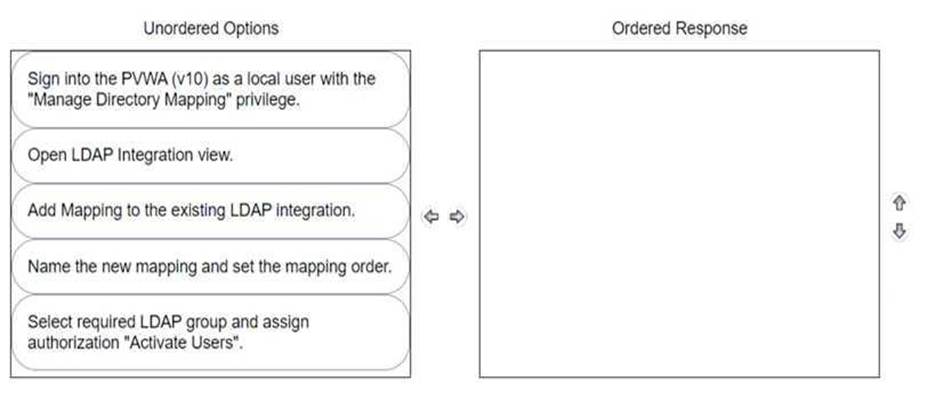
The correct sequence to delegate the rights to unlock users to Tier 1 support with an existing LDAP group is as follows:
Sign into the PWA (V10) as a local user with the “Manage Directory Mapping” privilege.
Open LDAP Integration view.
Add Mapping to the existing LDAP integration.
Name the new mapping and set the mapping order.
Select required LDAP group and assign authorization “Activate Users”.
Comprehensive To delegate the rights to unlock users, you must first access the Privileged Web Access (PWA) with the appropriate privileges to manage directory mappings. Then, navigate to the LDAP Integration view to add a new mapping to the existing LDAP integration. This mapping should be named and ordered correctly. Finally, select the LDAP group that represents Tier 1 support and assign the specific authorization needed to unlock users, which is “Activate Users” in this context12.
Reference: CyberArk Docs: LDAP Integration in V102
CyberArk Knowledge Article: How to delegate permissions to unlock Active Directory accounts1
A user requested access to view a password secured by dual-control and is unsure who to contact to expedite the approval process. The Vault Admin has been asked to look at the account and identify who can approve their request.
What is the correct location to identify users or groups who can approve?
- A . PVWA> Administration > Platform Configuration > Edit Platform > UI & Workflow > Dual Control> Approvers
- B . PVWA> Policies > Access Control (Safes) > Safe Members > Workflow > Authorize Password Requests
- C . PVWA> Account List > Edit > Show Advanced Settings > Dual Control > Direct Managers
- D . PrivateArk > Admin Tools > Users and Groups > Auditors (Group Membership)
B
Explanation:
In CyberArk’s Privileged Access Management (PAM), the correct location to identify users or groups who can approve a dual-control request is within the Password Vault Web Access (PVWA). Specifically, you would navigate to the ‘Policies’ section, then to ‘Access Control (Safes)’, and within a safe, you would go to ‘Safe Members’. Here, under the ‘Workflow’ tab, there is an option to ‘Authorize Password Requests’. This is where the Vault Admin can identify which users or groups are authorized to approve requests for viewing passwords secured by dual-control.
Reference: The information is based on the best practices and guidelines provided in the CyberArk Defender PAM course and learning resources, which include the official CyberArk documentation and study guides.