
CyberArk PAM-DEF Practice Exams
Last updated on Oct 21,2026- Exam Code: PAM-DEF
- Exam Name: CyberArk Defender – PAM
- Certification Provider: CyberArk
- Latest update: Oct 21,2026
By default, members of which built-in groups will be able to view and configure Automatic Remediation and Session Analysis and Response in the PVWA?
- A . Vault Admins
- B . Security Admins
- C . Security Operators
- D . Auditors
B
Explanation:
Security Admins are the built-in group that can view and configure Automatic Remediation and Session Analysis and Response in the PVWA. These features are part of the Privileged Threat Analytics (PTA) module, which is designed to detect and respond to anomalous activities and risky behaviors in the privileged environment. Security Admins have the permissions to access the PTA settings and configure the policies and actions for Automatic Remediation and Session Analysis and Response.
Reference: Defender PAM Sample Items Study Guide, page 18, question 49
Privileged Threat Analytics Implementation Guide, page 9, section “Security Admins”
When managing SSH keys, the CPM stored the Private Key
- A . In the Vault
- B . On the target server
- C . A&B
- D . Nowhere because the private key can always be generated from the public key.
A
Explanation:
When managing SSH keys, the CPM stores the private key in the Vault. The CPM generates a new random SSH key pair and updates the public SSH key on the target server. The new private SSH key is then stored in the Digital Vault where it benefits from all the accessibility and security features of the Vault. The private SSH key is never stored on the target server, as this would expose it to unauthorized access or theft. The private SSH key cannot be generated from the public key, as this would defeat the purpose of asymmetric encryption.
Reference: Manage SSH Keys
SSH Key Manager
Use SSH Keys
Which utilities could you use to change debugging levels on the vault without having to restart the vault. Select all that apply.
- A . PAR Agent
- B . PrivateArk Server Central Administration
- C . Edit DBParm.ini in a text editor.
- D . Setup.exe
A, B
Explanation:
To change debugging levels on the vault without having to restart the vault, you can use the following utilities:
PAR Agent: This is a utility that runs on the vault server and allows you to change the debug level of the vault by editing the PARAgent.ini file. You can set the EnableTrace parameter to yes and specify the debug level in the DebugLevel parameter. The changes will take effect immediately without restarting the vault. The log file is located in the PARAgent.log file1.
PrivateArk Server Central Administration: This is a graphical user interface that runs on the vault server and allows you to change the debug level of the vault by selecting the vault server and clicking the Debug button. You can choose the debug level from a list of predefined options or enter a custom value. The changes will take effect immediately without restarting the vault. The log files are located in the Trace.dX files, where X is a number from 0 to 42.
You cannot use the following utilities to change debugging levels on the vault without having to restart the vault:
Edit DBParm.ini in a text editor: This is a configuration file that stores the vault parameters, such as the database name, port, and password. Editing this file does not affect the debug level of the vault, and requires restarting the vault for the changes to take effect3.
Setup.exe: This is an installation program that runs on the vault server and allows you to install, upgrade, or uninstall the vault. It does not allow you to change the debug level of the vault, and requires restarting the vault for any changes to take effect4.
Reference: 1: Configure Debug Levels, Vault section, PARAgent subsection
2: Configure Debug Levels, Vault section, PrivateArk Server Central Administration subsection
3: CyberArk Privileged Access Security Implementation Guide, Chapter 2: Installing the Vault,
Section: Configuring the Vault, Subsection: DBParm.ini
4: CyberArk Privileged Access Security Implementation Guide, Chapter 2: Installing the Vault,
Section: Installing the Vault
Which of the following components can be used to create a tape backup of the Vault?
- A . Disaster Recovery
- B . Distributed Vaults
- C . Replicate
- D . High Availability
C
Explanation:
The Replicate component can be used to create a tape backup of the Vault. The Replicate component is a utility that exports the encrypted contents of the Safes and the Vault metadata to a computer outside the Vault environment. A global backup system can then access the replicated files and copy them to a tape or any other backup media. The Replicate component is part of the CyberArk Backup Process, which provides a secure and easy method of backing up and restoring the Vault data12. The other components are not related to the tape backup of the Vault. Disaster Recovery is a feature that enables the Vault to recover from a catastrophic failure by using a standby Vault server3. Distributed Vaults is a feature that enables the Vault to synchronize data with other Vaults in different locations4. High Availability is a feature that enables the Vault to maintain continuous operation by using a primary and a secondary Vault server.
Reference: Use the CyberArk Backup Process – CyberArk, section “Use the CyberArk Backup Process” Install the Vault Backup Utility – CyberArk, section “Backup utilities”
Disaster Recovery – CyberArk, section “Disaster Recovery” Distributed Vaults – CyberArk, section “Distributed Vaults” [High Availability – CyberArk], section “High Availability”
Which statement is correct concerning accounts that are discovered, but cannot be added to the Vault by an automated onboarding rule?
- A . They are added to the Pending Accounts list and can be reviewed and manually uploaded.
- B . They cannot be onboarded to the Password Vault.
- C . They must be uploaded using third party tools.
- D . They are not part of the Discovery Process.
A
Explanation:
When accounts are discovered by CyberArk but do not match any automated onboarding rule, they
are added to the Pending Accounts list. This allows administrators to review these accounts and
decide whether to onboard them manually into the Vault. The Pending Accounts list serves as a
holding area for accounts that require further review or do not meet the criteria set by existing
onboarding rules1.
Reference: CyberArk’s official documentation on Onboarding Rules, which explains the process of managing accounts that are discovered but not automatically onboarded1.
A logon account can be specified in the platform settings.
- A . True
- B . False
A
Explanation:
A logon account can be specified in the platform settings of CyberArk, a security software that manages privileged accounts and credentials. According to the CyberArk documentation1, "In the Account Details window, in the CPM pane, in the accounts section, you can associate either a logon account or a reconciliation account. If a default logon account has been configured for the platform that manages this account, that account is listed. You can associate another logon account or leave the default account as it is."1 A logon account is an account that is used to log on to a target system and perform password management operations on other accounts. A reconciliation account is an account that is used to restore access to a target system when the logon account fails.
DRAG DROP
A new HTML5 Gateway has been deployed in your organization.
From the PVWA, arrange the steps to configure a PSM host to use the HTML5 Gateway in the correct sequence.
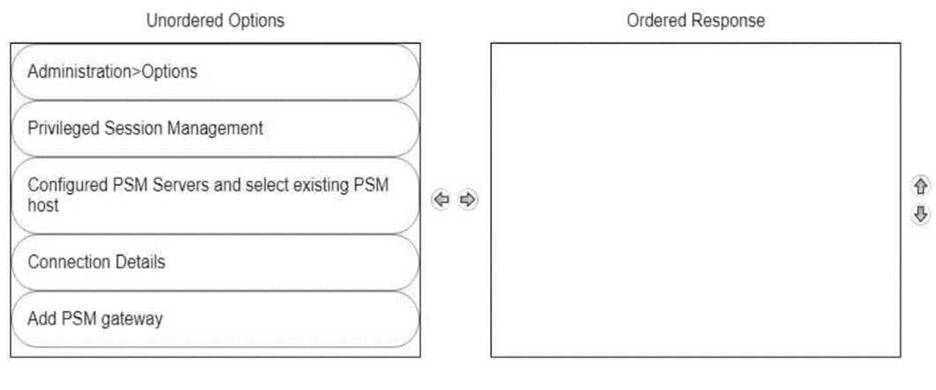
To configure a PSM host to use the HTML5 Gateway from the PVWA, you would typically follow these steps:
Log into the PVWA with an administrative user.
Navigate to Administration > Options.
Right-click on Privileged Session Management and select Add Configured PSM Gateway Servers.
Right-click Configured PSM Gateway Servers, then Add PSM Gateway Server.
Select the newly added gateway server and enter a unique ID for the PSM HTML5 Gateway.
Expand the newly created gateway server and enter the necessary configuration details.
Please note that these steps are based on general procedures for configuring a PSM host with an HTML5 Gateway and should be verified against the official CyberArk documentation or by a qualified CyberArk professional. For detailed instructions and best practices, refer to the CyberArk documentation123.
DRAG DROP
You have been asked to delegate the rights to unlock users to Tier 1 support. The Tier 1 support team
already has an LDAP group for its members.
Arrange the steps to do this in the correct sequence.
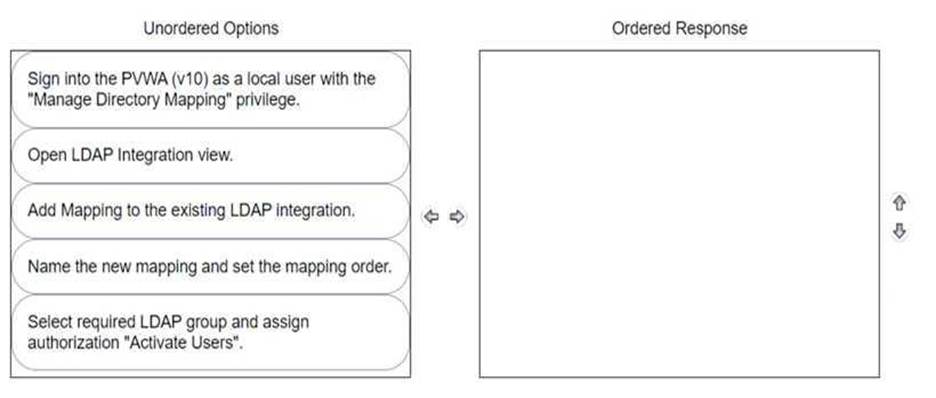
The correct sequence to delegate the rights to unlock users to Tier 1 support with an existing LDAP group is as follows:
Sign into the PWA (V10) as a local user with the “Manage Directory Mapping” privilege.
Open LDAP Integration view.
Add Mapping to the existing LDAP integration.
Name the new mapping and set the mapping order.
Select required LDAP group and assign authorization “Activate Users”.
Comprehensive To delegate the rights to unlock users, you must first access the Privileged Web Access (PWA) with the appropriate privileges to manage directory mappings. Then, navigate to the LDAP Integration view to add a new mapping to the existing LDAP integration. This mapping should be named and ordered correctly. Finally, select the LDAP group that represents Tier 1 support and assign the specific authorization needed to unlock users, which is “Activate Users” in this context12.
Reference: CyberArk Docs: LDAP Integration in V102
CyberArk Knowledge Article: How to delegate permissions to unlock Active Directory accounts1
How does the Vault administrator apply a new license file?
- A . Upload the license.xml file to the system Safe and restart the PrivateArk Server service
- B . Upload the license.xml file to the system Safe
- C . Upload the license.xml file to the Vault Internal Safe and restart the PrivateArk Server service
- D . Upload the license.xml file to the Vault Internal Safe
C
Explanation:
According to the CyberArk Defender PAM documentation1, the Vault administrator can apply a new license file by uploading the license.xml file to the Vault Internal Safe and restarting the PrivateArk Server service. The Vault Internal Safe is a special Safe that contains the Vault configuration files, including the license file. The Vault administrator can access this Safe from the PrivateArk Client and replace the existing license file with the new one. After that, the Vault administrator must restart the PrivateArk Server service for the changes to take effect. This procedure can be done either from the Vault machine or from a remote machine.
Reference: Manage the CyberArk License – CyberArk
A user with administrative privileges to the vault can only grant other users privileges that he himself has.
- A . TRUE
- B . FALSE
B
Explanation:
A user with administrative privileges to the vault can grant other users privileges that he himself
does not have, as long as he has the Authorize Users authorization on the Vault. The Authorize Users authorization enables a user to add or remove other users or groups as Vault members, and assign or revoke their authorizations. A user with this authorization can grant any privilege to any other user or group, regardless of his own privileges. However, this authorization does not allow a user to change his own privileges or the privileges of other users who have the same authorization1.
Reference: 1: Vault Member Authorizations