
CompTIA N10-009 Practice Exams
Last updated on Nov 16,2026- Exam Code: N10-009
- Exam Name: CompTIA Network+ Certification
- Certification Provider: CompTIA
- Latest update: Nov 16,2026
Which of the following will allow secure, remote access to internal applications?
- A . VPN
- B . CDN
- C . SAN
- D . IDS
A
Explanation:
A Virtual Private Network (VPN) creates an encrypted connection between a remote user and an internal network, ensuring secure access to internal applications.
VPNs use encryption protocols like IPSec and SSL/TLS to protect data during transmission. They are widely used for secure remote work, accessing company resources, and bypassing geographic restrictions.
Option B (CDN – Content Delivery Network): Used for speeding up website content delivery, not for remote access security.
Option C (SAN – Storage Area Network): Used for high-speed storage, unrelated to remote access. Option D (IDS – Intrusion Detection System): Monitors for malicious activities but does not provide secure access to applications.
Reference: CompTIA Network+ (N10-009) Official Study Guide C Section: Secure Remote Access Technologies
Which of the following is the correct order of components in a bottom-up approach for the three-tier hierarchical model?
- A . Access, distribution, and core
- B . Core, root, and distribution
- C . Core, spine, and leaf
- D . Access, core, and roof
A
Explanation:
The three-tier hierarchical model in network design consists of three layers: access, distribution, and core. The access layer is where devices like PCs and printers connect to the network. The distribution layer aggregates the data received from the access layer switches before it is transmitted to the core layer, which is responsible for high-speed data transfer and routing. This approach improves scalability and performance in larger networks.
Reference: CompTIA Network+ Exam Objectives and official study guides.
SIMULATION
A network administrator has been tasked with configuring a network for a new corporate office. The office consists of two buildings, separated by 50 feet with no physical connectivity.
The configuration must meet the following requirements:
. Devices in both buildings should be able to access the Internet.
. Security insists that all Internet traffic be inspected before entering the network.
. Desktops should not see traffic destined for other devices.
INSTRUCTIONS
Select the appropriate network device for each location. If applicable, click on the magnifying glass next to any device which may require configuration updates and make any necessary changes.
Not all devices will be used, but all locations should be filled.
If at any time you would like to bring back the initial state of the simulation, please click the Reset All button.
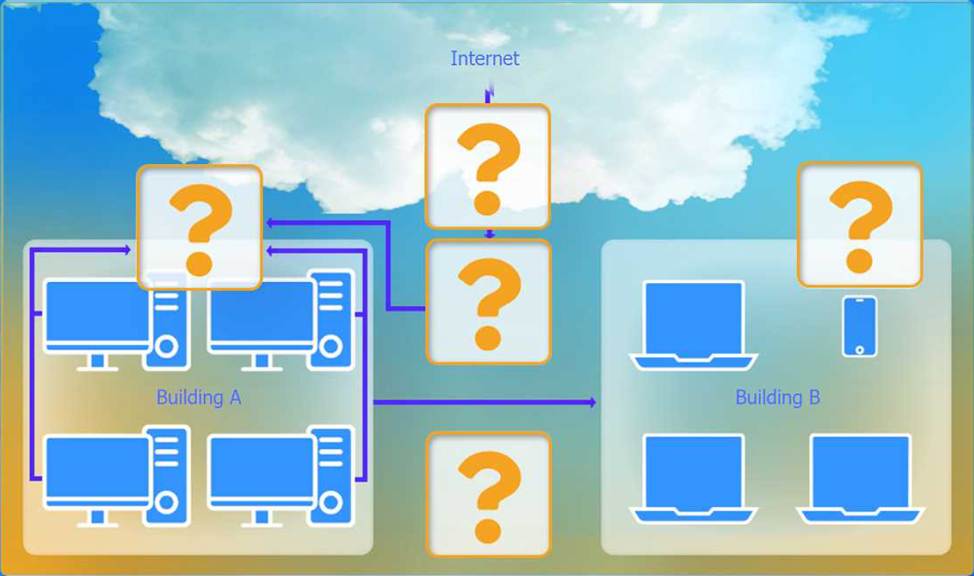
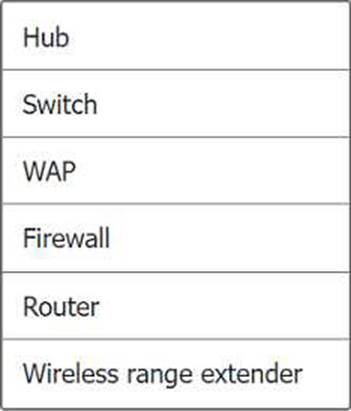
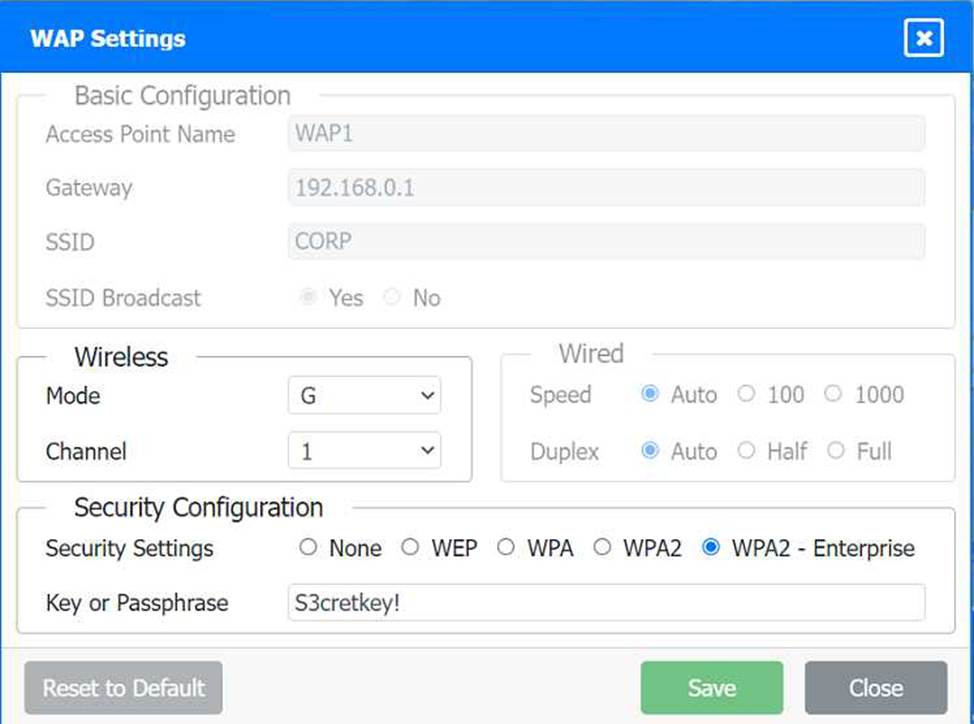
Security insists that all Internet traffic be inspected before entering the network.
Desktops should not see traffic destined for other devices.
Here is the corrected layout with explanation:
Building A:
Switch: Correctly placed to connect all desktops.
Firewall: Correctly placed to inspect all incoming and outgoing traffic.
Building B:
Switch: Not needed. Instead, place a Wireless Access Point (WAP) to provide wireless connectivity for laptops and mobile devices.
Between Buildings:
Wireless Range Extender: Correctly placed to provide connectivity between the buildings wirelessly.
Connection to the Internet:
Router: Correctly placed to connect to the Internet and route traffic between the buildings and the Internet.
Firewall: The firewall should be placed between the router and the internal network to inspect all traffic before it enters the network.
Corrected Setup:
Top-left (Building A): Switch
Bottom-left (Building A): Firewall (inspect traffic before it enters the network)
Top-middle (Internet connection): Router
Bottom-middle (between buildings): Wireless Range Extender
Top-right (Building B): Wireless Access Point (WAP)
In this corrected setup, the WAP in Building B will connect wirelessly to the Wireless Range Extender, which is connected to the Router. The Router is connected to the Firewall to ensure all traffic is inspected before it enters the network.
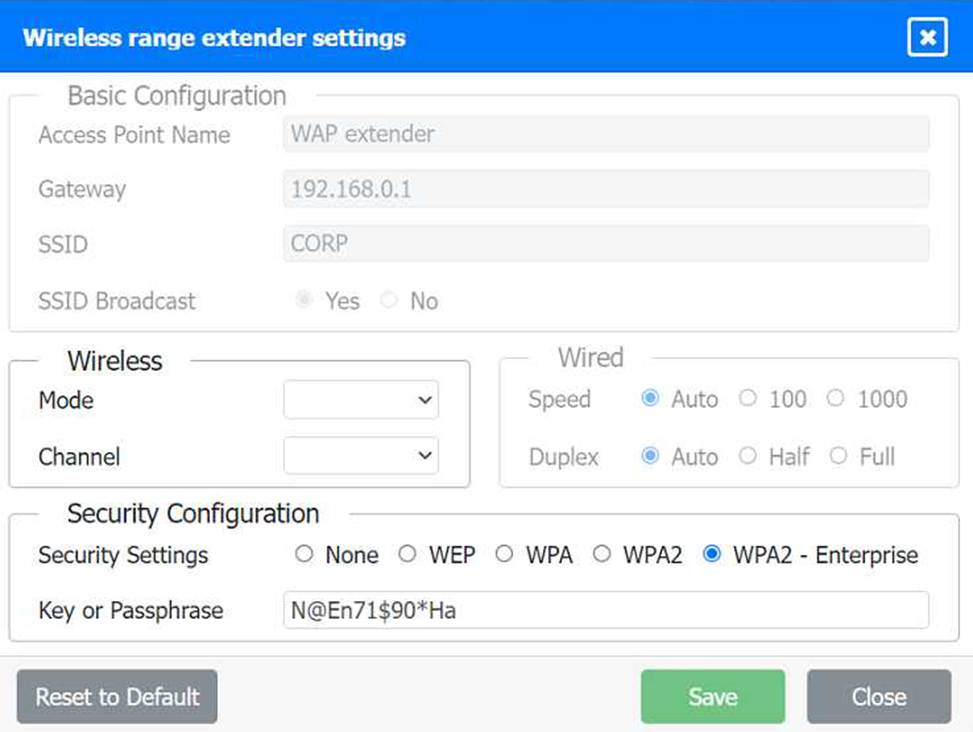
Configuration for Wireless Range Extender:
SSID: CORP
Security Settings: WPA2 or WPA2 – Enterprise
Key or Passphrase: [Enter a strong passphrase]
Mode: [Set based on your network plan]
Channel: [Set based on your network plan]
Speed: Auto
Duplex: Auto
With these settings, both buildings will have secure access to the Internet, and all traffic will be inspected by the firewall before entering the network. Desktops and other devices will not see traffic intended for others, maintaining the required security and privacy.
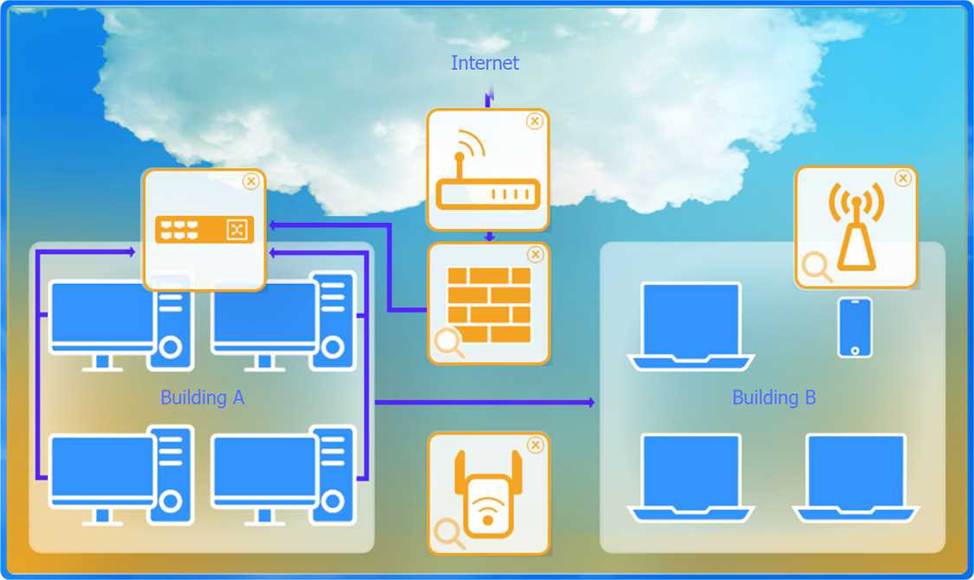
To configure the wireless range extender for security, follow these steps:
SSID (Service Set Identifier):
Ensure the SSID is set to "CORP" as shown in the exhibit.
Security Settings:
WPA2 or WPA2 – Enterprise: Choose one of these options for stronger security. WPA2-Enterprise provides more robust security with centralized authentication, which is ideal for a corporate environment.
Key or Passphrase:
If you select WPA2, enter a strong passphrase in the "Key or Passphrase" field.
If you select WPA2 – Enterprise, you will need to configure additional settings for authentication servers, such as RADIUS, which is not shown in the exhibit.
Wireless Mode and Channel:
Set the appropriate mode and channel based on your network design and the environment to avoid
interference. These settings are not specified in the exhibit, so set them according to your network plan.
Wired Speed and Duplex:
Set the speed to "Auto" unless you have specific requirements for 100 or 1000 Mbps.
Set the duplex to "Auto" unless you need to specify half or full duplex based on your network equipment.
Save Configuration:
After making the necessary changes, click the "Save" button to apply the settings.
Here is how the configuration should look after adjustments:
SSID: CORP
Security Settings: WPA2 or WPA2 – Enterprise
Key or Passphrase: [Enter a strong passphrase]
Mode: [Set based on your network plan]
Channel: [Set based on your network plan]
Speed: Auto
Duplex: Auto
Once these settings are configured, your wireless range extender will provide secure connectivity for devices in both buildings.
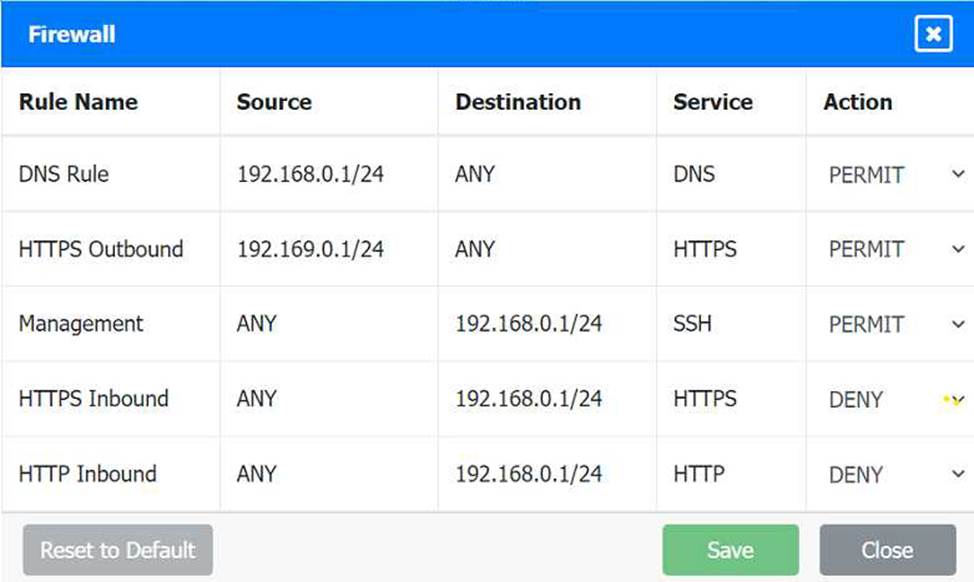
Firewall setting to to ensure complete compliance with the requirements and best security practices, consider the following adjustments and additions:
DNS Rule: This rule allows DNS traffic from the internal network to any destination, which is fine.
HTTPS Outbound: This rule allows HTTPS traffic from the internal network (assuming 192.169.0.1/24 is a typo and should be 192.168.0.1/24) to any destination, which is also good for secure web browsing.
Management: This rule allows SSH access to the firewall for management purposes, which is necessary for administrative tasks.
HTTPS Inbound: This rule denies inbound HTTPS traffic to the internal network, which is good unless you have a web server that needs to be accessible from the internet.
HTTP Inbound: This rule denies inbound HTTP traffic to the internal network, which is correct for security purposes.
Suggested Additional Settings:
Permit General Outbound Traffic: Allow general outbound traffic for web access, email, etc.
Block All Other Traffic: Ensure that all other traffic is blocked to prevent unauthorized access.
Firewall Configuration Adjustments:
Correct the Network Typo:
Ensure that the subnet 192.169.0.1/24 is corrected to 192.168.0.1/24.
Permit General Outbound Traffic:
Rule Name: General Outbound
Source: 192.168.0.1/24
Destination: ANY
Service: ANY
Action: PERMIT
Deny All Other Traffic:
Rule Name: Block All
Source: ANY
Destination: ANY
Service: ANY
Action: DENY
Here is how your updated firewall settings should look:
Rule Name Source Destination Service Action
DNS Rule 192.168.0.1/24 ANY DNS PERMIT
HTTPS Outbound 192.168.0.1/24 ANY HTTPS PERMIT
Management ANY 192.168.0.1/24 SSH PERMIT
HTTPS Inbound ANY 192.168.0.1/24 HTTPS DENY
HTTP Inbound ANY 192.168.0.1/24 HTTP DENY
General Outbound 192.168.0.1/24 ANY ANY PERMIT
Block All ANY ANY ANY DENY
These settings ensure that:
Internal devices can access DNS and HTTPS services externally.
Management access via SSH is permitted.
Inbound HTTP and HTTPS traffic is denied unless otherwise specified.
General outbound traffic is allowed.
All other traffic is blocked by default, ensuring a secure environment.
Make sure to save the settings after making these adjustments.
A network administrator needs to set up a multicast network for audio and video broadcasting.
Which of the following networks would be the most appropriate for this application?
- A . 172.16.0.0/24
- B . 192.168.0.0/24
- C . 224.0.0.0/24
- D . 240.0.0.0/24
C
Explanation:
Understanding Multicast:
Multicast IP Address Range: The multicast address range is from 224.0.0.0 to 239.255.255.255, designated for multicast traffic.
Multicast Applications:
Use Case: Multicast is used for one-to-many or many-to-many communication, suitable for applications like audio and video broadcasting where the same data is sent to multiple recipients simultaneously.
Appropriate Network Selection:
A virtual machine has the following configuration:
• IPv4 address: 169.254.10.10
• Subnet mask: 255.255.0.0
The virtual machine can reach collocated systems but cannot reach external addresses on the Internet.
Which of the following Is most likely the root cause?
- A . The subnet mask is incorrect.
- B . The DHCP server is offline.
- C . The IP address is an RFC1918 private address.
- D . The DNS server is unreachable.
B
Explanation:
Understanding the 169.254.x.x Address:
An IPv4 address in the range of 169.254.x.x is an Automatic Private IP Addressing (APIPA) address, assigned when a DHCP server is unavailable.
DHCP Server Offline:
APIPA Assignment: When a device cannot obtain an IP address from a DHCP server, it assigns itself an APIPA address to enable local network communication. This allows communication with other devices on the same local subnet but not with external networks.
Resolution: Ensure the DHCP server is operational. Check for connectivity issues between the virtual machine and the DHCP server, and verify the DHCP server settings. Comparison with Other Options:
The subnet mask is incorrect: The subnet mask 255.255.0.0 is appropriate for the 169.254.x.x range and does not prevent external access by itself.
The IP address is an RFC1918 private address: RFC1918 addresses are private IP ranges (10.x.x.x, 172.16.x.x-172.31.x.x, 192.168.x.x) but 169.254.x.x is not one of them.
The DNS server is unreachable: While this could affect name resolution, it would not prevent the assignment of a non-APIPA address or local network communication.
Troubleshooting Steps:
Verify the DHCP server’s status and connectivity.
Restart the DHCP service if necessary.
Renew the IP lease on the virtual machine using commands such as ipconfig /renew (Windows) or dhclient (Linux).
Reference: CompTIA Network+ study materials on IP addressing and DHCP troubleshooting.
A virtual machine has the following configuration:
• IPv4 address: 169.254.10.10
• Subnet mask: 255.255.0.0
The virtual machine can reach collocated systems but cannot reach external addresses on the Internet.
Which of the following Is most likely the root cause?
- A . The subnet mask is incorrect.
- B . The DHCP server is offline.
- C . The IP address is an RFC1918 private address.
- D . The DNS server is unreachable.
B
Explanation:
Understanding the 169.254.x.x Address:
An IPv4 address in the range of 169.254.x.x is an Automatic Private IP Addressing (APIPA) address, assigned when a DHCP server is unavailable.
DHCP Server Offline:
APIPA Assignment: When a device cannot obtain an IP address from a DHCP server, it assigns itself an APIPA address to enable local network communication. This allows communication with other devices on the same local subnet but not with external networks.
Resolution: Ensure the DHCP server is operational. Check for connectivity issues between the virtual machine and the DHCP server, and verify the DHCP server settings. Comparison with Other Options:
The subnet mask is incorrect: The subnet mask 255.255.0.0 is appropriate for the 169.254.x.x range and does not prevent external access by itself.
The IP address is an RFC1918 private address: RFC1918 addresses are private IP ranges (10.x.x.x, 172.16.x.x-172.31.x.x, 192.168.x.x) but 169.254.x.x is not one of them.
The DNS server is unreachable: While this could affect name resolution, it would not prevent the assignment of a non-APIPA address or local network communication.
Troubleshooting Steps:
Verify the DHCP server’s status and connectivity.
Restart the DHCP service if necessary.
Renew the IP lease on the virtual machine using commands such as ipconfig /renew (Windows) or dhclient (Linux).
Reference: CompTIA Network+ study materials on IP addressing and DHCP troubleshooting.
Following a fire in a data center, the cabling was replaced. Soon after, an administrator notices network issues.
Which of the following are the most likely causes of the network issues? (Select two).
- A . The switches are not the correct voltage.
- B . The HVAC system was not verified as fully functional after the fire.
- C . The VLAN database was not deleted before the equipment was brought back online.
- D . The RJ45 cables were replaced with unshielded cables.
- E . The wrong transceiver type was used for the new termination.
- F . The new RJ45 cables are a higher category than the old ones.
D,E
Explanation:
Unshielded cables (D) are more prone to interference and may not be suitable for certain environments, especially after a fire where interference could be heightened.
Using the wrong transceiver (E) for new terminations can lead to compatibility issues, causing network failures.
Early in the morning, an administrator installs a new DHCP server. In the afternoon, some users report they are experiencing network outages.
Which of the following is the most likely issue?
- A . The administrator didnot provision enough IP addresses.
- B . The administrator configured an incorrect default gateway.
- C . The administrator didnot provision enough routes.
- D . The administrator didnot provision enough MAC addresses.
A
Explanation:
When a DHCP server is installed and not enough IP addresses are provisioned, users may start experiencing network outages once the available IP addresses are exhausted. DHCP servers assign IP addresses to devices on the network, and if the pool of addresses is too small, new devices or those renewing their lease may fail to obtain an IP address, resulting in network connectivity issues.
Reference: CompTIA Network+ study materials.
Which of the following is the part of a disaster recovery (DR) plan that identifies the critical systems that should be recovered first after an incident?
- A . RTO
- B . SLA
- C . MTBF
- D . SIEM
A
Explanation:
RTO stands for Recovery Time Objective, which defines the maximum acceptable amount of time that a system, application, or function can be down after a failure or disaster. It helps prioritize which systems need to be recovered first based on their importance to business operations.
SLA (Service Level Agreement) refers to an agreement between a service provider and a customer regarding expected performance and availability, but it does not dictate recovery order.
MTBF (Mean Time Between Failures) is a measure of reliability and time between hardware or system failures.
SIEM (Security Information and Event Management) is a centralized tool for logging and alerting but not relevant to DR recovery prioritization.
Reference: CompTIA Network+ N10-009 Official Objectives: 4.4 C Summarize business continuity and disaster
recovery concepts.
A critical infrastructure switch is identified as end-of-support.
Which of the following is the best next step to ensure security?
- A . Apply the latest patches and bug fixes.
- B . Decommission and replace the switch.
- C . Ensure the current firmware has no issues.
- D . Isolate the switch from the network.
B
Explanation:
Understanding End-of-Support:
End-of-Support Status: When a vendor declares a device as end-of-support, it means the device will
no longer receive updates, patches, or technical support. This poses a security risk as new
vulnerabilities will not be addressed.
Risks of Keeping an End-of-Support Device:
Security Vulnerabilities: Without updates, the switch becomes susceptible to new security threats.
Compliance Issues: Many regulatory frameworks require that critical infrastructure be maintained
with supported and secure hardware.
Best Next Step – Replacement:
Decommission and Replace: The most secure approach is to replace the end-of-support switch with a new, supported model. This ensures the infrastructure remains secure and compliant with current standards.
Planning and Execution: Plan for the replacement by evaluating the network’s needs, selecting a suitable replacement switch, and scheduling downtime for the hardware swap.
Comparison with Other Options:
Apply the Latest Patches: While helpful, this does not address future vulnerabilities since no further patches will be provided.
Ensure the Current Firmware Has No Issues: This is only a temporary measure and does not mitigate future risks.
Isolate the Switch from the Network: Isolating the switch may disrupt network operations and is not a viable long-term solution.
Reference: CompTIA Network+ study materials on network maintenance and security best practices.