
Check Point 156-315.81.20 Practice Exams
Last updated on Oct 22,2026- Exam Code: 156-315.81.20
- Exam Name: Check Point Certified Security Expert - R81.20
- Certification Provider: Check Point
- Latest update: Oct 22,2026
What are the correct steps upgrading a HA cluster (M1 is active, M2 is passive) using Multi-Version Cluster (MVC)Upgrade?
- A . 1) Enable the MVC mechanism on both cluster members #cphaprob mvc on
2) Upgrade the passive node M2 to R81.20
3) In SmartConsole, change the version of the cluster object
4) Install the Access Control Policy and make sure that the installation will not stop if installation on one cluster member fails
5) After examine the cluster states upgrade node M1 to R81.20
6) On each Cluster Member, disable the MVC mechanism - B . 1) Enable the MVC mechanism on both cluster members #cphaprob mvc on
2) Upgrade the passive node M2 to R81.20
3) In SmartConsole, change the version of the cluster object
4) Install the Access Control Policy
5) After examine the cluster states upgrade node M1 to R81.20
6) On each Cluster Member, disable the MVC mechanism and Install the Access Control Policy - C . 1) In SmartConsole, change the version of the cluster object
2) Upgrade the passive node M2 to R81.20
3) Enable the MVC mechanism on the upgraded R81.20 Cluster Member M2 #cphaconf mvc on
4) Install the Access Control Policy and make sure that the installation will not stop if installation on one cluster member fails
5) After examine the cluster states upgrade node M1 to R81.20
6) On each Cluster Member, disable the MVC mechanism and Install the Access Control Policy SmartConsole, change the version of the cluster object - D . 1) Upgrade the passive node M2 to R81.20
2) Enable the MVC mechanism on the upgraded R81.20 Cluster Member M2 #cphaconf mvc on
3) In SmartConsole, change the version of the cluster object
4) Install the Access Control Policy
5) After examine the cluster states upgrade node M1 to R81.20
6) On each Cluster Member, disable the MVC mechanism and Install the Access Control Policy upgrade the passive node M2 to R81.20
C
Explanation:
The correct steps upgrading a HA cluster (M1 is active, M2 is passive) using Multi-Version Cluster (MVC) Upgrade are:
In SmartConsole, change the version of the cluster object to R81.20.
Upgrade the passive node M2 to R81.20 using CPUSE or CLI.
Enable the MVC mechanism on the upgraded R81.20 Cluster Member M2 using the command cphaconf mvc on.
Install the Access Control Policy and make sure that the installation will not stop if installation on one cluster member fails by selecting Continue installing on other Gateways in the Policy Installation Settings dialog box.
After examining the cluster states using cphaprob stat and verifying that both members are synchronized, upgrade node M1 to R81.20 using CPUSE or CLI.
On each Cluster Member, disable the MVC mechanism using the command cphaconf mvc off and Install the Access Control Policy3.
Reference: Check Point R81 Installation and Upgrade Guide
What state is the Management HA in when both members have different policies/databases?
- A . Synchronized
- B . Never been synchronized
- C . Lagging
- D . Collision
D
Explanation:
The state of the Management HA when both members have different policies/databases is Collision. This state indicates that there is a conflict between the members and they need to be synchronized manually. The other states are not applicable in this scenario. The Synchronized state indicates that both members have identical policies/databases and are ready for failover. The Never been synchronized state indicates that the members have never been synchronized since they were configured as HA pair. The Lagging state indicates that one member has a newer policy/database than the other member and needs to be synchronized automatically.
Reference: [Management High Availability]
With Mobile Access enabled, administrators select the web-based and native applications that can be accessed by remote users and define the actions that users can perform the applications. Mobile Access encrypts all traffic using:
- A . HTTPS for web-based applications and 3DES or RC4 algorithm for native applications. For end users to access the native applications, they need to install the SSL Network Extender.
- B . HTTPS for web-based applications and AES or RSA algorithm for native applications. For end users to access the native application, they need to install the SSL Network Extender.
- C . HTTPS for web-based applications and 3DES or RC4 algorithm for native applications. For end users to access the native applications, no additional software is required.
- D . HTTPS for web-based applications and AES or RSA algorithm for native applications. For end users to access the native application, no additional software is required.
A
Explanation:
Mobile Access encrypts all traffic using HTTPS for web-based applications and 3DES or RC4 algorithm for native applications. For end users to access the native applications, they need to install the SSL Network Extender, which is a lightweight VPN client that creates a secure SSL tunnel to the Mobile Access gateway. The SSL Network Extender supports various types of native applications, such as email clients, file sharing, and remote desktop.
Reference: Mobile Access Administration Guide, SSL Network Extender
You have a Geo-Protection policy blocking Australia and a number of other countries. Your network now requires a Check Point Firewall to be installed in Sydney, Australia.
What must you do to get SIC to work?
- A . Remove Geo-Protection, as the IP-to-country database is updated externally, and you have no control of this.
- B . Create a rule at the top in the Sydney firewall to allow control traffic from your network
- C . Nothing – Check Point control connections function regardless of Geo-Protection policy
- D . Create a rule at the top in your Check Point firewall to bypass the Geo-Protection
C
Explanation:
Nothing needs to be done to get SIC to work if there is a Geo-Protection policy blocking Australia and a network requires a Check Point Firewall to be installed in Sydney, Australia. SIC stands for Secure Internal Communication, and it is a mechanism that ensures secure and authenticated communication between Check Point components by using certificates issued by an internal Certificate Authority (ICA). SIC is not affected by Geo-Protection policy, which is a feature that allows administrators to block or allow traffic based on the geographic location of the source or destination IP address. Geo-Protection policy only applies to data traffic, not control traffic, and SIC uses control traffic to establish trust between Check Point components.
When installing a dedicated R81 SmartEvent server.
What is the recommended size of the root partition?
- A . Any size
- B . Less than 20GB
- C . More than 10GB and less than 20GB
- D . At least 20GB
D
Explanation:
At least 20GB is the recommended size of the root partition when installing a dedicated R81 SmartEvent server. The root partition is the primary partition that contains the operating system files and other essential files for booting and running the system. The SmartEvent server requires at least 20GB of free space on the root partition to install and operate properly. If the root partition size is less than 20GB, you may encounter errors or performance issues with SmartEvent.
Reference: Check Point Security Expert R81 Course, SmartEvent Administration Guide
What component of Management is used tor indexing?
- A . DBSync
- B . API Server
- C . fwm
- D . SOLR
D
Explanation:
The component of Management that is used for indexing is SOLR1. SOLR is an open source enterprise search platform that provides indexing and searching capabilities for various types of data2. Check Point uses SOLR to index logs, objects, policies, and other data that are stored in the Security Management Server or the Multi-Domain Security Management Server3. SOLR enables fast and efficient searches in SmartConsole, SmartLog, SmartView, and other applications3. SOLR also supports advanced features such as full-text search, faceted search, highlighting, spell checking, and geospatial search2.
Reference: Check Point R81.20 Known Limitations – Check Point Software, SOLR – The Enterprise Search Platform, Check Point R81.20 Logging and Monitoring Administration Guide – Check Point Software
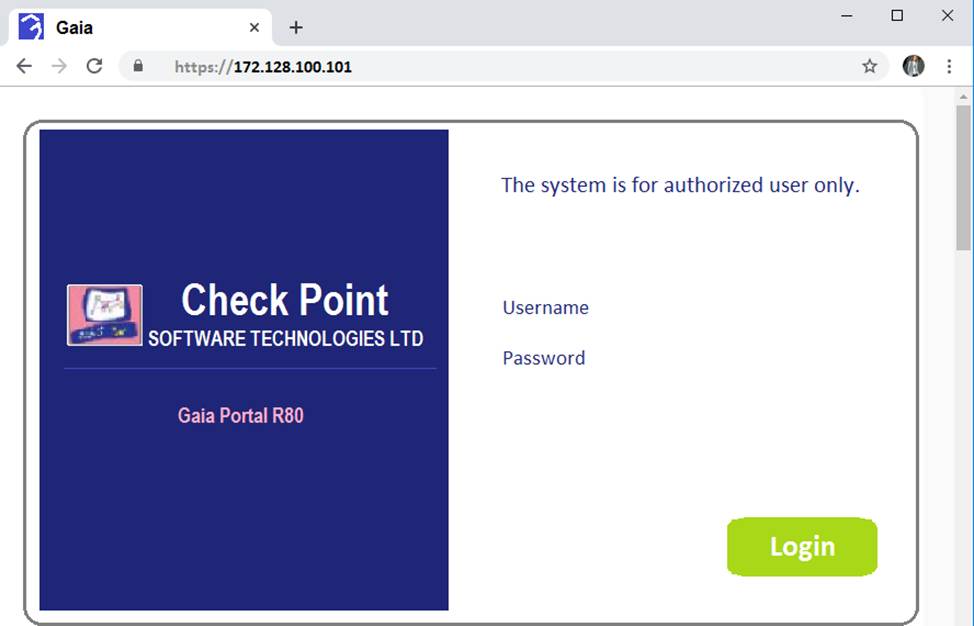
Kofi, the administrator of the ALPHA Corp network wishes to change the default Gaia WebUI Portal port number currently set on the default HTTPS port.
Which CLISH commands are required to be able to change this TCP port?
- A . set web ssl-port <new port number>
- B . set Gaia-portal port <new port number>
- C . set Gaia-portal https-port <new port number>
- D . set web https-port <new port number>
A
Explanation:
The CLISH command to change the default Gaia WebUI Portal port number is set web ssl-port <new port number>. This command will change the port that the WebUI listens on for HTTPS connections. After changing the port, you need to save the configuration with save config and verify that the change was applied with show web ssl-port. You also need to update the Main URL in the Platform Portal section of the gateway object in SmartConsole and install the policy.
What are the services used for Cluster Synchronization?
- A . 256H-CP tor Full Sync and 8116/UDP for Delta Sync
- B . 8116/UDP for Full Sync and Delta Sync
- C . TCP/256 for Full Sync and Delta Sync
- D . No service needed when using Broadcast Mode
A
Explanation:
Cluster Synchronization is a mechanism that allows cluster members to share state information and maintain a consistent security policy. Cluster Synchronization uses two types of synchronization: Full Synchronization and Delta Synchronization. Full Synchronization transfers the entire Security Policy and state tables from one cluster member to another. Delta Synchronization transfers only the changes in the state tables. Cluster Synchronization uses two services for communication: TCP port 256 (CPHA) for Full Synchronization and UDP port 8116 for Delta Synchronization3. Therefore, the correct answer is A.
Reference: 3: Cluster Synchronization
In a Client to Server scenario, which inspection point is the first point immediately following the tables and rule base check of a packet coming from outside of the network?
- A . Big l
- B . Little o
- C . Little i
- D . Big O
A
Explanation:
The inspection point Big l is the first point immediately following the tables and rule base check of a packet coming from outside of the network. It is also the last point before the packet leaves the Security Gateway to the internal network1. The other inspection points are either before or after the rule base check, or in a different direction of traffic flow2.
Reference: Check Point R81 Security Gateway Architecture and Packet Flow, 156-315.81 Checkpoint Exam Info and Free Practice Test – ExamTopics
SmartConsole R81 x requires the following ports to be open for SmartEvent.
- A . 19009, 19090 & 443
- B . 19009, 19004 & 18190
- C . 18190 & 443
- D . 19009, 18190 & 443
D
Explanation:
The ports that are required to be open for SmartEvent are 19009, 18190, and 443. TCP port 19009 is used by the CPM process for management communication. TCP port 18190 is used by the CPD process for inter-process communication. TCP port 443 is used by the HTTPS protocol for secure web access. SmartEvent uses these ports to communicate with other components, such as SmartConsole, Security Management Server, Log Server, Correlation Unit, etc.
Reference: [SmartEvent Ports]