
Tableau TDS-C01 Practice Exams
Last updated on Oct 22,2026- Exam Code: TDS-C01
- Exam Name: Tableau Desktop Specialist
- Certification Provider: Tableau
- Latest update: Oct 22,2026
The Shape option is available for which two views? Choose two.
- A . Side-by-side circles
- B . Scatter plots
- C . Heat maps
- D . Packed bubbles
BA
Explanation:
The Shape option is available for scatter plots and packed bubbles views. The Shape option allows you to change the shape of marks in the view by selecting from a predefined set of shapes or adding custom shapes. You can access the Shape option by placing any field on Shape on the Marks card4 Scatter plots are views that show the relationship between two numerical variables by plotting them as coordinates on a Cartesian plane. You can create a scatter plot by placing at least one measure on Columns and at least one measure on Rows on the Marks card. You can then use Shape to assign different shapes to different categories or segments in your data5 Packed bubbles are views that show hierarchical data as a set of nested circles. Each circle represents a dimension member and its size is proportional to a measure value. You can create a packed bubble chart by placing one or more dimensions on Detail and one measure on Size on the Marks card. You can then use Shape to change the shape of circles to other shapes such as squares or stars6. The other options are not valid views for using the Shape option. Side-by-side circles are views that show proportions of a whole by using circles with different angles and sizes arranged horizontally or vertically. You can create a side-by-side circle chart by placing one dimension on Columns or Rows and one measure on Angle and Size on the Marks card. You cannot use Shape to change the shape of circles in this view7 Heat maps are views that show the distribution of two or more measures by using a color gradient and size. You can create a heat map by placing one or more dimensions on Columns and Rows and two measures on Color and Size on the Marks card. You cannot use Shape to change the shape of marks in this view8
You want to add Custom shapes to your visualisation.
Where can you add these new shapes?
- A . In Downloads -> My Tableau Repository -> Shapes
- B . In My Computer -> C: -> Tableau -> Shapes
- C . In Program Files -> Tableau -> Shapes
- D . In My Documents -> My Tableau Repository -> Shapes
D
Explanation:
Here’s how to add image files to your repository:
1) Find image file on the internet. I try to find consistent image formats if I plan to use a set of shapes such as logos or flags.
2) Download the image to your computer.
3) Drag images into your My Documents -> My Tableau repository -> Shapes folder.
4) Open Tableau and your new shapes will automatically be included in your "edit shapes" menu.
Reference: https://www.tableau.com/about/blog/2016/2/how-use-custom-shapes-filters-your-dashboard-50200
______________ refers to the level of detail for a piece of data, wherever you are looking.
- A . Data Cleanliness
- B . Data granularity
- C . Data connectivity
- D . Data LOD
B
Explanation:
Data is generated and analyzed at many different levels of granularity. Granularity is the level of detail of the data. For example, when looking at graduation data, granularity would describe whether a row in the data set represents a single person or the graduating class of a university.
Reference: https://www.tableau.com/about/blog/2018/6/data-prep-101-what-aggregate-function-and-how-do-you-combine-aggregated-data-89244
By definition, Tableau displays measures over time as a ____________
- A . Packed Bubble
- B . Bar
- C . Stacked Bar
- D . Line
D
Explanation:
Line charts connect individual data points in a view. They provide a simple way to visualize a sequence of values and are useful when you want to see trends over time, or to forecast future values.
Please refer to the images below:
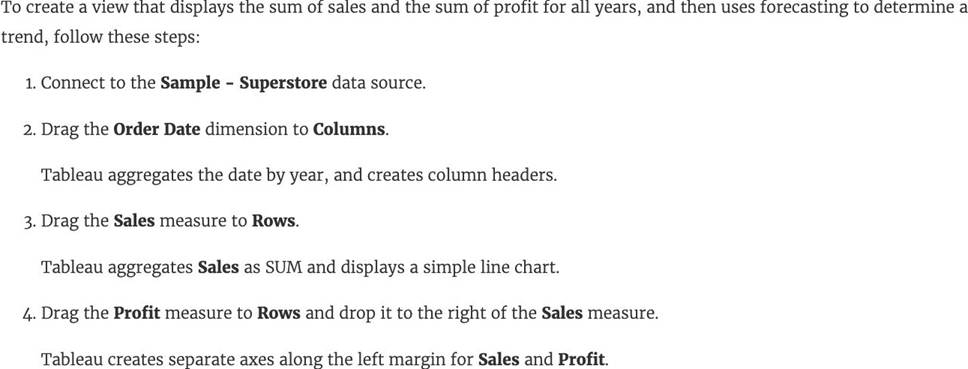
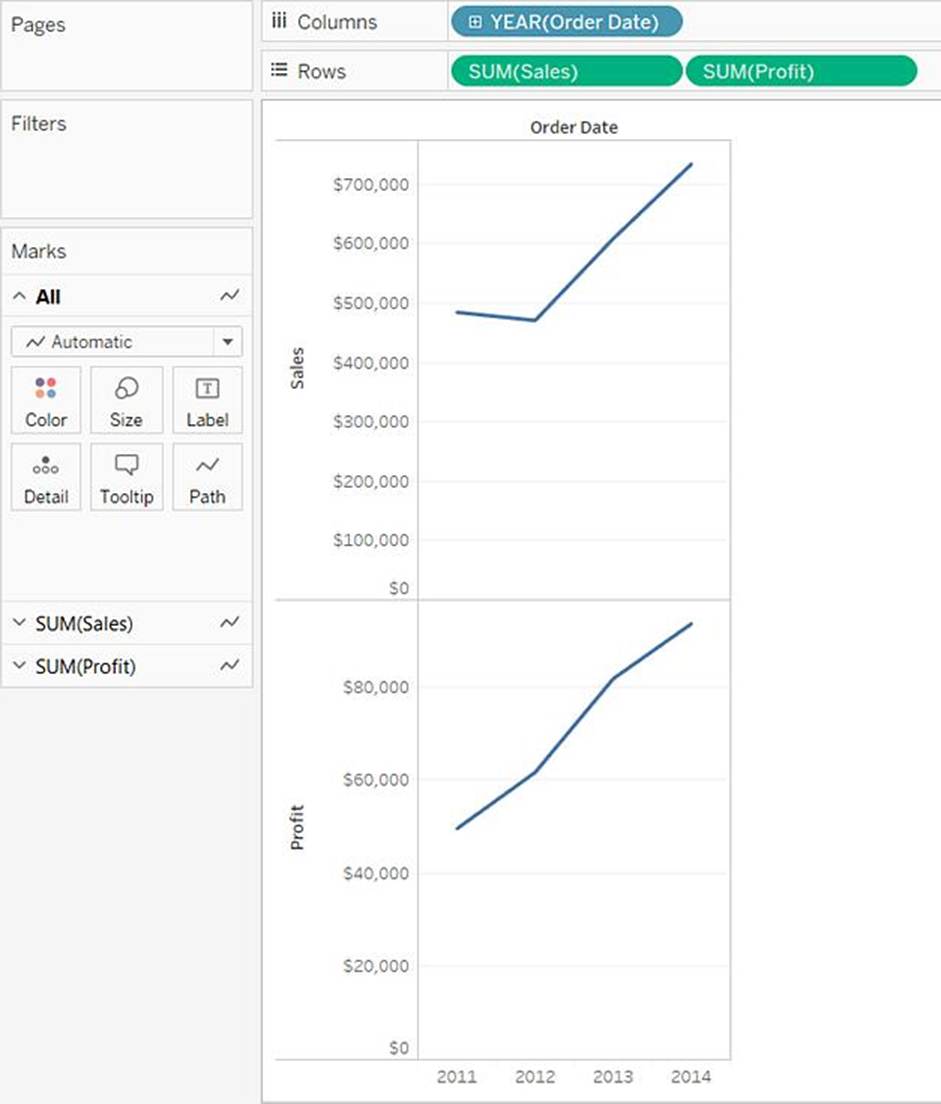
Reference: https://help.tableau.com/current/pro/desktop/en-us/buildexamples_line.htm
Using the atheletes table:
i) Create a sheet with a crosstab showing the Average weight for each sport (Sheet 1)
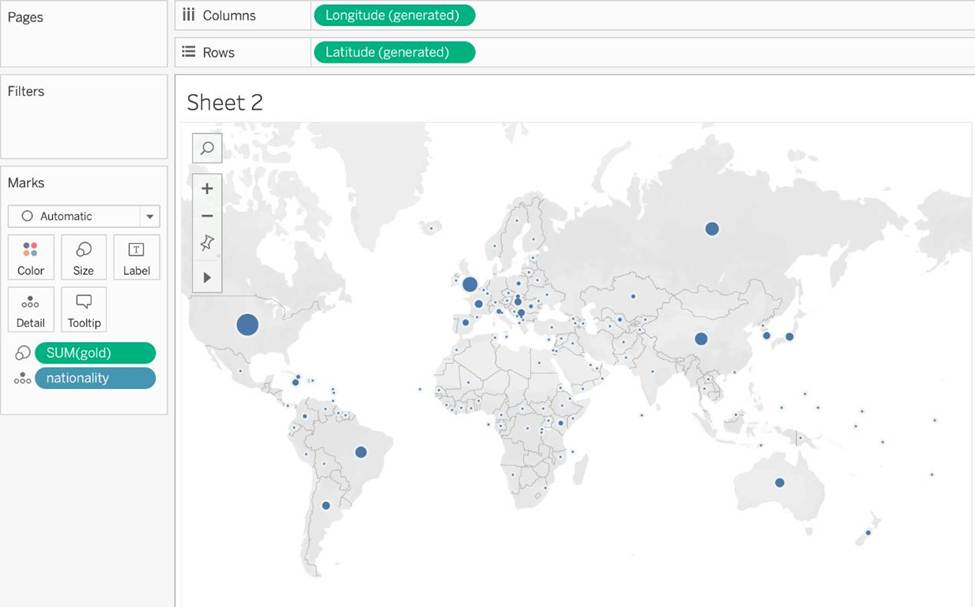
ii) Create a sheet with a Map showing the Total number of gold medals per Country. Use size as a Mark. (Sheet 2)
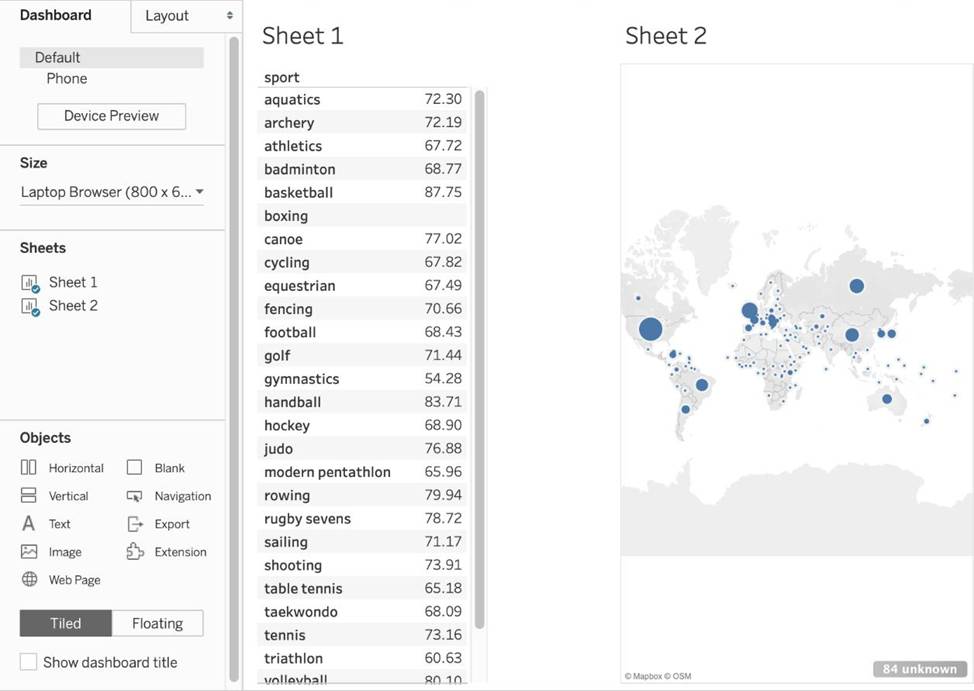
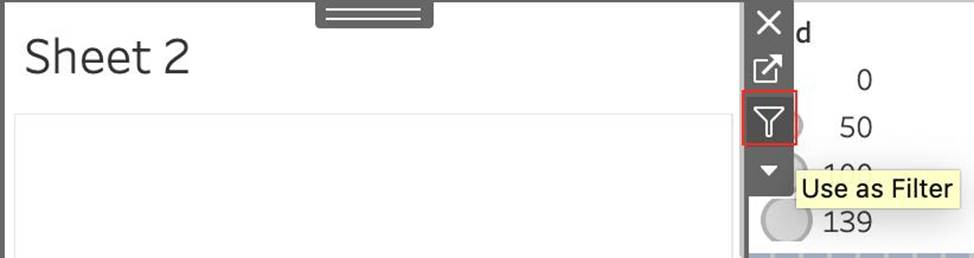
Now, Create a Dashboard containing both these sheets, and Use Sheet 2 as a Filter for Sheet 1.
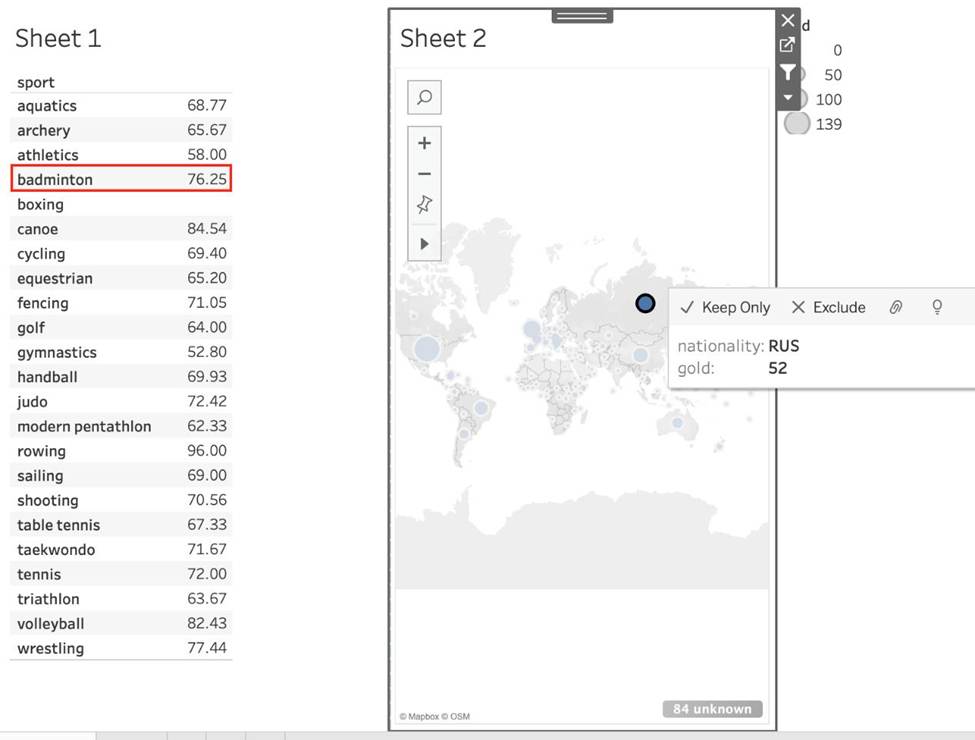
What was the average weight for Badminton in Russia? (Ignore any nulls / unknowns)
- A . 76.25
- B . 65.67
- C . 68.77
- D . 4.87
A
Explanation:
Pretty common question on the Tableau Desktop Specialist exam.
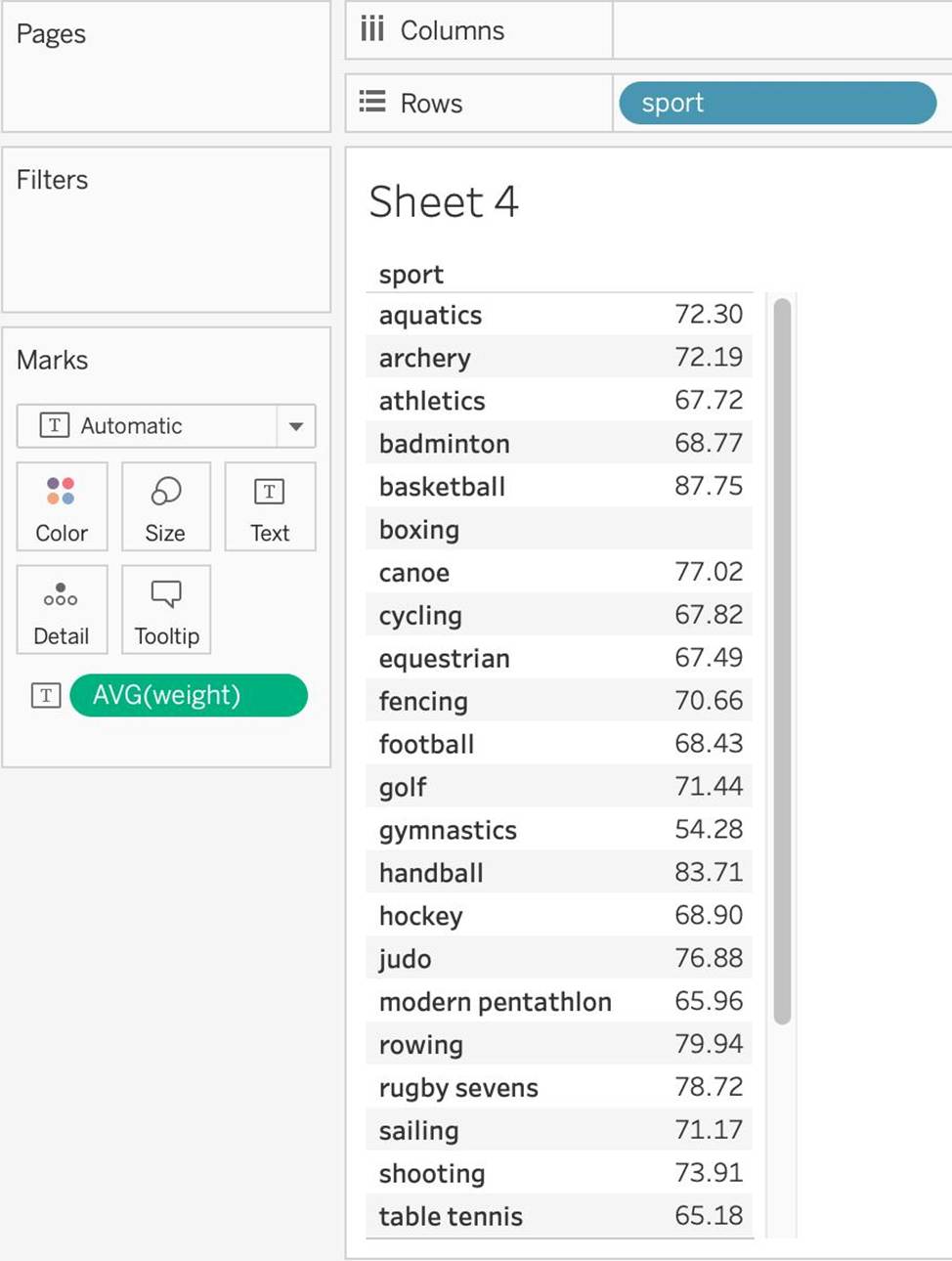
1) First, lets create Sheet 1. For this, drag sport to the Row shelf, and Weight to the Text mark in the Marks shelf. Change its aggregation to Average:
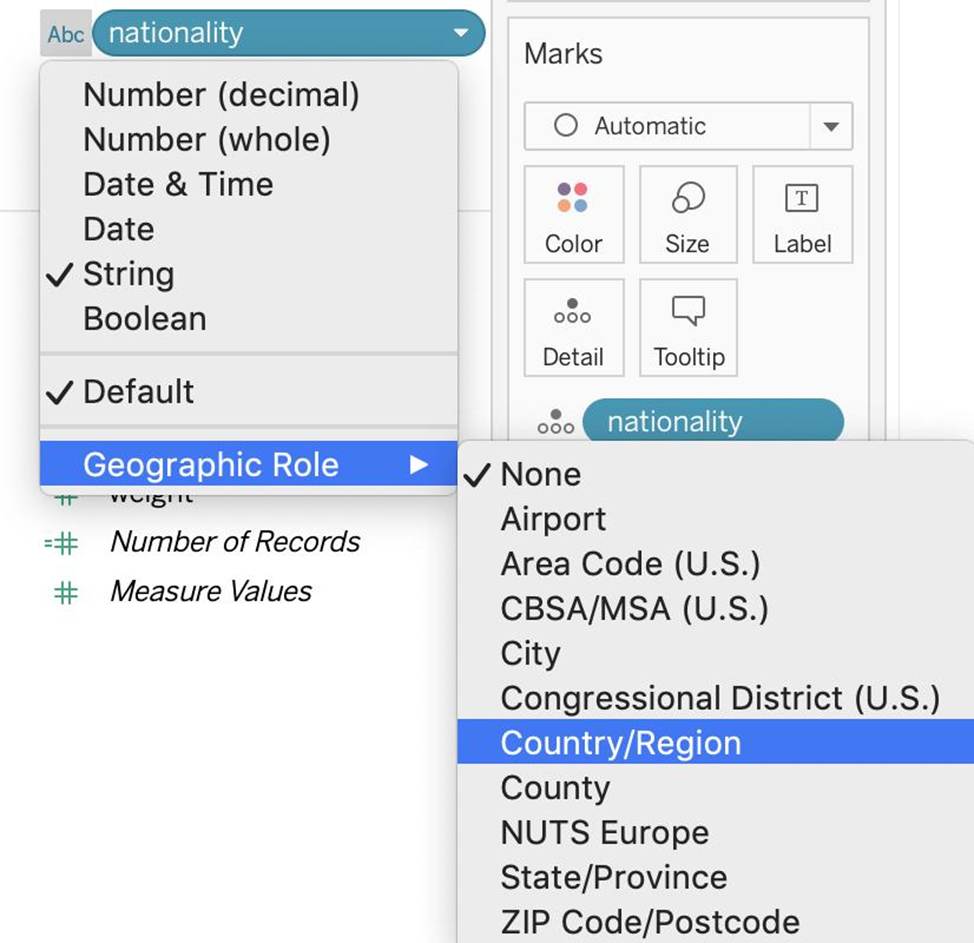
2) Now, for sheet 2 – Drag nationality to the view, and gold to the size mark in the Marks shelf. NOTE: Depending on your version of Tableau, you may need to assign a Geographical role to the nationality column first as follows:
3) Now, let’s create a dashboard, and use both these sheets in it:
4) Now, for the most Important step, use SHEET 2 AS A FILTER FOR SHEET 1 as follows:
Now simply click on Russia in Sheet 2, and Sheet 1 will automatically update as follows:
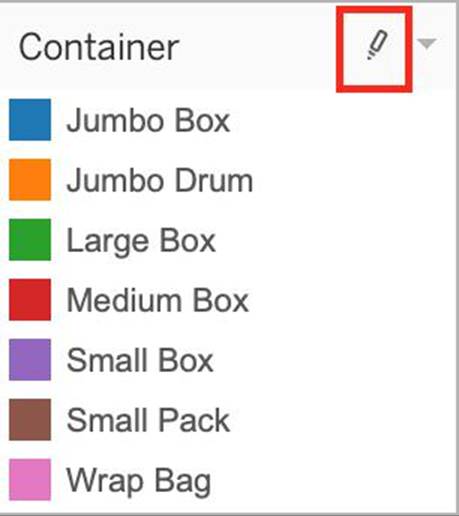
What does the following marker/icon do in Tableau?
- A . Format the Legends
- B . Edit the Colors
- C . Toggle the highlighting on/off.
- D . Highlight the largest value
C
Explanation:
Top of Form
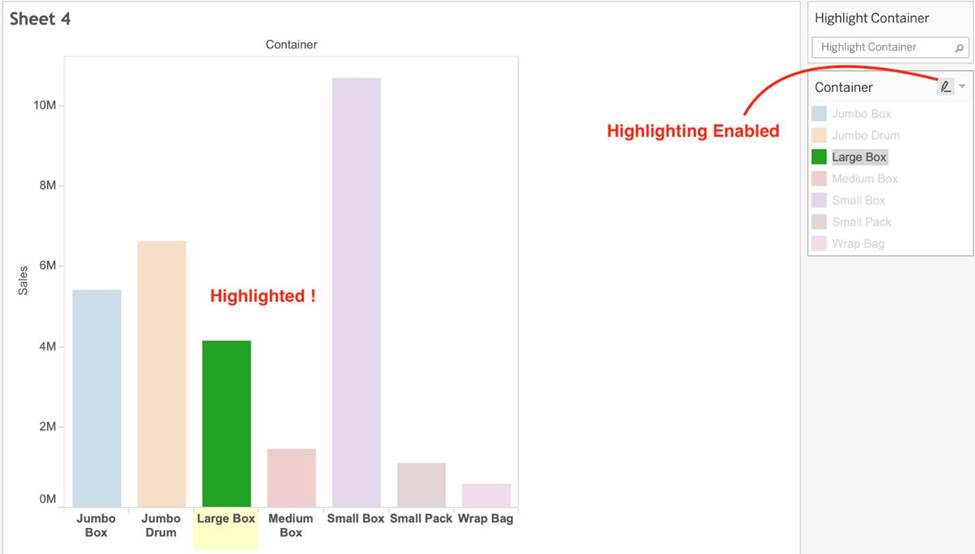
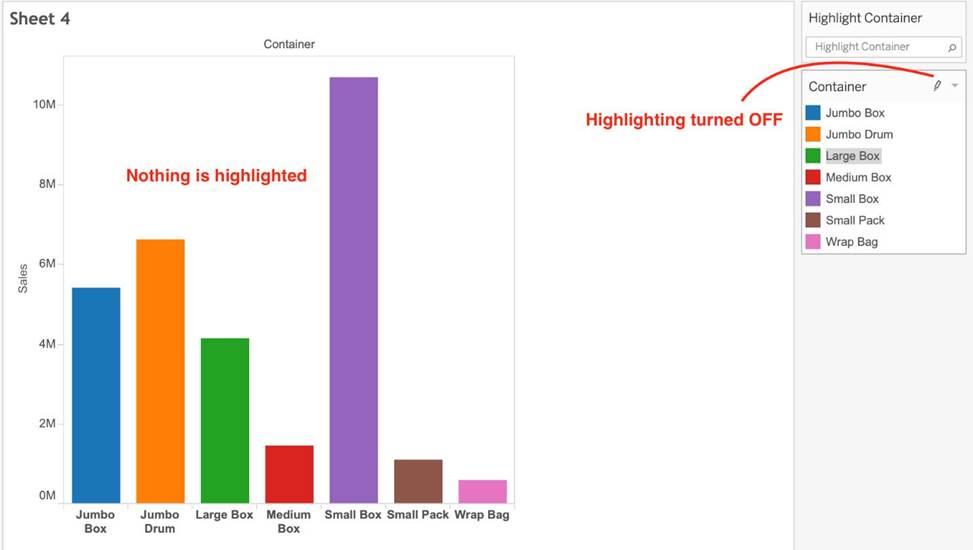
The correct answer is Toggle the highlighting ON/OFF. If selected, whichever value you choose from this legend will be highlighted in the view. However, if it is deselected, then even if you choose a value in the Legend, it will NOT be highlighted.
See below:
Bottom of Form
Larger image
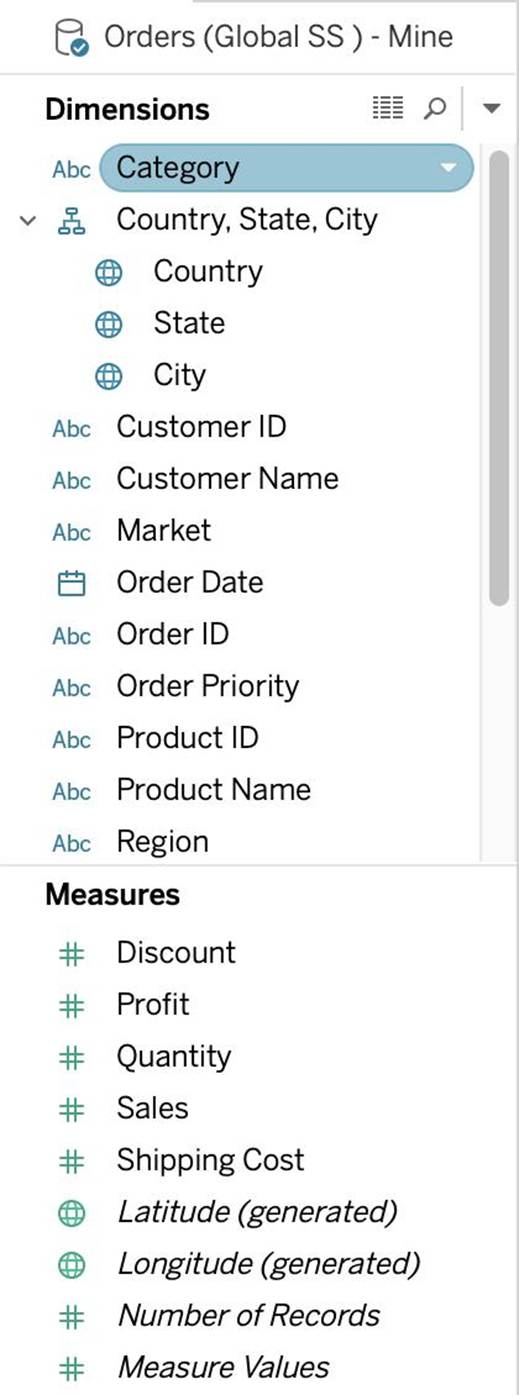
What is this view referred to as in Tableau?
- A . Analytics Pane
- B . Window Pane
- C . Data Pane
- D . Dimensions & Measures
C
Explanation:
Tableau displays data source connections and data fields for the workbook in the Data pane on the left side of the workspace.
The Data pane includes:
Dimension fields C Fields that contain qualitative values (such as names, dates, or geographical data). You can use dimensions to categorize, segment, and reveal the details in your data. Dimensions affect the level of detail in the view. Examples of dimensions include dates, customer names, and customer segments.
Measure fields C Fields that contain numeric, quantitative values can be measured. You can apply calculations to them and aggregate them. When you drag a measure into the view, Tableau applies an aggregation to that measure (by default). Examples of measures: sales, profit, number of employees, temperature, frequency.
For more information on what dimensions and measures are, see Dimensions and Measures, Blue and Green.
Calculated fields C If your underlying data doesn’t include all of the fields you need to answer your questions, you can create new fields in Tableau using calculations and then save them as part of your data source. These fields are called calculated fields.
For more information on calculated fields, see Create Custom Fields with Calculations. Sets C Subsets of data that you define. Sets are custom fields based on existing dimensions and criteria that you specify. For more information, see Create Sets.
Named sets from an MS Analysis Services server or from a Teradata OLAP connector also appear in Tableau in this area of the Data pane. You can interact with these named sets in the same way you interact with other custom sets in Tableau.
Parameters C Values that can be used as placeholders in formulas, or replace constant values in calculated fields and filters. For more information, see Create Parameters.
Reference: https://help.tableau.com/current/pro/desktop/en-us/datafields_understanddatawindow.htm
- A . Bullet
- B . Line
- C . Gantt
- D . Area
D
Explanation:
According to the official Tableau documentation:
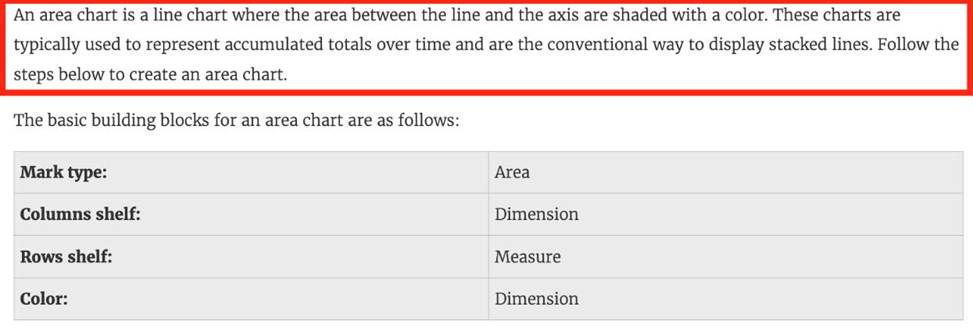
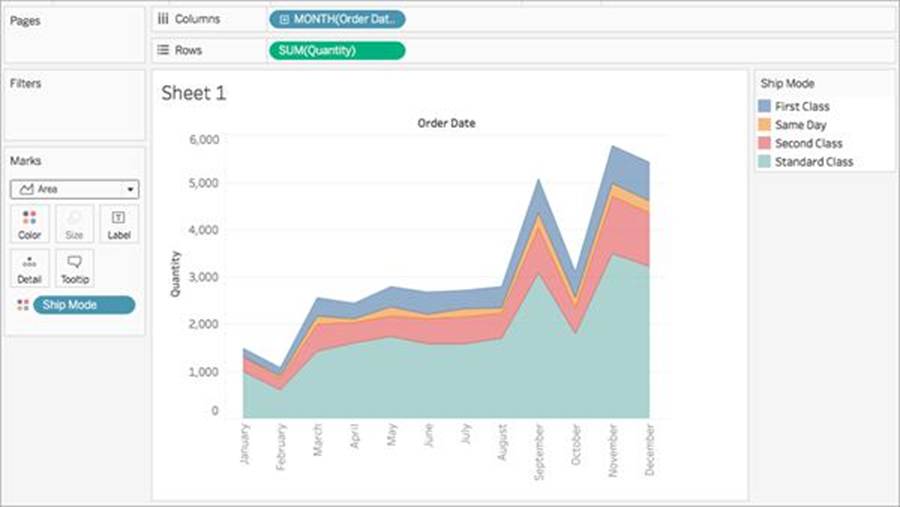
An example of an area chart is shown below:
The View Data window displays as much of the data as possible by default, up to _______________ rows.
- A . 20,000
- B . 5,000
- C . 10,000
- D . 15,000
C
Explanation:
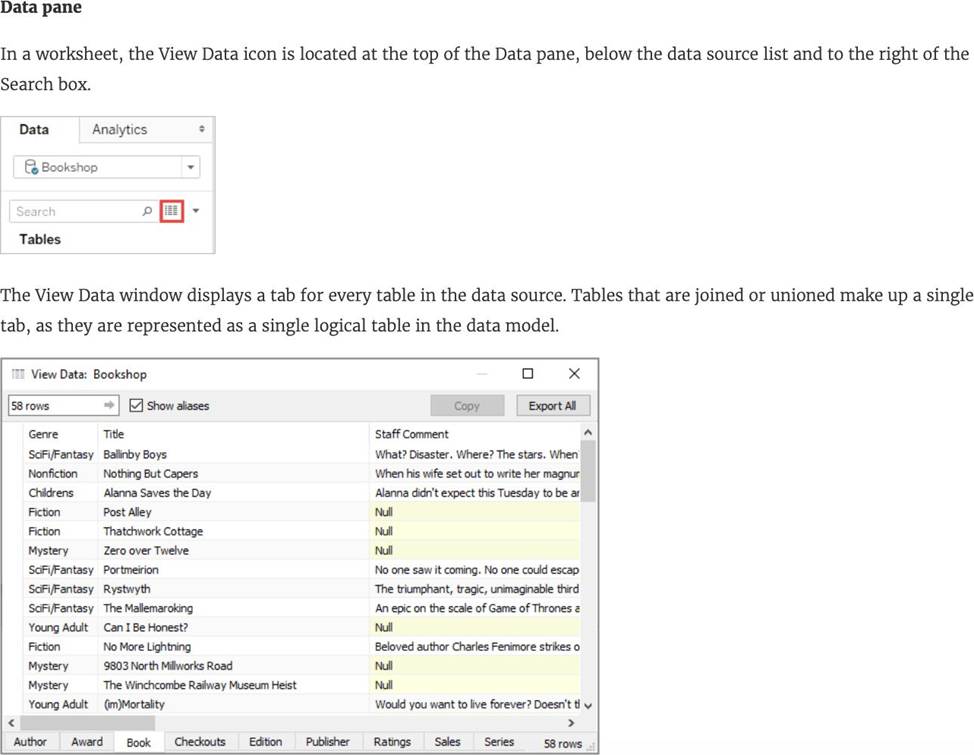
The View Data window displays as much of the data as possible by default, up to 10,000 rows.
This can be increased though, if you wish to.
Read more: https://help.tableau.com/current/pro/desktop/en-gb/inspectdata_viewdata.htm
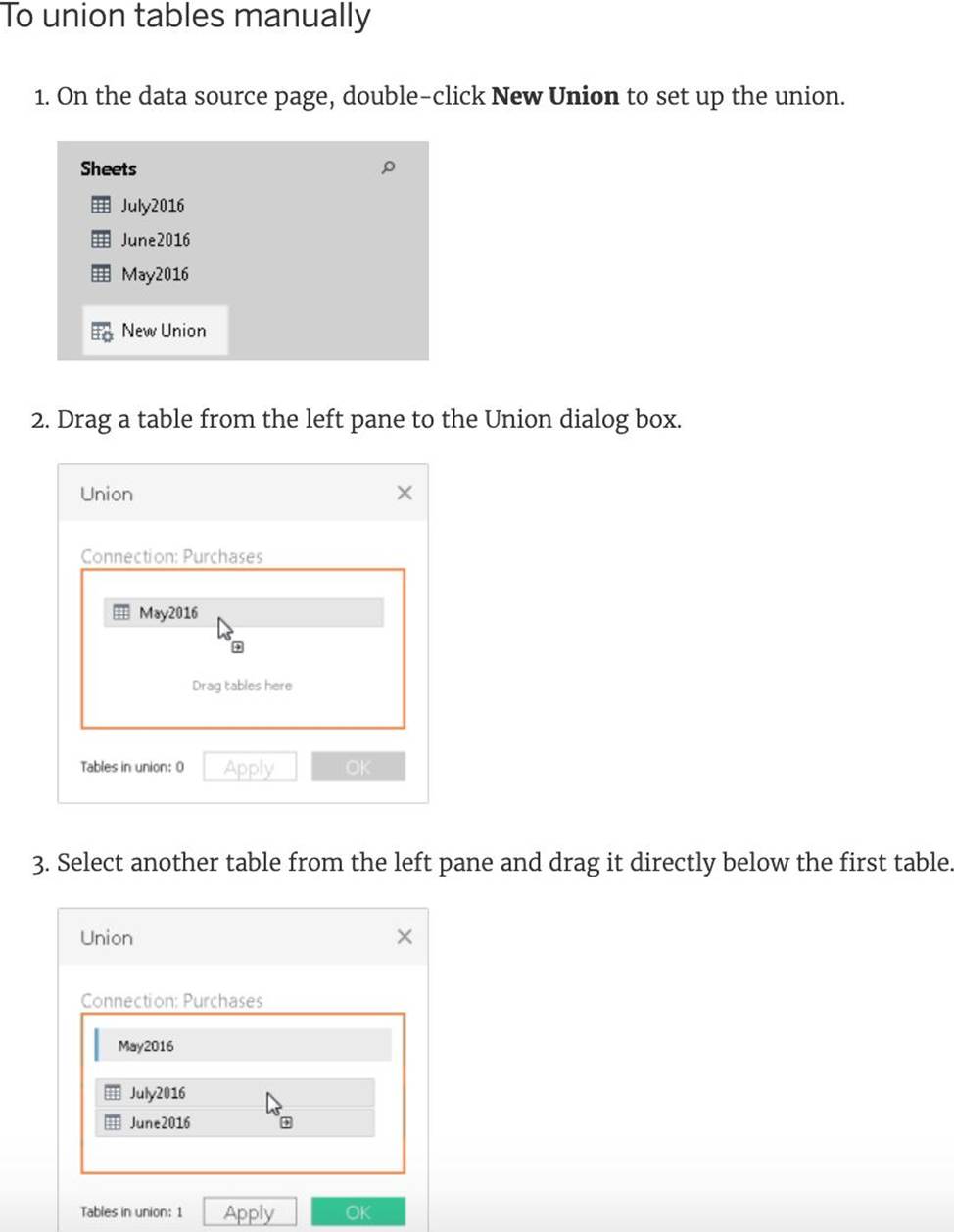
A union of two tables usually results in an
- A . decrease in the number of rows
- B . increase in the number of rows
- C . decrease in the number of columns
- D . increase in the number of columns
B
Explanation:
From the official Tableau documentation:
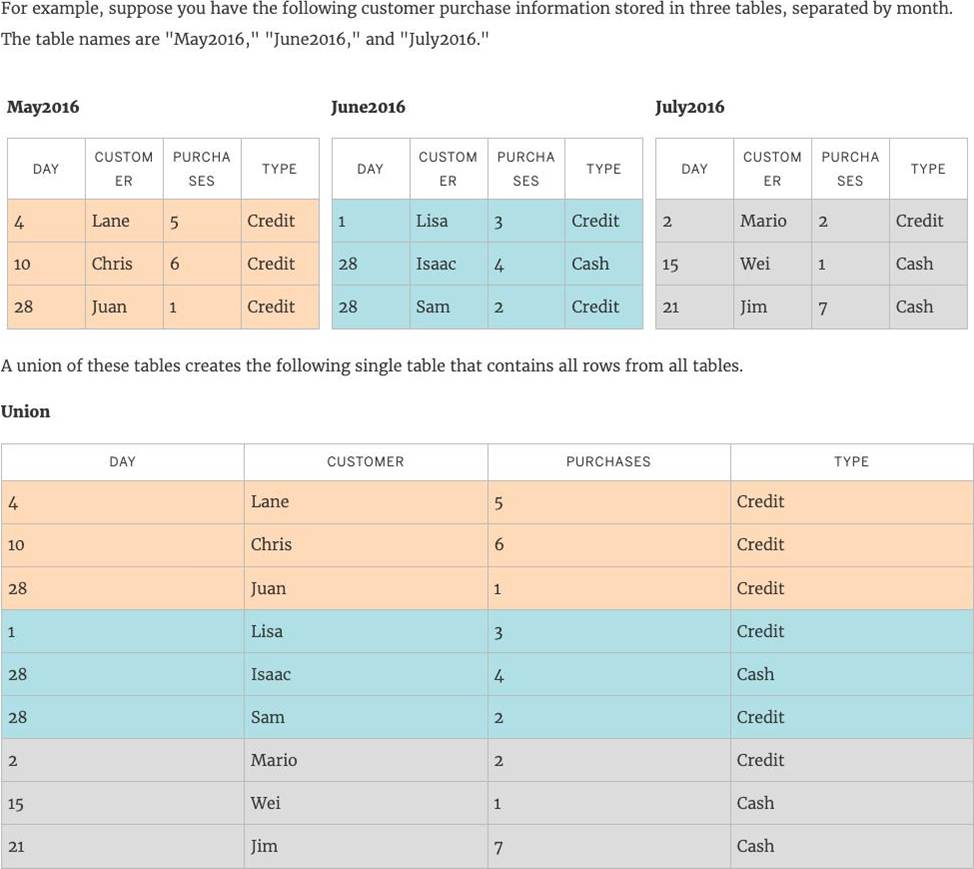
You can union your data to combine two or more tables by appending values (ROWS) from one table to another. To union your data in Tableau data source, the tables must come from the same connection.

Reference: https://help.tableau.com/current/pro/desktop/en-us/union.htm