
Salesforce Marketing Cloud Account Engagement Specialist Practice Exams
Last updated on Oct 23,2026- Exam Code: Marketing Cloud Account Engagement Specialist
- Exam Name: Salesforce Marketing Cloud Account Engagement Specialist
- Certification Provider: Salesforce
- Latest update: Oct 23,2026
Identify three webinar connectors for Marketing Cloud Account Engagement
- A . ReadyTalk, GoTo Webinar, WebEx
- B . WebEx, JoinMe, GoTo Webinar
- C . Zoho, WebEx, ReadyTalk
- D . Adobe Connect, Lync, BlueJeans
A
Explanation:
Marketing Cloud Account Engagement has native webinar connectors for ReadyTalk, GoToWebinar, and WebEx. These connectors allow you to sync webinar data with Marketing Cloud Account Engagement and use it for segmentation, automation, and reporting. You can also create webinar campaigns in Marketing Cloud Account Engagement and track the registration and attendance of prospects
A Marketing Cloud Account Engagement user sends out a list email and notices that as a result of the email send, many prospects are now marked as ‘Do Not Email’.
What metrics in the list email report could help the Marketing Cloud Account Engagement user understand how these prospects may have become unmailable?
- A . Total Sent and Suppression Rate
- B . Click-Through Rate and Soft Bounces
- C . Tracker Domain Verification and Open Rate
- D . Total Opt Outs and Hard Bounces
D
Explanation:
The metrics in the list email report that could help the Account Engagement user understand how these prospects may have become unmailable are Total Opt Outs and Hard Bounces (D). These metrics show the number and percentage of prospects who either opted out of receiving future emails or had their emails bounced back due to a permanent error, such as an invalid email address. These prospects are marked as Do Not Email and cannot be emailed again unless they opt back in. The other metrics (A, B, C) are not directly related to the prospects’ mailable status, but rather to the email delivery, performance, and tracking.
Reference: List Email Report Metrics
There are absolutely no restrictions on how you assign custom users abilities.
- A . True
- B . False
B
Explanation:
According to the Salesforce documentation, the answer is false. There are some restrictions on how you assign custom users abilities. A custom user is a user who has a custom role assigned to them in Marketing Cloud Account Engagement. A custom role is a feature that allows users to create and assign custom permissions and access levels to other users in Marketing Cloud Account Engagement. A custom role can be created and managed by the administrator in the Admin tab in Marketing Cloud Account Engagement, and it can be assigned to new or existing users. A custom role can be assigned to a user by using different methods, such as editing an existing default role, assigning new users during the import process, or adding a batch of existing users using table actions.
However, there are some restrictions on how you assign custom users abilities, such as:
You cannot assign a custom user the ability to create or edit other users, roles, or connectors. This ability is reserved for the administrator only, and it cannot be delegated to a custom user.
You cannot assign a custom user the ability to access or edit the data or settings of another user, unless the custom user is the manager of that user. A manager is a user who is responsible for overseeing and managing other users, and who can view and edit their data or settings. A manager can be assigned to a user in the user record, and they can have a custom role or a default role.
You cannot assign a custom user the ability to access or edit the data or settings of a prospect, unless the custom user is the owner or the assigned user of that prospect. An owner is a user who created the prospect in Marketing Cloud Account Engagement, and who can view and edit their data or settings. An assigned user is a user who is assigned to the prospect in Marketing Cloud Account Engagement, and who can view and edit their data or settings. An owner or an assigned user can be assigned to a prospect in the prospect record, and they can have a custom role or a default role.
Reference: Salesforce documentation
A marketing user has created an email content record using the enhanced Pardot email experience.
How can they send this email in an engagement program?
- A . Select the desired engagement program from the email
- B . Copy the email HTML and recreate it as an email template Pardot.
- C . Convert the email content record to an email template.
- D . Activate the email for use in automation.
C
Explanation:
In Salesforce Pardot’s enhanced email experience, the process to use a created email content in an engagement program requires converting the email content into an email template.
Convert the email content record to an email template: This functionality allows marketers to leverage the rich content created in the email content record format and utilize it within the structured framework of an engagement program. The conversion process standardizes the email content into a template format, which can then be seamlessly integrated into various Pardot automation tools including engagement programs. This ensures that the aesthetic and functional integrity of the email content is maintained across different marketing campaigns and workflows. Options such as selecting the engagement program directly from the email or activating the email for use in automation do not align with Pardot’s current capabilities regarding email integration in engagement programs, as they require the email to be in a template format to be used effectively.
LenoxSoft wants to use their product interest field on a demo request form. They would like to display the phrase "which product most interests you? " for their product interest field.
Which field component should they modify?
- A . The prospect field
- B . The field data format
- C . The prospect field label
- D . The field type
C
Explanation:
If LenoxSoft wants to display the phrase “which product most interests you?” for their product interest field on a demo request form, they should modify the prospect field label component. The prospect field label is the text that appears above or next to the field on the form. It can be customized to match the desired wording or question. The prospect field label can be different from the prospect field name, which is the internal name used in Marketing Cloud Account Engagement3.
Reference: Marketing Cloud Account Engagement Form Fields
A new Lead record is created in Salesforce without an automatically email address and the Salesforce connector is set to automatically create prospects In Marketing Cloud Account Engagement.
What action will occur in Marketing Cloud Account Engagement?
- A . A new visitor record will be created.
- B . A new Account will be created.
- C . No new record will be created.
- D . A new prospect record will be created.
C
Explanation:
According to the [Salesforce documentation], when a new lead record is created in Salesforce without an email address, and the Salesforce connector is set to automatically create prospects in Marketing Cloud Account Engagement, no new record will be created in Marketing Cloud Account Engagement. This is because email address is a required field for creating a prospect in Marketing Cloud Account Engagement, and without it, the lead record cannot be synced or matched with a prospect record. A visitor record is created only when a person visits a tracked web page, not when a lead record is created in Salesforce. A new account will not be created either, as accounts are synced from Salesforce to Marketing Cloud Account Engagement based on the account ID of the associated lead or contact record. A new prospect record will not be created, as explained above.
Reference: [Salesforce documentation]
What editions of Salesforce can sync with Marketing Cloud Account Engagement?
- A . Enterprise Edition and lower
- B . Standard Edition and higher
- C . Professional Edition and higher
C
Explanation:
According to the Salesforce documentation, the editions of Salesforce that can sync with Marketing Cloud Account Engagement are: C) Professional Edition and higher. A sync between Salesforce and Marketing Cloud Account Engagement is a feature that allows users to connect and exchange data between the two platforms, such as leads, contacts, accounts, campaigns, or opportunities. A sync between Salesforce and Marketing Cloud Account Engagement can be configured by the administrator in the connector settings, and it can be customized for different objects, fields, or actions. A sync between Salesforce and Marketing Cloud Account Engagement can help users to keep their data consistent and accurate, to automate their sales and marketing processes, and to measure and optimize their performance and results. A sync between Salesforce and Marketing Cloud Account Engagement can be done with different editions of Salesforce, depending on the features and functionalities that the user needs. The editions of Salesforce that can sync with Marketing Cloud Account Engagement are: Professional Edition, Enterprise Edition, Unlimited Edition, and Performance Edition. These editions of Salesforce can sync with Marketing Cloud Account Engagement, and they can also access additional features, such as custom objects, multiple scoring categories, or B2B Marketing Analytics. The edition of Salesforce that cannot sync with Marketing Cloud Account Engagement is: Standard Edition. This edition of Salesforce does not have the ability to sync with Marketing Cloud Account Engagement, and it does not have access to the additional features that the other editions have. Therefore, the user needs to upgrade to a higher edition of Salesforce if they want to sync with Marketing Cloud Account Engagement and use the advanced features.
Reference: Salesforce documentation
What information is required when creating a prospect manually?
- A . Campaign, Company, Email, Score
- B . Account, Email, Profile, Score
- C . Campaign, Email, Full Name, Profile
- D . Campaign, Email, Profile, Score
D
Explanation:
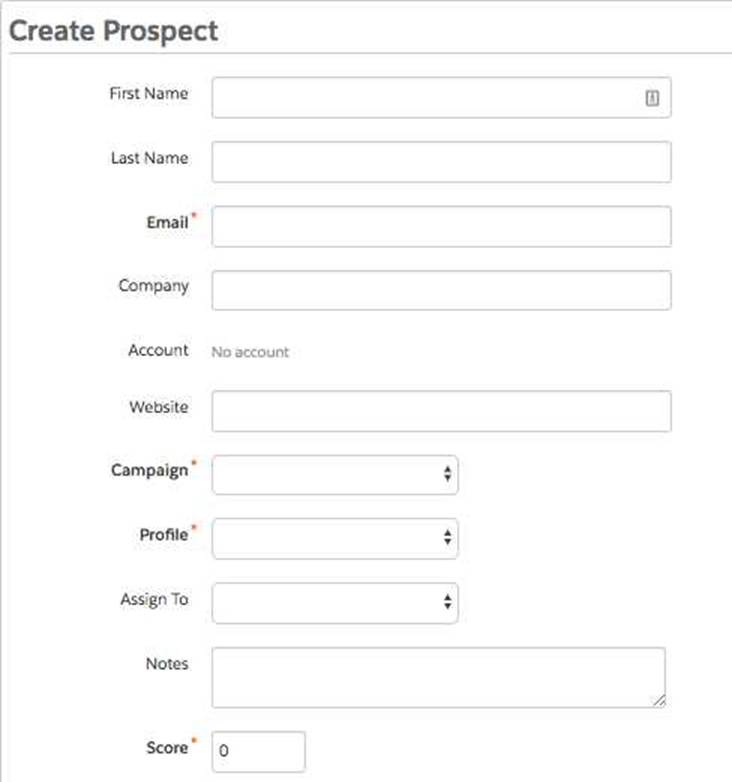
The information that is required when creating a prospect manually is campaign, email, profile, and score. A prospect is a potential customer who has expressed some interest in your products or services, and whose information you have captured in Marketing Cloud Account Engagement. You can create a prospect manually in Marketing Cloud Account Engagement by entering their information in a form, or by importing them from a file. When creating a prospect manually, you need to provide the following information:
Campaign: The marketing initiative that you use to track the first touch point with the prospect, such as a trade show, a webinar, or a Google Ad. You can select a campaign from the drop-down menu, or use the default campaign that you set in your account settings.
Email: The email address of the prospect, which is used as the unique identifier for the prospect record. You need to enter a valid email address for the prospect, or the prospect will not be created. Profile: The category that you use to segment your prospects based on their characteristics, such as industry, role, or product interest. You can select a profile from the drop-down menu, or use the default profile that you set in your account settings.
Score: The numerical value that indicates the level of interest or engagement of the prospect in your products or services. You can enter a score for the prospect, or use the default score of 0 that is assigned to new prospects.
Other information that you can provide when creating a prospect manually are:
First Name: The first name of the prospect, which can be used for personalization or segmentation.
Last Name: The last name of the prospect, which can be used for personalization or segmentation. Company: The name of the company that the prospect works for, which can be used for reporting or segmentation.
Website: The URL of the website that the prospect visits or owns, which can be used for tracking or segmentation.
Assign To: The user that you want to assign the prospect to, who will be responsible for following up with the prospect. You can select a user from the drop-down menu, or use the default user that you set in your account settings.
What is a capability of a completion action?
- A . Send a list email to a prospect
- B . Remove a prospect from a list
- C . Increase a prospect’s grade
- D . Adjust a prospect’s account field
B
Explanation:
A completion action is a type of action that allows marketers to define what happens after a prospect completes a specific activity, such as submitting a form, clicking a link, or opening an email. One of the capabilities of a completion action is to remove a prospect from a list. This can be useful for managing list membership, suppressing prospects from future sends, or moving prospects to different lists based on their behavior. A completion action cannot send a list email to a prospect, increase a prospect’s grade, or adjust a prospect’s account field2.
Reference: 2: Completion Actions
A client submits their Marketing Cloud Account Engagement form to test the form’s completion actions. After they submit the form, none of the completion actions are applied to their prospect record.
What explanation do you give as to why the actions did not occur?
- A . The client has a visitor filter set up to filter activities from their IP address. Completion actions do not occur on filtered visitors.
- B . The ’email’ form field was set up to exclude free email addresses, so even though they submitted the form successfully, the Gmail address they used prevented the completion actions from running.
- C . The client did not un-pause the completion actions.
- D . Kiosk mode was enabled on the form, so completion actions did not run.
A
Explanation:
According to the Salesforce documentation, the explanation for why the completion actions did not occur when the client submitted their Marketing Cloud Account Engagement form to test the form’s completion actions is: A) The client has a visitor filter set up to filter activities from their IP address. Completion actions do not occur on filtered visitors. A visitor filter is a feature that allows users to exclude certain visitors from being tracked and reported in Marketing Cloud Account Engagement. A visitor filter can be based on IP address, location, or domain. A visitor filter can help users to avoid tracking their own activities or those of their competitors. A completion action is an automation tool that can be used to perform an action after a prospect successfully completes a marketing element, such as submitting a form, clicking a link, or visiting a web page. A completion action can be used to perform actions such as adding a prospect to a list, assigning a prospect to a user, sending an autoresponder email, or adjusting a prospect’s score. However, completion actions do not occur on filtered visitors, as they are not tracked or reported in Marketing Cloud Account Engagement. Therefore, if the client has a visitor filter set up to filter activities from their IP address, the completion actions will not occur when they submit the form. The ‘email’ form field being set up to exclude free email addresses, the client not un-pausing the completion actions, or kiosk mode being enabled on the form are not the explanations for why the completion actions did not occur when the client submitted their Marketing Cloud Account Engagement form to test the form’s completion actions, as they are either irrelevant, incorrect, or nonexistent options for the form or the completion actions.
Reference: Salesforce documentation