
Nutanix NCP-MCI-6.10 Practice Exams
Last updated on Oct 07,2026- Exam Code: NCP-MCI-6.10
- Exam Name: Nutanix Certified Professional - Multicloud Infrastructure (NCP-MCI v6.10)
- Certification Provider: Nutanix
- Latest update: Oct 07,2026
An administrator wants to clean up inactive VMs using VM Efficiency in Nutanix.
The business requires that VMs must be inactive for 120 days before deletion.
A Playbook was created to delete Dead and Zombie VMs with a 99-day wait period after they are marked inactive.
How long will have passed before these VMs are deleted? (Choose two.)
- A . For Dead VMs, the wait before deletion is 120 days.
- B . For Zombie VMs, the wait before deletion is 129 days.
- C . For Dead VMs, the wait before deletion is 129 days.
- D . For Zombie VMs, the wait before deletion is 120 days.
B, C
Explanation:
Dead VMs and Zombie VMs are different classifications of inactive VMs in Nutanix, and their deletion timelines depend on Playbook configuration.
Dead VMs → Considered inactive after 30 days, then must wait 99 more days before deletion.
Total time: 30 + 99 = 129 days.
(Option C is correct).
Zombie VMs → Considered inactive after 30 days, then must wait 99 more days before deletion.
Total time: 30 + 99 = 129 days.
(Option B is correct).
Reference: Nutanix Prism Central Guide → Using VM Efficiency to Manage Inactive VMs Nutanix KB → Configuring Playbooks for Automatic VM Cleanup
A consultant is configuring syslog monitoring and wants to receive CRITICAL logs from the Audit module.
Which severity level setting should be configured to get the desired output?
- A . 0
- B . 2
- C . 5
- D . 7
B
Explanation:
Syslog severity levels follow a standard numerical system, where lower numbers indicate higher severity.
Option B (Severity Level 2) is correct:
Level 2 = CRITICAL → Used for serious conditions requiring immediate attention.
Audit logs often generate Critical logs related to security, access violations, or major failures.
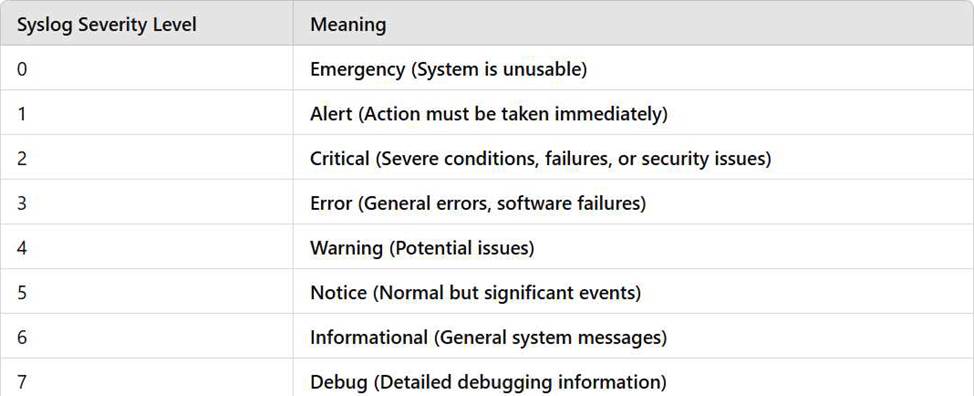
Options A (0), C (5), and D (7) are incorrect:
0 = Emergency (Too severe, only used for full system failures).
5 = Notice (Not critical, used for general system events).
7 = Debug (Not relevant for critical logs).
Reference: Nutanix Security Guide → Syslog Integration and Severity Levels Nutanix KB → Configuring Syslog for Prism Central Audit Logs
A user created a report in the Intelligent Operations Analysis Dashboard but forgot to download it. However, after logging back into Prism Central, the administrator finds that the report is no longer available.
What is the most likely cause?
- A . A user with Cluster Viewer role deleted the report.
- B . The user-generated report was archived.
- C . Reports are automatically deleted after 24 hours.
- D . The report is stored in the cluster’s Prism Element.
C
Explanation:
In Nutanix Prism Central, user-generated reports in Intelligent Operations are stored for a limited time and then deleted automatically.
Option C (Reports are automatically deleted after 24 hours) is correct:
Reports do not persist indefinitely unless they are scheduled reports.
One-time reports expire after 24 hours.
Option A (Cluster Viewer deleted the report) is incorrect:
Cluster Viewer does not have permissions to delete reports.
Option B (Report was archived) is incorrect:
Nutanix does not automatically archive reports.
Option D (Report stored in Prism Element) is incorrect:
Reports are generated and stored only in Prism Central, not Prism Element.
Reference: Nutanix Prism Central Guide → Intelligent Operations & Report Retention Policies Nutanix KB → Why Reports in Prism Central Are Not Persisting
Which predefined view in Prism Central’s Intelligent Operations should be used to determine which VM is consuming excessive resources and causing performance issues for others?
- A . Inactive VMs List
- B . Overprovisioned VMs List
- C . Bully VMs List
- D . Constrained VMs List
C
Explanation:
The Bully VMs List (Option C) in Prism Central’s Intelligent Operations identifies VMs consuming excessive CPU, memory, or storage, which negatively affects other VMs.
Option A (Inactive VMs List) is used for identifying unused VMs but does not detect performance issues.
Option B (Overprovisioned VMs List) helps identify VMs with excessive allocated resources, but it does not focus on live performance impact.
Option D (Constrained VMs List) highlights VMs suffering from resource contention, not those
causing it.
Reference: Nutanix Prism Central → Intelligent Operations and Performance Tuning Nutanix KB → Identifying and Managing Resource-Hogging VMs
An administrator needs to create a storage container named TestData with the following conditions:
Replication Factor (RF) = 1 (RF1)
Inline Compression enabled
Deduplication disabled
Maximum storage capacity = 100 GiB
How should the administrator complete this task?
- A . Log into Prism Element and create the storage container with an Advertised Capacity of 100 GiB.
- B . Log into Prism Element and create the storage container.
- C . Log into Prism Central and create the storage container with a Reserved Capacity of 100 GiB.
- D . Log into Prism Central and create the storage container.
A
Explanation:
When creating a storage container in Nutanix, the administrator must configure the correct capacity settings:
Option A (Prism Element with Advertised Capacity of 100 GiB) is correct:
Advertised Capacity defines logical limits for the container (i.e., how much space it reports as available).
Inline Compression can be enabled directly in Prism Element.
Option B (Create in Prism Element without Advertised Capacity) is incorrect:
Without specifying Advertised Capacity, the container may consume unlimited storage.
Option C (Create in Prism Central with Reserved Capacity) is incorrect:
Reserved Capacity applies to Quality of Service (QoS) policies, not storage limits.
Option D (Create in Prism Central without capacity limits) is incorrect:
Prism Central can manage storage but does not directly enforce RF1 and compression policies.
Reference: Nutanix Storage Management Guide → Creating and Managing Storage Containers Nutanix Bible → Replication Factor (RF) and Data Optimization Nutanix KB → Inline Compression Best Practices in Nutanix AOS
An administrator needs to modify an AHV VM to support a large number of concurrent network connections.
The VM has:
4 vCPUs
20 GB RAM
OS: Microsoft Windows Server 2022
Which modification can improve network performance for network I/O-intensive applications?
- A . Add more vCPUs.
- B . Enable AHV Turbo Technology.
- C . Enable RSS VirtIO-Net Multi-Queue.
- D . Add more RAM.
C
Explanation:
Receive Side Scaling (RSS) VirtIO-Net Multi-Queue improves network performance by distributing network processing across multiple CPU cores.
Option C (Enable RSS VirtIO-Net Multi-Queue) is correct:
This setting reduces CPU bottlenecks by allowing multiple queues to handle network packets.
It is essential for high-throughput network applications.
Option A (Add more vCPUs) is incorrect:
CPU resources are important, but without enabling RSS, additional vCPUs will not optimize network traffic distribution.
Option B (Enable AHV Turbo Technology) is incorrect:
AHV Turbo improves disk I/O, not network I/O.
Option D (Add more RAM) is incorrect:
RAM does not directly impact network performance.
Reference: Nutanix AHV Best Practices Guide → Optimizing Network Performance with RSS Multi-Queue Nutanix KB → Enabling Multi-Queue for High-Performance Applications
Which update in LCM can an administrator apply on a per-node basis?
- A . AOS
- B . BMC
- C . NCC
- D . AHV
B
Explanation:
BMC (Baseboard Management Controller) updates can be applied per-node in Nutanix LCM, unlike AOS or AHV, which require cluster-wide upgrades.
Option B (BMC) is correct:
BMC firmware controls remote management and power cycling of individual nodes.
Updating BMC does not impact the entire cluster and can be done per node.
Option A (AOS) is incorrect:
AOS upgrades affect the entire cluster and require cluster-wide consistency.
Option C (NCC) is incorrect:
NCC updates apply across all nodes simultaneously, ensuring uniformity in checks.
Option D (AHV) is incorrect:
AHV updates require coordinated upgrades across hosts to maintain VM availability.
Reference: Nutanix LCM User Guide → Per-Node Firmware Updates
Nutanix KB → How to Upgrade BMC Using LCM
The customer expects to maintain a cluster runway of 9 months.
The customer doesn’t have a budget for 6 months but they want to add new workloads to the existing cluster.
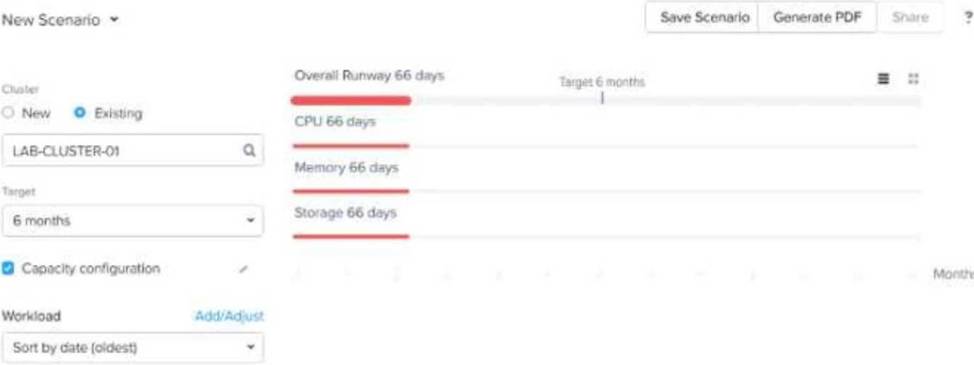
Based on the exhibit, what is required to meet the customer’s budgetary timeframe?
- A . Add resources to the cluster.
- B . Postpone the start of new workloads.
- C . Delete workloads running on the cluster.
- D . Change the target to 9 months.
A
Explanation:
The exhibit shows that the overall runway is only 66 days, meaning that the current cluster does not have enough capacity to sustain workloads for 6 months, let alone 9 months.
The best solution is to add resources to the cluster (Option A), such as CPU, memory, or storage, to extend the runway.
Postponing new workloads (Option B) may help in the short term but does not align with the business need to continue adding workloads.
Deleting workloads (Option C) is not a viable option because the customer wants to add more, not remove them.
Changing the target to 9 months (Option D) does not change the actual resource constraints; it only
alters the target timeframe.
Reference: Nutanix Prism Central → Capacity Planning and Runway Analysis Nutanix Bible → Cluster Resource Management and Scaling
Nutanix Support KB → How to Extend Cluster Runway with Resource Scaling
Which feature deploys a temporary VM that allows an administrator to log in and apply OS patches to a VM template?
- A . Create VM from Template
- B . Complete Guest OS Update
- C . Update Configuration
- D . Update Guest OS
D
Explanation:
The Update Guest OS feature (Option D) in Nutanix allows administrators to apply patches and updates to a VM template by creating a temporary VM instance for modification.
How It Works:
A temporary VM is deployed from the template.
Administrators apply updates to the OS.
Once complete, the changes are saved back to the template.
Option A (Create VM from Template) is incorrect:
This feature creates a new VM from an existing template but does not update the template itself.
Option B (Complete Guest OS Update) is incorrect:
There is no specific Nutanix feature named "Complete Guest OS Update."
Option C (Update Configuration) is incorrect:
Updates VM hardware and policies but not the OS.
Reference: Nutanix Prism Central → Managing VM Templates and Guest OS Updates Nutanix Bible → OS Management and Updates in Nutanix Environments Nutanix KB → How to Patch OS in a Nutanix VM Template
An administrator is working with a network engineer to design the network architecture for a DR failover.
Because DNS is well-designed, the DR site will use a different subnet but retain the same last octet in the IP address.
What is the best way to achieve this?
- A . Use a custom script to update the IP address after instantiation in DR.
- B . Set up IPAM so the address is dynamically assigned during DR.
- C . Manually log into VMs after the DR event and update the last octet.
- D . Utilize Recovery Plan Offset-based IP mapping.
D
Explanation:
Offset-based IP mapping in Nutanix Recovery Plans allows automatic subnet changes during DR failover.
Option D (Utilize Recovery Plan Offset-based IP mapping) is correct:
This method automatically adjusts the IP range while keeping the same last octet.
It eliminates the need for manual intervention after failover.
Option A (Custom script) is incorrect:
Scripting is an option, but Recovery Plan IP mapping is simpler and native to Nutanix.
Option B (Use IPAM) is incorrect:
IP Address Management (IPAM) is useful, but offset-based mapping provides more control.
Option C (Manually update IPs) is incorrect:
This would be time-consuming and error-prone.
Reference: Nutanix Disaster Recovery Guide → Using Offset-Based IP Mapping Nutanix KB → Best Practices for Managing IP Addresses in DR