
Network Appliance NS0-304 Practice Exams
Last updated on Oct 21,2026- Exam Code: NS0-304
- Exam Name: NetApp Certified Hybrid Cloud Administrator
- Certification Provider: Network Appliance
- Latest update: Oct 21,2026
An administrator is deploying a FlexCache volume in a Cloud Volumes ONTAP instance. The origin volume is a part of an on-premises Cluster.
Which network is used?
- A . InterCluster
- B . Node Management
- C . IntraCluster
- D . Cluster Management
A
Explanation:
When deploying a FlexCache volume in Cloud Volumes ONTAP, and the origin volume is located in an on-premises cluster, the network used is the InterCluster network. This network type is designed specifically for communications between different ONTAP clusters, which is essential for operations such as data replication and FlexCache functionality. The InterCluster network facilitates the seamless interaction between the on-premises cluster (where the origin volume resides) and the Cloud Volumes ONTAP instance in the cloud (where the FlexCache volume is being deployed). Node Management and Cluster Management networks are used for management operations and not for data transfer between clusters. IntraCluster is used within a single cluster for communication between nodes.
For further details, you can review the NetApp documentation on FlexCache configurations and the use of InterCluster networks in ONTAP data management, which explains how these networks enable efficient data replication across clusters.
A local ONTAP system has FabricPool configured to a public cloud. Storage use has grown exponentially due to end-of-year activities. After a few weeks, tiering to the cloud stops.
What should the administrator do?
- A . Configure tiering to a second cloud provider
- B . Increase the tiering license
- C . Increase the cooling period
- D . Adjust aggregate fullness
D
Explanation:
When tiering to the cloud stops in an ONTAP system configured with FabricPool, especially after a rapid increase in storage use, it is likely due to reaching the capacity threshold of the aggregate. ONTAP systems with FabricPool will halt tiering if the aggregate becomes too full. The solution is to adjust the aggregate fullness, either by increasing the aggregate’s capacity or by managing the existing data more effectively (e.g., deleting unneeded data or moving data to another aggregate). Configure tiering to a second cloud provider: This might help in distributing data, but it does not address the issue if the problem is local aggregate capacity.
Increase the tiering license: Generally, tiering licenses are about the amount of data that can be tiered rather than a technical limitation affecting tiering functionality.
Increase the cooling period: This might delay data movement but does not resolve the issue of aggregate fullness halting tiering.
Adjusting the aggregate fullness directly addresses the root cause by ensuring there’s sufficient capacity within the local system to continue tiering operations. Information about managing aggregate capacity in ONTAP systems can be found in the ONTAP management documentation or the FabricPool administration guide.
Refer to the exhibit.
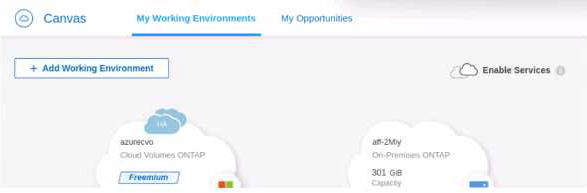
The administrator wants to replicate all the data from their On-Premises ONTAP to Cloud Volumes ONTAP.
What should the administrator do first?
- A . Drag and Drop Cloud Volumes ONTAP to On-Premises
- B . Drag and Drop On-Premises to Cloud Volumes ONTAP
- C . Add a third Working Environment with a Data Broker
- D . Update the Cloud Volumes ONTAP License from Freemium to Essentials
B
Explanation:
To replicate all data from an On-Premises ONTAP to Cloud Volumes ONTAP, the first step within the BlueXP (formerly NetApp Cloud Manager) interface is to establish a replication relationship.
Here’s how:
Setup Data Replication: In the BlueXP interface, drag and drop the On-Premises ONTAP environment onto the Cloud Volumes ONTAP environment. This action initiates the setup of a SnapMirror relationship, where the on-premises system acts as the source, and the cloud volumes serve as the destination.
Configure Replication Settings: After dragging and dropping, you will be prompted to configure the replication settings, including schedules, policies, and the volumes to be replicated.
Initiate and Monitor Replication: Once the configuration is completed, start the replication process. BlueXP provides tools to monitor the status and health of the replication, ensuring data is synchronized according to the defined settings.
This method leverages the integrated tools in BlueXP to simplify the management of hybrid cloud environments and ensures data continuity between on-premises and cloud-based systems.
For detailed instructions and best practices on setting up SnapMirror with BlueXP, refer to the NetApp documentation: NetApp SnapMirror Documentation.
An administrator wants to automatically optimize their scale-out web application in GCP.
Which product should the administrator use?
- A . Ocean
- B . Instaclustr
- C . Eco
- D . Elastigroup
D
Explanation:
To automatically optimize a scale-out web application in Google Cloud Platform (GCP), an administrator should consider using Elastigroup. This tool, offered by Spot by NetApp (formerly Spotinst), is designed to enhance cloud resource utilization by automatically scaling compute resources based on workload demands.
Here’s why Elastigroup is suitable:
Automatic Scaling: Elastigroup dynamically manages your compute resources, scaling them up or down based on the application demands. This ensures that your application always has the right amount of resources without over-provisioning.
Cost Optimization: By intelligently leveraging spot instances along with on-demand and reserved instances, Elastigroup reduces costs without compromising application availability or performance. Integration with GCP: Elastigroup seamlessly integrates with Google Cloud, making it straightforward to manage scaling policies directly within the cloud environment.
Elastigroup’s capabilities make it an excellent choice for optimizing scale-out applications in cloud environments, particularly for managing the balance between performance, cost, and availability. For more information on using Elastigroup in GCP, visit the Spot by NetApp website or access their documentation directly: Spot by NetApp – Elastigroup.
An administrator must configure SVM-DR between two instances of Cloud Volumes ONTAP (CVO); one is deployed in Azure, and the other in AWS.
What must be configured to enable replication traffic between the two CVO instances?
- A . Internet Gateway
- B . Direct Connect
- C . ExpressRoute
- D . Virtual Private Network
D
Explanation:
To enable replication traffic between two instances of Cloud Volumes ONTAP (CVO) deployed in Azure and AWS, a Virtual Private Network (VPN) must be configured. This setup is crucial because it provides a secure and private communication channel over the internet, which is necessary for the replication of data between different cloud providers.
Here’s the process:
Setup VPN Connection: Establish a VPN connection between the Azure and AWS environments. This involves configuring VPN gateways in both clouds to enable encrypted traffic flow between the two instances of CVO.
Configure Network Routing: Ensure that the routing rules are set to direct the replication traffic through the VPN connection. This might include setting up appropriate route tables that point to the VPN gateway.
Test and Verify Connectivity: After setting up the VPN, conduct tests to verify that the replication traffic is flowing correctly and securely between the two cloud environments.
Using a VPN is the most straightforward and typically the most cost-effective method to securely link AWS and Azure for the purpose of data replication, without the need for direct connectivity services like AWS Direct Connect or Azure ExpressRoute, which are more complex and costly solutions.
For guidance on setting up VPNs between AWS and Azure, refer to the respective cloud provider’s documentation on VPN configuration.
A company is setting up FlexCache in CVO to scale-out an on-premises system.
What should the administrator do on the on-premises system?
- A . Create a new volume as a cache
- B . Generate cluster peering passphrase
- C . Configure NFS export policies
- D . Apply a FlexCache license
B
Explanation:
When setting up FlexCache in Cloud Volumes ONTAP (CVO) to scale out an on-premises system, the critical first step on the on-premises system is to generate a cluster peering passphrase. This passphrase is used to establish a secure cluster peering relationship between the on-premises ONTAP system and the CVO in the cloud. Here’s the process:
Cluster Peering Setup: Cluster peering is essential for FlexCache because it allows the on-premises system to communicate and share data with the CVO instance. The cluster peering passphrase is used to authenticate the peering session, ensuring security.
Generate the Passphrase: In the ONTAP system manager on the on-premises cluster, navigate to the cluster peering settings and generate or configure the passphrase that will be used for peering with the CVO.
Establish Peering: Once the passphrase is set, use it to create the cluster peer relationship from the on-premises ONTAP to the CVO, following the guided steps in ONTAP System Manager or using CLI commands.
For detailed instructions on setting up cluster peering for FlexCache, refer to the NetApp documentation on FlexCache and cluster peering: NetApp FlexCache Documentation.
When deploying CVO, which two network types are used in HA configurations? (Choose two.)
- A . Intracluster
- B . iWARP
- C . Transit Gateway
- D . Intercluster
A, D
Explanation:
When deploying Cloud Volumes ONTAP (CVO) in a High Availability (HA) configuration, two critical network types are used:
Intracluster: This network type is used for communication within the same cluster, particularly between nodes within the same HA pair. It is crucial for the synchronization and coordination of operations that support the cluster’s internal processes and data management.
Intercluster: This network type facilitates communication between different clusters or between nodes across different data centers or geographical locations. It is typically used for data replication and disaster recovery purposes, ensuring data continuity and availability across diverse environments.
Understanding and configuring these network types correctly is essential for maintaining high availability and ensuring robust disaster recovery in CVO deployments.
For more details on network configuration in CVO HA setups, refer to the NetApp documentation on network management for Cloud Volumes ONTAP: NetApp CVO Network Documentation.
An administrator deploys Cloud Volumes ONTAP (CVO) in a highly available configuration across multiple availability zones in AWS. They want to ensure NAS connectivity during a failover event.
What will enable this functionality?
- A . Dedicated tenancy
- B . Floating IP address
- C . Subnet CIDR reservations
- D . MPIO/ALUA
B
Explanation:
In a highly available Cloud Volumes ONTAP deployment across multiple availability zones in AWS, ensuring NAS connectivity during a failover event requires the use of a Floating IP address.
Here’s the rationale:
Functionality of Floating IP: A Floating IP in a NetApp CVO HA environment acts as a stable network point that clients can connect to. It automatically moves between nodes in different availability zones based on where the active node is located, thereby maintaining connectivity even if one node fails.
Failover Efficiency: The Floating IP minimizes downtime by providing a quick and automatic reroute of network traffic to the surviving node without requiring DNS changes or manual intervention. High Availability and Resilience: Using a Floating IP ensures that applications accessing the NAS volumes experience no perceptible downtime in the event of a node failure, maintaining continuous availability and access.
For more information on setting up and managing Floating IPs in a NetApp CVO HA environment in AWS, consult the NetApp Cloud Volumes ONTAP HA documentation: NetApp Documentation on Cloud Volumes ONTAP HA.
Which networking component must be configured to provision volumes from Cloud Volume Service in Google Cloud?
- A . Vnet Peering
- B . Subnet Delegation
- C . VPC Peering
- D . VPN Gateway
C
Explanation:
When provisioning volumes from Cloud Volume Service in Google Cloud, configuring VPC Peering is essential. This networking component allows your Google Cloud Virtual Private Cloud (VPC) to communicate seamlessly with the VPC used by Cloud Volume Service. Here’s the importance of this setup:
Direct Network Connection: VPC Peering facilitates a direct network connection between two VPCs, which can be within the same Google Cloud project or across different projects. This is crucial for ensuring low-latency and secure access to the Cloud Volume Service.
Resource Accessibility: With VPC Peering, compute instances within your VPC can access volumes provisioned by Cloud Volume Service as if they were within the same network, simplifying configuration and integration processes.
Security and Performance: This configuration helps maintain strong security postures while ensuring optimal performance due to reduced network hops and potential bottlenecks.
To configure VPC Peering for Cloud Volume Service in Google Cloud, you should follow the specific guidelines provided in Google Cloud’s documentation or the setup instructions available in the Cloud Volume Service portal: Google Cloud VPC Peering Documentation.
An administrator wants to use Cloud Data Sense to monitor all OneDrive accounts in the marketing department.
Which two items are required? (Choose two.)
- A . A list of the email addresses for all users whose OneDrive folders are to be scanned
- B . Admin login credentials for the Azure tenant account
- C . User logins for every OneDrive account in the marketing department
- D . Admin login credentials for the OneDrive for Business account
A, D
Explanation:
To use Cloud Data Sense to monitor all OneDrive accounts in the marketing department, two key items are required:
A List of the Email Addresses for All Users: This is necessary to identify and access the specific OneDrive accounts belonging to members of the marketing department. Cloud Data Sense needs this information to correctly target and scan the relevant data sets.
Admin Login Credentials for the OneDrive for Business Account: These credentials are required to grant Cloud Data Sense the necessary permissions to access and scan the OneDrive accounts. Admin credentials ensure that Data Sense can perform scans across multiple user accounts without needing individual user logins.
These requirements ensure that Cloud Data Sense can effectively monitor and analyze the data within OneDrive accounts, providing insights into data usage and compliance.
For additional information on setting up Cloud Data Sense with OneDrive, refer to the NetApp documentation on Cloud Data Sense: NetApp Cloud Data Sense Documentation.