
CyberArk PAM-DEF-SEN Practice Exams
Last updated on Oct 22,2026- Exam Code: PAM-DEF-SEN
- Exam Name: CyberArk Defender – PAM & Sentry – PAM
- Certification Provider: CyberArk
- Latest update: Oct 22,2026
For Digital Vault Cluster in a high availability configuration, how does the cluster determine if a node is down?
- A . The heartbeat s no longer detected on the private network.
- B . The shared storage array is offline.
- C . An alert is generated in the Windows Event log.
- D . The Digital Vault Cluster does not detect a node failure.
A
Explanation:
In a Digital Vault Cluster environment, each node has a Cluster Vault Manager (CVM) service that monitors the local resources and the status of the other node via a private network1. The CVM service sends a heartbeat signal to the other node every few seconds to check its availability2. If the heartbeat is not detected for a certain period of time, the CVM service assumes that the other node is down and triggers a failover process3. The failover process involves shutting down the resources on the failed node and starting them on the available node4.
Reference: Digital Vault Cluster environment, CyberArk High-Availability Vault Cluster, Manage the CyberArk Digital Cluster Vault Server, Local resources failover process
Which Master Policy Setting must be active in order to have an account checked-out by one user for a pre-determined amount of time?
- A . Require dual control password access Approval
- B . Enforce check-in/check-out exclusive access
- C . Enforce one-time password access
- D . Enforce check-in/check-out exclusive access & enforce one-time password access
B
Explanation:
According to the CyberArk Defender PAM documentation, the Master Policy setting that must be
active in order to have an account checked-out by one user for a pre-determined amount of time is Enforce check-in/check-out exclusive access. This setting enables organizations to permit users to check out a ‘one-time’ password and lock it so that no other users can retrieve it at the same time. After the user has used the password, the user checks the password back into the Vault. This ensures exclusive usage of the privileged account, enabling full control and tracking for the password. The duration of the check-out period can be configured in the platform settings for each account.
Reference: Account check-out and check-in – CyberArk
Master Policy – CyberArk
If a user is a member of more than one group that has authorizations on a safe, by default that user is granted________.
- A . the vault will not allow this situation to occur.
- B . only those permissions that exist on the group added to the safe first.
- C . only those permissions that exist in all groups to which the user belongs.
- D . the cumulative permissions of all groups to which that user belongs.
D
Explanation:
When a user is a member of more than one group that has authorizations on a safe, by default that user is granted the cumulative permissions of all groups to which that user belongs. This means that the user will have the highest level of access that any of the groups have on the safe. For example, if one group has View and Retrieve permissions, and another group has Add and Delete permissions, the user will have View, Retrieve, Add, and Delete permissions on the safe. This is the default behavior of the vault, unless the Exclusive option is enabled on the safe. The Exclusive option restricts the user’s permissions to only those of the group added to the safe first.
Reference: [Defender PAM eLearning Course], Module 3: Safes and Permissions, Lesson 3.2: Safe Permissions, Slide 8: Cumulative Permissions
[Defender PAM Sample Items Study Guide], Question 1: Safe Permissions
[CyberArk Documentation Portal], CyberArk Privileged Access Security Implementation Guide, Chapter 3: Managing Safes, Section: Safe Properties, Subsection: Exclusive
A user has successfully conducted a short PSM session and logged off. However, the user cannot access the Monitoring tab to view the recordings.
What is the issue?
- A . The user must login as PSMAdminConnect
- B . The PSM service is not running
- C . The user is not a member of the PVWAMonitor group
- D . The user is not a member of the Auditors group
D
Explanation:
To access the Monitoring tab and view the recordings of the PSM sessions, the user must have membership in the Auditors group or membership in the relevant Account Safes and Recording Safes with the appropriate permissions1. The user must also use the same connection method (RDP file or HTML5 Gateway) as the end user who conducted the session1. The other options are not relevant to the issue, as the user does not need to login as PSMAdminConnect, the PSM service is running if the user was able to conduct a session, and the PVWAMonitor group is not a valid group in CyberArk.
Reference: Monitor Privileged Sessions – CyberArk, section “The MONITORING page”
Users are unable to launch Web Type Connection components from the PSM server. Your manager asked you to open the case with CyberArk Support.
Which logs will help the CyberArk Support Team debug the issue? (Choose three.)
- A . PSMConsole.log
- B . PSMDebug.log
- C . PSMTrace.log
- D . <Session_ID>.Component.log
- E . PMconsole.log
- F . ITAlog.log
A, C, D
Explanation:
When users are unable to launch Web Type Connection components from the PSM server, the CyberArk Support Team will require specific logs to debug the issue. The logs that are typically helpful in such cases include:
PSMConsole.log: This log file contains informational messages and errors related to the PSM function, which can help identify issues with the PSM server’s operation1.
PSMTrace.log: This log file includes errors and trace messages, which can provide detailed insights into the issues occurring during the PSM server’s processes1.
<Session_ID>.Component.log: This log file contains errors and trace messages related to the connection component, which can be crucial for troubleshooting issues with launching Web Type Connection components1.
These logs can provide the necessary information to understand the problem and assist the support
team in resolving the issue effectively.
Reference: CyberArk’s official documentation on PSM for Web Troubleshooting, which outlines the types of logs available and their purposes in the troubleshooting process1.
Additional resources on managing and interpreting PSM logs, which provide guidance on using logs for diagnosing and resolving issues with the PSM server2
DRAG DROP
Match each key to its recommended storage location.
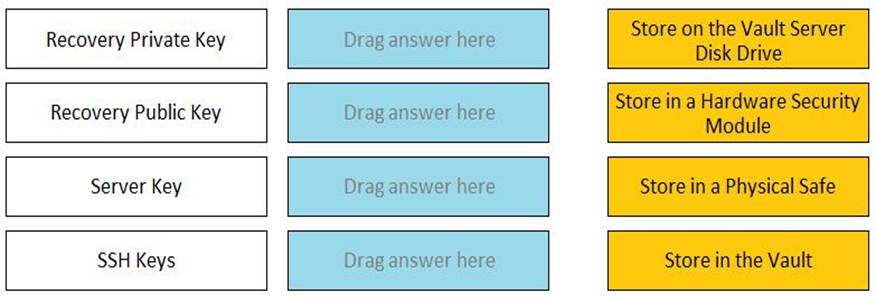
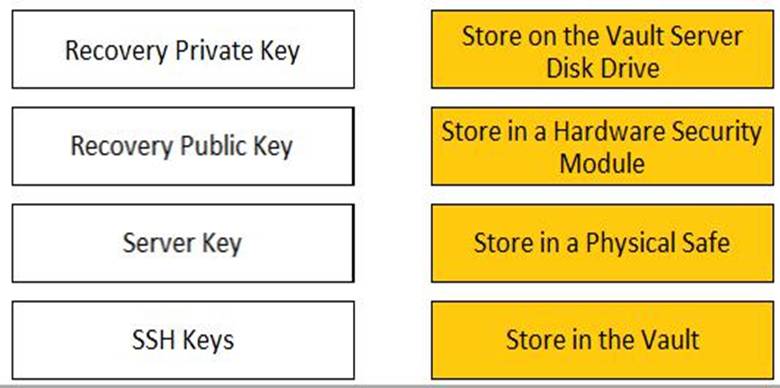
The recommended storage locations for each key are as follows:
Recovery Private Key: It is recommended to store the Recovery Private Key on the Vault Server Disk Drive. This is because the Recovery Private Key is used to decrypt the data stored in the Vault. Recovery Public Key: It is recommended to store the Recovery Public Key in a Hardware Security Module. This is because the Recovery Public Key is used to encrypt the data stored in the Vault. Server Key: It is recommended to store the Server Key in a Physical Safe. This is because the Server Key is used to open the Vault, much like the key of a physical Vault. The key is required to start the Vault, after which the Server Key can be removed until the Server is restarted. When the Vault is stopped, the information stored in the Vault is completely inaccessible without that key.
SSH Keys: It is recommended to store the SSH Keys in the Vault. This is because the SSH Keys are used to connect to remote machines using the SSH protocol. The Vault can manage the passwords and sessions for the SSH Keys and provide secure access to the target systems.
Reference: Server keys – CyberArk, Cyberark Key Storage Plugin (Enterprise) – Rundeck
You receive this error:
“Error in changepass to user domainuser on domain server(domain.(winRc=5) Access is denied.” Which root cause should you investigate?
- A . The account does not have sufficient permissions to change its own password.
- B . The domain controller is unreachable.
- C . The password has been changed recently and minimum password age is preventing the change.
- D . The CPM service is disabled and will need to be restarted.
A
Explanation:
The error message “Error in changepass to user domainuser on domain server(domain.(winRc=5) Access is denied” suggests that the account attempting to change the password does not have the necessary permissions to do so. This could be due to several reasons, such as the account not being part of the appropriate group with password change privileges, or specific restrictions set on the account that prevent password changes. It’s important to verify the account’s permissions and ensure it has the ability to change its own password within the domain.
Reference: The conclusion is based on common issues encountered in CyberArk’s Privileged Access Management (PAM) when managing account passwords and the associated error codes. The CyberArk documentation and community discussions provide insights into troubleshooting such errors, where insufficient permissions are a frequent cause
The Active Directory User configured for Windows Discovery needs which permission(s) or membership?
- A . Member of Domain Admin Group
- B . Member of LDAP Admin Group
- C . Read and Write Permissions
- D . Read Only Permissions
D
Explanation:
The Active Directory User configured for Windows Discovery requires Read Only Permissions. This
level of permission allows the user to query and discover objects within the Active Directory without
the ability to modify any objects or settings. Having read-only access is sufficient for discovery
purposes, as it enables the user to retrieve necessary information without posing a risk of
unintended changes to the directory1.
Reference: Microsoft Learn: Configure discovery methods1
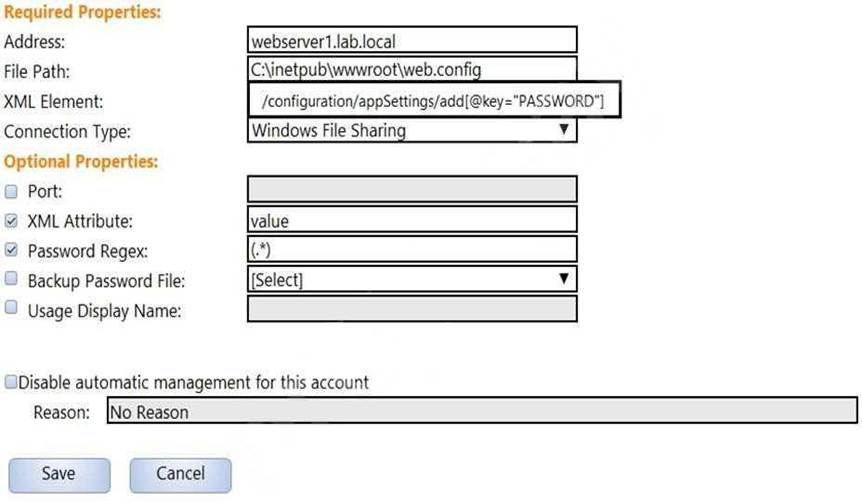
In the screenshot displayed, you just configured the usage in CyberArk and want to update its password.
What is the least intrusive way to accomplish this?
- A . Use the “change” button on the usage’s details page.
- B . Use the “change” button on the parent account’s details page.
- C . Use the “sync” button on the usage’s details page.
- D . Use the “reconcile” button on the parent account’s details page.
C
Explanation:
A usage is a configuration that allows CyberArk to manage passwords for files, such as XML or INI
files, that are stored on remote machines. A usage is associated with a parent account, which is the account that has access to the file. To update the password of a usage, the least intrusive way is to use the “sync” button on the usage’s details page. This will synchronize the password value between the Vault and the file, without changing the actual password. The “change” button will initiate a password change process by the CPM, which will generate a new random password for the usage and the file. The “reconcile” button will initiate a password reconcile process by the CPM, which will use a reconcile account to reset the password of the usage and the file to the value stored in the Vault.
Reference: Usages, Manage passwords for usages
When a DR Vault Server becomes an active vault, it will automatically fail back to the original state once the Primary Vault comes back online.
- A . True; this is the default behavior
- B . False; this is not possible
- C . True, if the AllowFailback setting is set to “yes” in the padr.ini file
- D . True, if the AllowFailback setting is set to “yes” in the dbparm.ini file
C
Explanation:
When a DR Vault Server becomes an active vault, it will automatically fail back to the original state once the Primary Vault comes back online, if the AllowFailback setting is set to “yes” in the padr.ini file. The padr.ini file is the configuration file for the Disaster Recovery application, which enables the DR Vault to replicate data from the Primary Vault and take over its role in case of a failure. The AllowFailback setting determines whether the DR Vault will automatically switch back to the passive mode when the Primary Vault is restored. The default value of this setting is “no”, which means that the DR Vault will remain active until a manual failback is performed1. To enable the automatic failback, the setting must be changed to “yes” and the padr service must be restarted1. The dbparm.ini file is not relevant to this setting, as it is the main configuration file for the Vault database2.
Reference: Configure the DR Vault – CyberArk, section “AllowFailback” DBParm.ini – CyberArk, section “Main parameters”