
Amazon SOA-C02 Practice Exams
Last updated on Oct 22,2026- Exam Code: SOA-C02
- Exam Name: AWS Certified SysOps Administrator - Associate
- Certification Provider: Amazon
- Latest update: Oct 22,2026
A company has a stateless application that is hosted on a fleet of 10 Amazon EC2 On-Demand Instances in an Auto Scaling group. A minimum of 6 instances are needed to meet service requirements.
Which action will maintain uptime for the application MOST cost-effectively?
- A . Use a Spot Fleet with an On-Demand capacity of 6 instances.
- B . Update the Auto Scaling group with a minimum of 6 On-Demand Instances and a maximum of 10 On-Demand Instances.
- C . Update the Auto Scaling group with a minimum of 1 On-Demand Instance and a maximum of 6 On-Demand Instances.
- D . Use a Spot Fleet with a target capacity of 6 instances.
A
Explanation:
Step-by-Step
Understand the Problem:
The company has a stateless application on 10 EC2 On-Demand Instances in an Auto Scaling group.
At least 6 instances are needed to meet service requirements.
The goal is to maintain uptime cost-effectively.
Analyze the Requirements:
Maintain a minimum of 6 instances to meet service requirements. Optimize costs by using a mix of instance types. Evaluate the Options:
Option A: Use a Spot Fleet with an On-Demand capacity of 6 instances.
Spot Fleets allow you to request a combination of On-Demand and Spot Instances.
Ensuring a minimum of 6 On-Demand Instances guarantees the required capacity while leveraging lower-cost Spot Instances to meet additional demand.
Option B: Update the Auto Scaling group with a minimum of 6 On-Demand Instances and a maximum of 10 On-Demand Instances.
This option ensures the minimum required capacity but does not optimize costs since it only uses On-Demand Instances.
Option C: Update the Auto Scaling group with a minimum of 1 On-Demand Instance and a maximum of 6 On-Demand Instances.
This does not meet the requirement of maintaining at least 6 instances at all times.
Option D: Use a Spot Fleet with a target capacity of 6 instances.
This option relies entirely on Spot Instances, which may not always be available, risking insufficient capacity.
Select the Best Solution:
Option A: Using a Spot Fleet with an On-Demand capacity of 6 instances ensures the necessary uptime with a cost-effective mix of On-Demand and Spot Instances.
Reference: Amazon EC2 Auto Scaling
Amazon EC2 Spot Instances
Spot Fleet Documentation
Using a Spot Fleet with a combination of On-Demand and Spot Instances offers a cost-effective solution while ensuring the required minimum capacity for the application.
A SysOps administrator must create an IAM policy for a developer who needs access to specific AWS services.
Based on the requirements, the SysOps administrator creates the following policy:
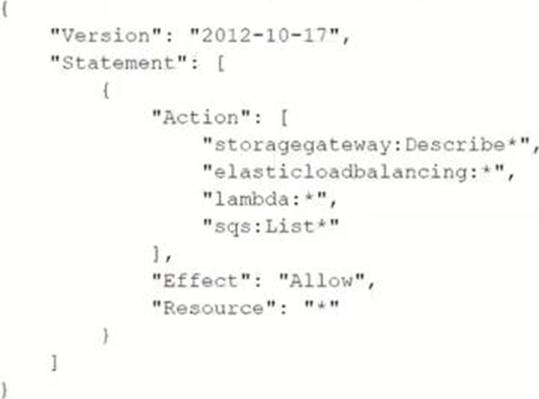
Which actions does this policy allow? (Select TWO.)
- A . Create an AWS Storage Gateway.
- B . Create an IAM role for an AWS Lambda function.
- C . Delete an Amazon Simple Queue Service (Amazon SQS) queue.
- D . Describe AWS load balancers.
- E . Invoke an AWS Lambda function.
DE
Explanation:
The provided IAM policy grants the following permissions:
Describe AWS Load Balancers:
The policy allows actions with the prefix elasticloadbalancing:. This includes actions like DescribeLoadBalancers and other Describe* actions related to Elastic Load Balancing.
Reference: Elastic Load Balancing API Actions
Invoke AWS Lambda Function:
The policy allows actions with the prefix lambda:, which includes InvokeFunction and other actions that allow listing and describing Lambda functions.
Reference: AWS Lambda API Actions
The actions related to AWS Storage Gateway (create), IAM role (create), and Amazon SQS (delete) are not allowed by this policy. The policy only grants describe/list permissions for storagegateway, elasticloadbalancing, lambda, and list permissions for SQS.
An Amazon S3 Inventory report reveals that more than 1 million objects in an S3 bucket are not encrypted These objects must be encrypted, and all future objects must be encrypted at the time they are written.
Which combination of actions should a SysOps administrator take to meet these requirements? (Select TWO)
- A . Create an AWS Config rule that runs evaluations against configuration changes to the S3 bucket When an unencrypted object is found run an AWS Systems Manager Automation document to encrypt the object in place
- B . Edit the properties of the S3 bucket to enable default server-side encryption
- C . Filter the S3 Inventory report by using S3 Select to find all objects that are not encrypted Create an S3 Batch Operations job to copy each object in place with encryption enabled
- D . Filter the S3 Inventory report by using S3 Select to find all objects that are not encrypted Send each object name as a message to an Amazon Simple Queue Service (Amazon SQS) queue Use the SQS queue to invoke an AWS Lambda function to tag each object with a key of "Encryption" and a value of "SSE-KMS"
- E . Use S3 Event Notifications to invoke an AWS Lambda function on all new object-created events for the S3 bucket Configure the Lambda function to check whether the object is encrypted and to run an AWS Systems Manager Automation document to encrypt the object in place when an unencrypted object is found
BC
Explanation:
To ensure all objects in the S3 bucket are encrypted, including future objects, the following steps should be taken:
Enable Default Server-Side Encryption:
Edit the properties of the S3 bucket to enable default server-side encryption. This ensures that all new objects written to the bucket are encrypted by default.
Navigate to the S3 console, select the bucket, go to the "Properties" tab, and under "Default encryption", select the encryption method (SSE-S3, SSE-KMS, etc.).
Reference: Amazon S3 Default Encryption
Use S3 Inventory and S3 Select:
Use S3 Inventory to generate a report of all objects in the bucket. This report helps identify which objects are not encrypted.
Use S3 Select to filter the inventory report and find all unencrypted objects.
Reference: Amazon S3 Inventory
Create S3 Batch Operations Job:
Create an S3 Batch Operations job to copy each unencrypted object in place with encryption enabled. This can be done through the S3 console or using AWS CLI/SDK.
This job can efficiently encrypt a large number of objects without the need to move data out of S3.
Reference: Amazon S3 Batch Operations
By following these steps, the SysOps administrator ensures that all existing and future objects in the S3 bucket are encrypted, thereby meeting the security requirements.
A company plans to launch a static website on its domain example com and subdomain www example.com using Amazon S3.
How should the SysOps administrator meet this requirement?
- A . Create one S3 bucket named example.com for both the domain and subdomain.
- B . Create one S3 bucket with a wildcard named ‘.example.com tor both the domain and subdomain.
- C . Create two S3 buckets named example.com and www.exdmpte.com. Configure the subdomain bucket to redirect requests to the domain bucket.
- D . Create two S3 buckets named http//example.com and http//" exampte.com. Configure the wildcard (‘) bucket to redirect requests to the domain bucket.
C
Explanation:
To host a static website using Amazon S3 for both a domain and its subdomain, you need to create two separate buckets and configure one bucket to redirect to the other.
Steps:
Create the Main Domain Bucket:
Open the Amazon S3 console.
Create a bucket named example.com.
Enable static website hosting for the bucket and configure the index document (e.g., index.html).
Create the Subdomain Bucket:
Create another bucket named www.example.com.
In the bucket properties, enable static website hosting.
Set the website hosting configuration to redirect all requests to example.com.
Update DNS Configuration:
Open the Amazon Route 53 console.
Create an A record for example.com and www.example.com pointing to the S3 bucket.
Reference: Hosting a Static Website on Amazon S3
Configuring a Static Website Using a Custom Domain
A company stores critical data m Amazon S3 buckets. A SysOps administrator must build a solution to record all S3 API activity.
Which action will meet this requirement?
- A . Configure S3 bucket metrics to record object access logs
- B . Create an AWS CloudTrail trail to log data events tor all S3 objects
- C . Enable S3 server access logging for each S3 bucket
- D . Use AWS IAM Access Analyzer for Amazon S3 to store object access logs.
B
Explanation:
To record all S3 API activity, the SysOps administrator should create an AWS CloudTrail trail to log data events for all S3 objects. This solution provides comprehensive logging of all API activities at the object level within S3 buckets.
AWS CloudTrail:
CloudTrail allows you to log, continuously monitor, and retain account activity related to actions across your AWS infrastructure.
It records all API calls for Amazon S3 objects, providing a detailed history of changes made to S3 resources.
Configuration Steps:
Go to the CloudTrail console and create a new trail.
Enable data events and specify the S3 buckets to monitor.
CloudTrail will then record S3 object-level API operations such as GetObject, DeleteObject, and PutObject.
Reference: Logging Data Events for S3 Buckets with CloudTrail
A company stores critical data m Amazon S3 buckets. A SysOps administrator must build a solution to record all S3 API activity.
Which action will meet this requirement?
- A . Configure S3 bucket metrics to record object access logs
- B . Create an AWS CloudTrail trail to log data events tor all S3 objects
- C . Enable S3 server access logging for each S3 bucket
- D . Use AWS IAM Access Analyzer for Amazon S3 to store object access logs.
B
Explanation:
To record all S3 API activity, the SysOps administrator should create an AWS CloudTrail trail to log data events for all S3 objects. This solution provides comprehensive logging of all API activities at the object level within S3 buckets.
AWS CloudTrail:
CloudTrail allows you to log, continuously monitor, and retain account activity related to actions across your AWS infrastructure.
It records all API calls for Amazon S3 objects, providing a detailed history of changes made to S3 resources.
Configuration Steps:
Go to the CloudTrail console and create a new trail.
Enable data events and specify the S3 buckets to monitor.
CloudTrail will then record S3 object-level API operations such as GetObject, DeleteObject, and PutObject.
Reference: Logging Data Events for S3 Buckets with CloudTrail
A SysOps administrator is required to monitor free space on Amazon EBS volumes attached to Microsoft Windows-based Amazon EC2 instances within a company’s account. The administrator must be alerted to potential issues.
What should the administrator do to receive email alerts before low storage space affects EC2 instance performance?
- A . Use built-in Amazon CloudWatch metrics, and configure CloudWatch alarms and an Amazon SNS topic for email notifications
- B . Use AWS CloudTrail logs and configure the trail to send notifications to an Amazon SNS topic.
- C . Use the Amazon CloudWatch agent to send disk space metrics, then set up CloudWatch alarms using an Amazon SNS topic.
- D . Use AWS Trusted Advisor and enable email notification alerts for EC2 disk space
C
Explanation:
To monitor free space on Amazon EBS volumes attached to Microsoft Windows-based Amazon EC2 instances and receive email alerts before low storage space affects performance, follow these steps:
Install the Amazon CloudWatch Agent:
Download and install the CloudWatch agent on your Windows EC2 instances.
Reference: Installing the CloudWatch Agent on EC2 Instances Configure the CloudWatch Agent:
Create a CloudWatch agent configuration file to collect disk space metrics.
Use the configuration wizard or create a JSON file specifying metrics to be collected, such as free disk space.
Reference: Create the CloudWatch Agent Configuration File Start the CloudWatch Agent:
Start the agent using the configuration file you created.
Reference: Starting the CloudWatch Agent
Create CloudWatch Alarms:
In the CloudWatch console, navigate to Alarms and create a new alarm based on the disk space metrics reported by the agent.
Set threshold conditions for low disk space and specify actions to be taken when the alarm state is triggered.
Reference: Creating Alarms
Set Up Amazon SNS for Notifications:
Create an SNS topic and subscribe your email address to this topic.
In the CloudWatch alarm configuration, add the SNS topic as a notification target.
Reference: Setting Up Amazon SNS Notifications
By following these steps, you ensure that you receive email alerts when disk space on your EC2 instances is running low, preventing performance issues.
An application uses an Amazon Aurora MySQL DB cluster that Includes one Aurora Replica The application’s read performance degrades when there are more than 200 user connections. The number of user connections is approximately 180 on a consistent basis Occasionally, the number of user connections increases rapidly to more than 200
A SysOps administrator must implement a solution that will scale the application automatically as user demand increases or decreases.
Which solution will meet these requirements?
- A . Modify the DB cluster by increasing the Aurora Replica instance size.
- B . Modify the DB cluster by changing to serverless mode whenever the number of user connections exceeds 200.
- C . Migrate to a new Aurora DB cluster that has multiple writer instances. Modify the application’s database connection string.
- D . Create an auto scaling policy that has a target value of 195 for the DatabaseConnections metric.
D
Explanation:
Aurora Auto Scaling:
Aurora Auto Scaling adjusts the number of Aurora Replicas in response to changes in connectivity or workload.
Steps:
Go to the AWS Management Console.
Navigate to RDS and select the Aurora cluster.
Under "Actions," choose "Add Aurora Replica" to initially add replicas if needed.
Go to the "Auto Scaling" section and create an auto scaling policy.
Set the target value for the DatabaseConnections metric to 195.
Define the minimum and maximum number of replicas.
Save the configuration.
This ensures that the Aurora cluster scales automatically when the number of connections approaches the threshold, improving read performance.
Reference: Aurora Auto Scaling
An errant process is known to use an entire processor and run at 100% A SysOps administrator wants to automate restarting the instance once the problem occurs for more than 2 minutes
How can this be accomplished?
- A . Create an Amazon CloudWatch alarm for the Amazon EC2 instance with basic monitoring Enable an action to restart the instance
- B . Create a CloudWatch alarm for the EC2 instance with detailed monitoring Enable an action to restart the instance
- C . Create an AWS Lambda function to restart the EC2 instance triggered on a scheduled basis every 2 minutes
- D . Create a Lambda function to restart the EC2 instance, triggered by EC2 health checks
B
Explanation:
To address the issue of an errant process consuming an entire processor and running at 100%, the SysOps administrator can automate the restarting of the instance using Amazon CloudWatch and AWS Systems Manager.
Enable Detailed Monitoring:
Ensure that detailed monitoring is enabled on the EC2 instance. Detailed monitoring provides data in 1-minute periods, which is crucial for detecting the 2-minute threshold accurately.
Reference: Amazon EC2 Detailed Monitoring
Create a CloudWatch Alarm:
Navigate to the CloudWatch console.
Select "Alarms" and click on "Create Alarm".
Choose the EC2 instance metric for CPU utilization.
Set the condition to trigger the alarm when the CPU utilization is greater than or equal to 100% for 2 consecutive periods of 1 minute each.
Reference: Creating Amazon CloudWatch Alarms
Enable an Action to Restart the Instance:
In the actions section of the alarm creation, select "EC2 Action" and then "Reboot this instance". This action will automatically restart the instance when the alarm is triggered.
Reference: Adding Alarms to Amazon EC2 Actions
This setup ensures that if the CPU utilization reaches 100% for more than 2 minutes, the instance will automatically restart, mitigating the impact of the errant process.
A company has an AWS Site-to-Site VPN connection between on-premises resources and resources that are hosted in a VPC. A SysOps administrator launches an Amazon EC2 instance that has only a private IP address into a private subnet in the VPC. The EC2 instance runs Microsoft Windows Server.
A security group for the EC2 instance has rules that allow inbound traffic from the on-premises network over the VPN connection. The on-premises environment contains a third-party network firewall. Rules in the third-party network firewall allow Remote Desktop Protocol (RDP) traffic to flow between the on-premises users over the VPN connection.
The on-premises users are unable to connect to the EC2 instance and receive a timeout error.
What should the SysOps administrator do to troubleshoot this issue?
- A . Create Amazon CloudWatch logs for the EC2 instance to check for blocked traffic.
- B . Create Amazon CloudWatch logs for the Site-to-Site VPN connection to check for blocked traffic.
- C . Create VPC flow logs for the EC2 instance’s elastic network interface to check for rejected traffic.
- D . Instruct users to use EC2 Instance Connect as a connection method.
C
Explanation:
To troubleshoot connectivity issues for an EC2 instance that’s not accessible via RDP after moving to a private subnet, VPC flow logs are the most direct and useful tool. VPC flow logs capture information about the IP traffic going to and from network interfaces in your VPC, enabling you to identify whether the traffic to the EC2 instance is being allowed or rejected. Setting up flow logs for the EC2 instance’s network interface will help pinpoint any blocks or drops in traffic that could be causing the timeout error. Option C is the correct action as it directly investigates the traffic flow, which is crucial for resolving connectivity issues. AWS documentation on VPC flow logs provides further details VPC Flow Logs.