
Amazon SOA-C02 Practice Exams
Last updated on Oct 21,2026- Exam Code: SOA-C02
- Exam Name: AWS Certified SysOps Administrator - Associate
- Certification Provider: Amazon
- Latest update: Oct 21,2026
A company has an on-premises DNS solution and wants to resolve DNS records in an Amazon Route 53 private hosted zone for example.com. The company has set up an AWS Direct Connect connection for network connectivity between the on-premises network and the VPC. A SysOps administrator must ensure that an on-premises server can query records in the example.com domain.
What should the SysOps administrator do to meet these requirements?
- A . Create a Route 53 Resolver inbound endpoint Attach a security group to the endpoint to allow inbound traffic on TCP/UDP port 53 from the on-premises DNS servers.
- B . Create a Route 53 Resolver inbound endpoint. Attach a security group to the endpoint to allow outbound traffic on TCP/UDP port 53 to the on-premises DNS
servers. - C . Create a Route 53 Resolver outbound endpoint. Attach a security group to the endpoint to allow inbound traffic on TCP/UDP port 53 from the on-premises DNS servers.
- D . Create a Route 53 Resolver outbound endpoint. Attach a security group to the endpoint to allow outbound traffic on TCP/UDP port 53 to the on-premises DNS servers.
A
Explanation:
To allow on-premises servers to resolve DNS records in an Amazon Route 53 private hosted zone via
AWS Direct Connect, the following step should be taken:
A: Create a Route 53 Resolver inbound endpoint and attach a security group that allows inbound traffic on TCP/UDP port 53 from the on-premises DNS servers. This setup enables the on-premises DNS servers to forward DNS queries to AWS for the domains managed by Route 53. The inbound resolver endpoint acts as a bridge between the on-premises network and AWS for DNS resolution. Additional guidance on setting up Route 53 Resolver endpoints can be found in AWS documentation Route 53 Resolver.
A SysOps administrator needs to share a new AMI with all accounts within an organization managed through AWS Organizations.
- A . Make the AMI public. Reference the AMI ID from within the member accounts of the organization.
- B . Share the AMI’s associated snapshots with all the accounts in the organization.
- C . Share the AMI with the organization by specifying the organization Amazon Resource Name (ARN).
- D . Upload the AMI to AWS Marketplace. Search for the uploaded AMI when an instance is launched from a member account in the organization.
C
Explanation:
The most operationally efficient solution is to use the organization ARN to share the AMI across all accounts within AWS Organizations.
AMI Sharing with Organization ARN: AWS allows you to share AMIs with an entire AWS Organization by specifying the organization’s ARN, simplifying access management for multiple accounts.
Efficient Management: This approach eliminates the need to share AMIs individually with each account or make them public, and it avoids the complexity of using snapshots.
Making the AMI public is not secure, and using AWS Marketplace or snapshots does not provide the operational efficiency required.
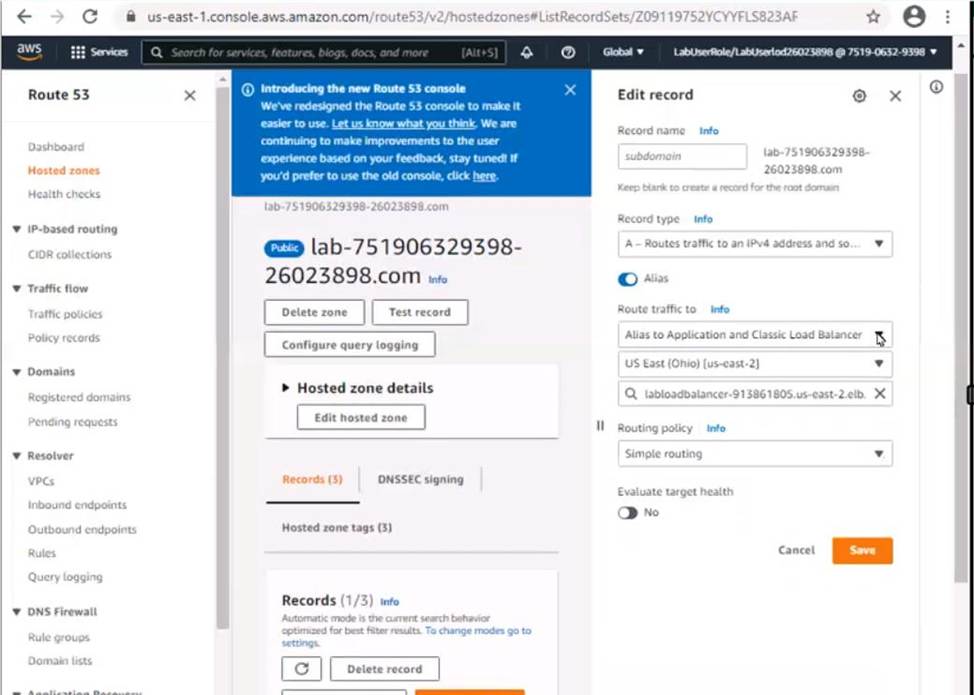
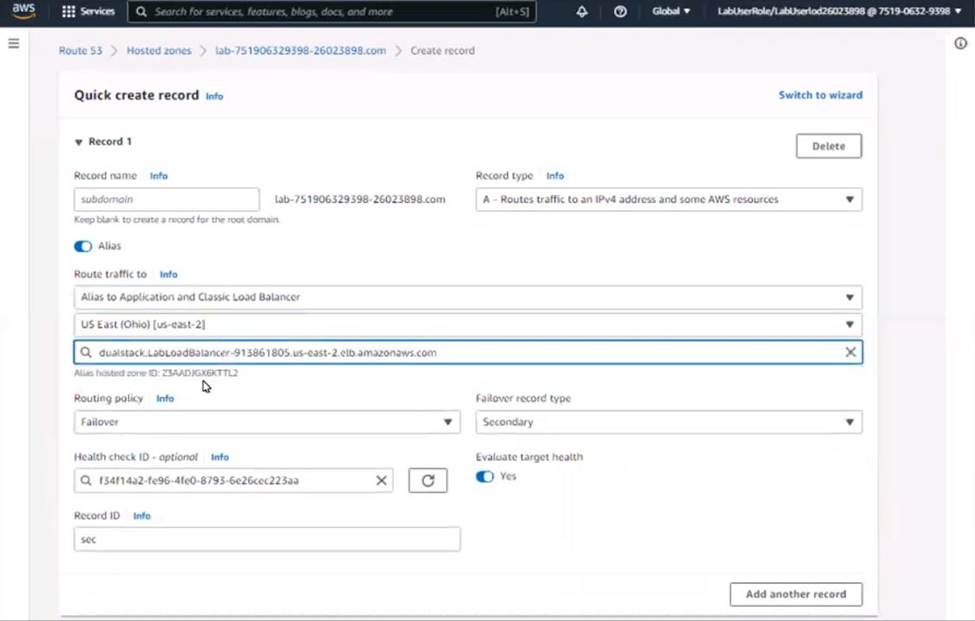
Create a new secondary failover alias record for the domain lab-751906329398-26023898.com that routes traffic to the existing 53 bucket.
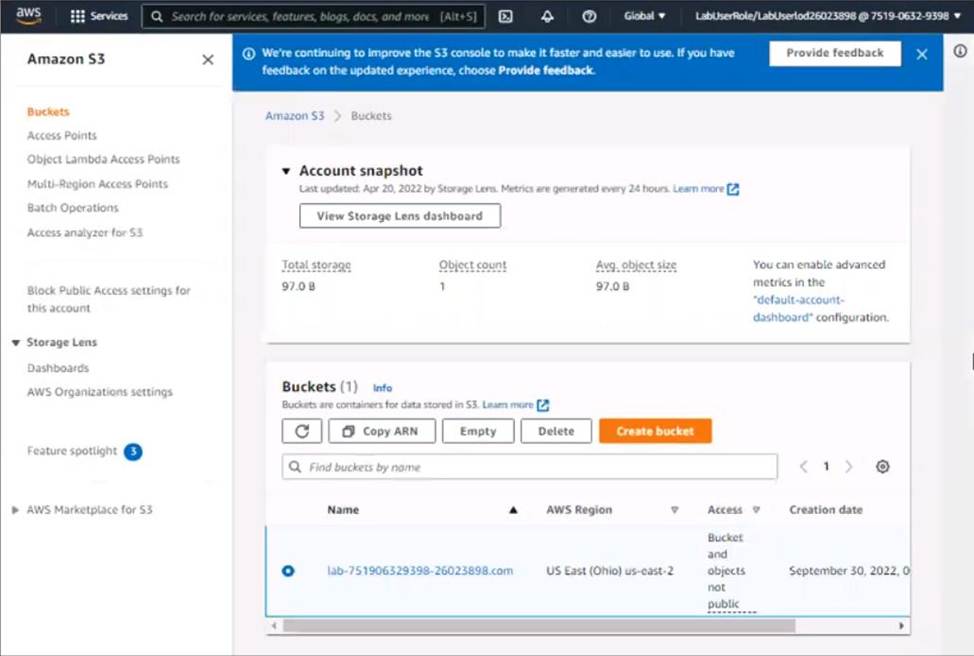
Log in to the AWS Management Console and navigate to the S3 service in the us-east-2 Region.
Find the existing S3 bucket named lab-751906329398-26023898.com and click on it.
In the "Properties" tab, click on "Static website hosting" and select "Use this bucket to host a website".
In "Index Document" field, enter the name of the object that you want to use as the index document, in this case, "index.html"
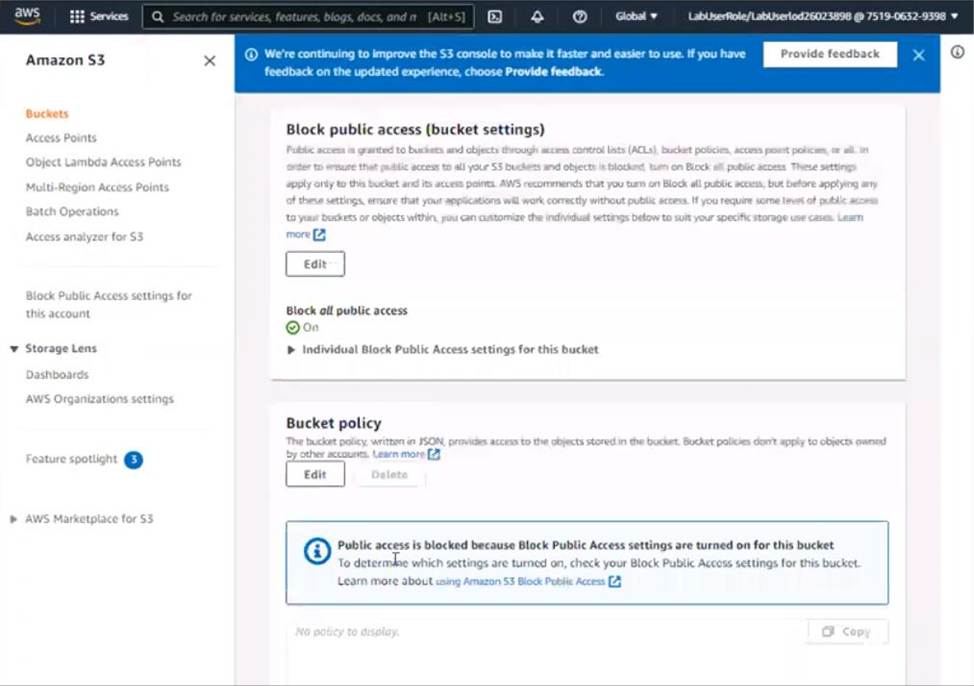
In the "Permissions" tab, click on "Block Public Access", and make sure that "Block all public access" is turned OFF.
Click on "Bucket Policy" and add the following policy to allow public read access:
{
"Version": "2012-10-17",
"Statement": [
{
"Sid": "PublicReadGetObject",
"Effect": "Allow",
"Principal": "*",
"Action": "s3:GetObject",
"Resource": "arn:aws:s3:::lab-751906329398-26023898.com/*"
}
]
}
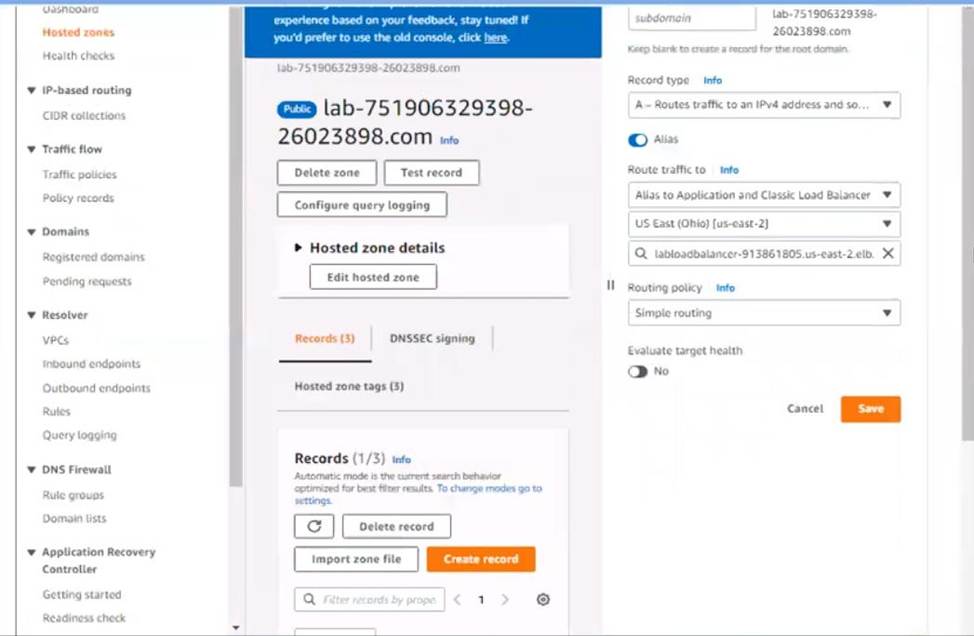
Now navigate to the Amazon Route 53 service, and find the existing hosted zone named lab-751906329398-26023898.com.
Click on the "A record" and update the routing policy to "Primary – Failover" and add the existing ALB as the primary record.
Click on "Create Record" button and create a new secondary failover alias record for the domain lab-751906329398-26023898.com that routes traffic to the existing S3 bucket.
Now, when the primary site (ALB) goes down, traffic will be automatically routed to the S3 bucket serving the static error page.
Note:
You can use CloudWatch to monitor the health of your ALB.
You can use Amazon S3 to host a static website.
You can use Amazon Route 53 for routing traffic to different resources based on health checks.
You can refer to the AWS documentation for more information on how to configure and use these services:
https://aws.amazon.com/s3/
https://aws.amazon.com/route53/
https://aws.amazon.com/cloudwatch/
A SysOps administrator is setting up a fleet of Amazon EC2 instances in an Auto Scaling group for an application. The fleet should have 50% CPU available at that times to accommodate bursts of traffic. The load will increase significantly between the hours of 09:00 and 17:00,7 days a week
How should the SysOps administrator configure the scaling of the EC2 instances to meet these requirements?
- A . Create a target tracking scaling policy that runs when the CPU utilization is higher than 90%
- B . Create a target tracking scaling policy that runs when the CPU utilization is higher than 50%. Create a scheduled scaling policy that ensures that the fleet is available at 09:00 Create a second scheduled scaling policy that scales in the fleet at 17:00
- C . Set the Auto Scaling group to start with 2 instances by setting the desired instances maximum instances, and minimum instances to 2 Create a scheduled scaling policy that ensures that the fleet is available at 09:00
- D . Create a scheduled scaling policy that ensures that the fleet is available at 09.00. Create a second scheduled scaling policy that scales in the fleet at 17:00
B
Explanation:
To meet the requirement of having 50% CPU available to accommodate bursts of traffic and to handle the significant load increase between 09:00 and 17:00, you need a combination of target tracking and scheduled scaling policies.
Target Tracking Scaling Policy:
Create a target tracking scaling policy that keeps the CPU utilization at 50%. This ensures that the fleet scales in or out to maintain the target CPU utilization.
This policy will ensure that the fleet scales automatically based on actual CPU usage, maintaining availability and performance.
Scheduled Scaling Policies:
First Policy: Create a scheduled scaling policy to scale out the fleet at 09:00 when the load increases.
In the AWS Management Console, navigate to the EC2 Auto Scaling Groups.
Select your Auto Scaling group and choose Actions > Edit.
Add a new scheduled action to increase the desired capacity at 09:00.
Second Policy: Create another scheduled scaling policy to scale in the fleet at 17:00 when the load decreases.
Similarly, add another scheduled action to decrease the desired capacity at 17:00.
This approach ensures that the fleet is prepared for the increased load during peak hours while maintaining efficient resource usage during off-peak times.
Reference: Target Tracking Scaling Policies
Scheduled Scaling
A company runs its web application on multiple Amazon EC2 instances that are part of an Auto Scaling group. The company wants the Auto Scaling group to scale out as soon as CPU utilization rises above 50% for the instances.
How should a SysOps administrator configure the Auto Scaling group to meet these requirements?
- A . Configure the Auto Scaling group to scale based on events.
- B . Configure the Auto Scaling group to scale based on a schedule.
- C . Configure the Auto Scaling group to scale dynamically based on demand.
- D . Configure the Auto Scaling group to use predictive scaling.
C
Explanation:
To ensure that the Auto Scaling group scales out when CPU utilization rises above 50%, the administrator should configure the Auto Scaling group to dynamically scale based on demand. This is achieved by setting up a scaling policy that triggers based on specific CloudWatch alarms―like CPU utilization exceeding 50%. This dynamic scaling method directly responds to changes in workload, ensuring that resources are allocated efficiently and promptly as demand increases. Option C is the correct answer, aligning with best practices for managing EC2 Auto Scaling based on real-time metrics. Further guidance is available in AWS documentation on dynamic scaling Dynamic Scaling for EC2.
A company plans to deploy a database on an Amazon Aurora MySQL DB cluster. The database will store data for a demonstration environment. The data must be reset on a daily basis.
What is the MOST operationally efficient solution that meets these requirements?
- A . Create a manual snapshot of the DB cluster after the data has been populated. Create an Amazon EventBridge (Amazon CloudWatch Events) rule to invoke an AWS Lambda function on a daily basis. Configure the function to restore the snapshot and then delete the previous DB cluster.
- B . Enable the Backtrack feature during the creation of the DB cluster. Specify a target backtrack window of 48 hours. Create an Amazon EventBridge (Amazon CloudWatch Events) rule to invoke an AWS Lambda function on a daily basis. Configure the function to perform a backtrack operation.
- C . Export a manual snapshot of the DB cluster to an Amazon S3 bucket after the data has been populated. Create an Amazon EventBridge (Amazon CloudWatch Events) rule to invoke an AWS Lambda function on a daily basis. Configure the function to restore the snapshot from Amazon S3.
- D . Set the DB cluster backup retention period to 2 days. Create an Amazon EventBridge (Amazon CloudWatch Events) rule to invoke an AWS Lambda function on a daily basis. Configure the function to restore the DB cluster to a point in time and then delete the previous DB cluster.
D
Explanation:
Create an Amazon EventBridge (Amazon CloudWatch Events) rule to invoke an AWS Lambda function on a daily basis. Configure the function to restore the DB cluster to a point in time and then delete the previous DB cluster. This is the most operationally efficient solution that meets the requirements, as it will allow the company to reset the database on a daily basis without having to manually take and restore snapshots. The other solutions (creating a manual snapshot of the DB cluster, enabling the Backtrack feature, or exporting a manual snapshot of the DB cluster to Amazon S3) will require additional steps and resources to reset the database on a daily basis.
A SysOps administrator has an AWS CloudFormation template of the company’s existing infrastructure in us-west-2. The administrator attempts to use the template to launch a new stack in eu-west-1, but the stack only partially deploys, receives an error message, and then rolls back.
Why would this template fail to deploy? (Select TWO.)
- A . The template referenced an IAM user that is not available in eu-west-1.
- B . The template referenced an Amazon Machine Image (AMI) that is not available in eu-west-1.
- C . The template did not have the proper level of permissions to deploy the resources.
- D . The template requested services that do not exist in eu-west-1.
- E . CloudFormation templates can be used only to update existing services.
BD
Explanation:
When attempting to deploy a CloudFormation template from one region (us-west-2) to another (eu-west-1), the deployment might fail due to region-specific resources and services.
Amazon Machine Image (AMI) Availability:
AMIs are region-specific. If the template references an AMI that is only available in us-west-2 and not in eu-west-1, the stack will fail to deploy in eu-west-1.
To resolve this, identify the AMI used in us-west-2 and find or create a similar AMI in eu-west-1.
Service Availability:
Some AWS services are not available in all regions. If the template includes resources or services that are not available in eu-west-1, the stack will fail.
Check the AWS Regional Services List to ensure all services and resource types in the template are available in eu-west-1.
Reference: Copy an AMI
AWS Regional Services List
A company is running Amazon EC2 On-Demand Instances in an Auto Scaling group. The instances process messages from an Amazon Simple Queue Service (Amazon SQS) queue. The Auto Scaling group is set to scale based on the number of messages in the queue. Messages can take up to 12 hours to process completely. A SysOps administrator must ensure that instances are not interrupted during message processing.
What should the SysOps administrator do to meet these requirements?
- A . Enable instance scale-in protection for the specific instance in the Auto Scaling group at the start of message processing by calling the Amazon EC2 Auto Scaling API from the processing script. Disable instance scale-in protection after message processing is complete by calling the Amazon EC2 Auto Scaling API from the processing script.
- B . Set the Auto Scaling group’s termination policy to OldestInstance.
- C . Set the Auto Scaling group’s termination policy to OldestLaunchConfiguration.
- D . Suspend the Launch and Terminate scaling processes for the specific instance in the Auto Scaling group at the start of message processing by calling the Amazon EC2 Auto Scaling API from the processing script. Resume the scaling processes after message processing is complete by calling the Amazon EC2 Auto Scaling API from the processing script.
A
Explanation:
# Enable instance scale-in protection for specific instance.
aws autoscaling set-instance-protection –instance-ids i-5f2e8a0d –auto-scaling-group-name my-asg – -protected-from-scale-in
# Disable instance scale-in protection for the specified instance.
aws autoscaling set-instance-protection –instance-ids i-5f2e8a0d –auto-scaling-group-name my-asg – -no-protected-from-scale-in
https://docs.aws.amazon.com/autoscaling/ec2/userguide/ec2-auto-scaling-instance-protection.html
To ensure that EC2 instances in an Auto Scaling group are not interrupted during message processing, the most effective method is to implement scale-in protection for the instances while they are actively processing messages. This can be done programmatically by modifying the Auto Scaling group’s settings using the Amazon EC2 Auto Scaling API.
Starting Message Processing: When an instance begins processing a message, your application should make an API call to enable scale-in protection. This is done using the SetInstanceProtection
action, setting the ProtectedFromScaleIn parameter to true for that specific instance.
Completing Message Processing: Once the message has been processed, another API call should be made to disable scale-in protection. This is done by calling the SetInstanceProtection action again, but this time setting the ProtectedFromScaleIn parameter to false.
This method ensures that while messages are being processed, the instances are not terminated by the Auto Scaling group regardless of any scale-in activities that might be triggered by other parameters like CPU utilization or a decrease in the number of messages in the queue.
AWS Documentation
Reference: You can refer to the AWS documentation on managing instance scale-in protection in Auto Scaling groups for more details: Instance Scale-In Protection.
A Sysops administrator launches an Amazon EC2 instance from a Windows Amazon Machine Image (AMI). The EC2 instance includes additional Amazon Elastic Block Store (Amazon EBS) volumes. When the instance is launched, none of the additional Amazon Elastic Block Store (Amazon EBS) volumes are initialized and ready for use through a drive letter. The SysOps administrator needs to automate the EBS volume initialization.
Which solution will meet these requirements in the MOST operationally efficient way?
- A . Create an Amazon EventBridge rule. Configure an AWS Systems Manager Automation
runbook as a target of the EventBridge rule to initialize the disks after an EC2 instance launch event. - B . Create an AmazolkventBridge rule. Configure an AWS Lambda function as a target of the EventBridge rule to initialize the drives after the AMI is launched.
- C . Create an AWS Config rule to automatically initialize the EBS volumes on Windows EC2 instances.
- D . Add the secondary volume configuration to the DriveLetterMappingConfig.json file. Configure the InitializeDisks.ps1 Windows PowerShell script to run at launch. Create a new AMI from the running EC2 instance.
D
Explanation:
To automate the initialization of additional EBS volumes on Windows EC2 instances, the most effective approach is to integrate initialization scripts within the instance so that they execute upon startup:
Configure Initialization Script: Use a Windows PowerShell script (InitializeDisks.ps1) to initialize and format the additional EBS volumes. The script can assign drive letters based on configurations specified in DriveLetterMappingConfig.json.
Automate at Launch: Ensure that the PowerShell script runs automatically upon instance startup. This can be configured through Windows Task Scheduler or by setting it up in the startup folder.
Create a Custom AMI: Once the instance is configured with the script and successfully initializes the disks on startup, create a new AMI from this setup. This AMI can then be used to launch new instances that will automatically initialize their additional EBS volumes with no manual intervention required.
This method leverages native Windows tools and AWS capabilities to automate EBS volume initialization, enhancing operational efficiency without additional external dependencies.
A large company is using AWS Organizations to manage its multi-account AWS environment. According to company policy, all users should have read-level access to a particular Amazon S3 bucket in a central account. The S3 bucket data should not be available outside the organization. A SysOps administrator must set up the permissions and add a bucket policy to the S3 bucket.
Which parameters should be specified to accomplish this in the MOST efficient manner?
- A . Specify ‘*’ as the principal and PrincipalOrgld as a condition.
- B . Specify all account numbers as the principal.
- C . Specify PrincipalOrgld as the principal.
- D . Specify the organization’s management account as the principal.
A
Explanation:
To ensure that all users within the AWS Organization have read-level access to a specific Amazon S3 bucket, while preventing access outside the organization, you can specify a wildcard principal ("Principal": "*") and use the PrincipalOrgId condition key in the bucket policy.
Specify the Principal:
Use "Principal": "*". This means that any principal can access the bucket, but the actual access will be controlled by the condition.
Add Condition with PrincipalOrgId:
Add a condition to restrict access based on the PrincipalOrgId. This condition ensures that only the principals from the specified AWS Organization can access the bucket.
Example bucket policy:
{
"Version": "2012-10-17",
"Statement": [
{
"Effect": "Allow",
"Principal": "*",
"Action": "s3:GetObject",
"Resource": "arn:aws:s3:::bucket-name/*",
"Condition": {
"StringEquals": {
"aws:PrincipalOrgID": "o-exampleorgid"
}
}
}
]
}
Reference: Bucket Policy Examples
This approach ensures that all users within the organization have the required access while blocking access from outside the organization.